Bulk-Importing Employees
Bulk-Importing Employees
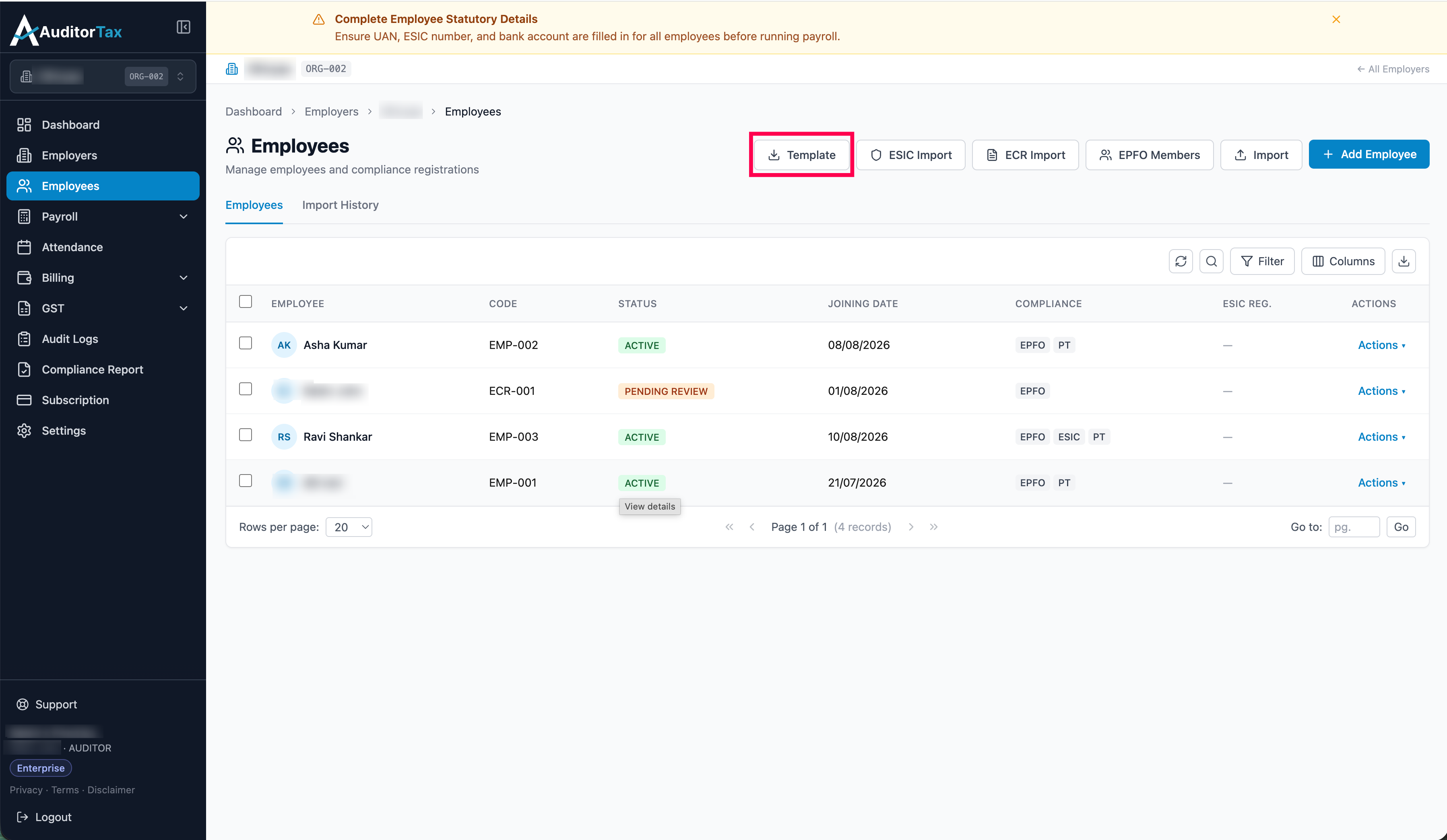
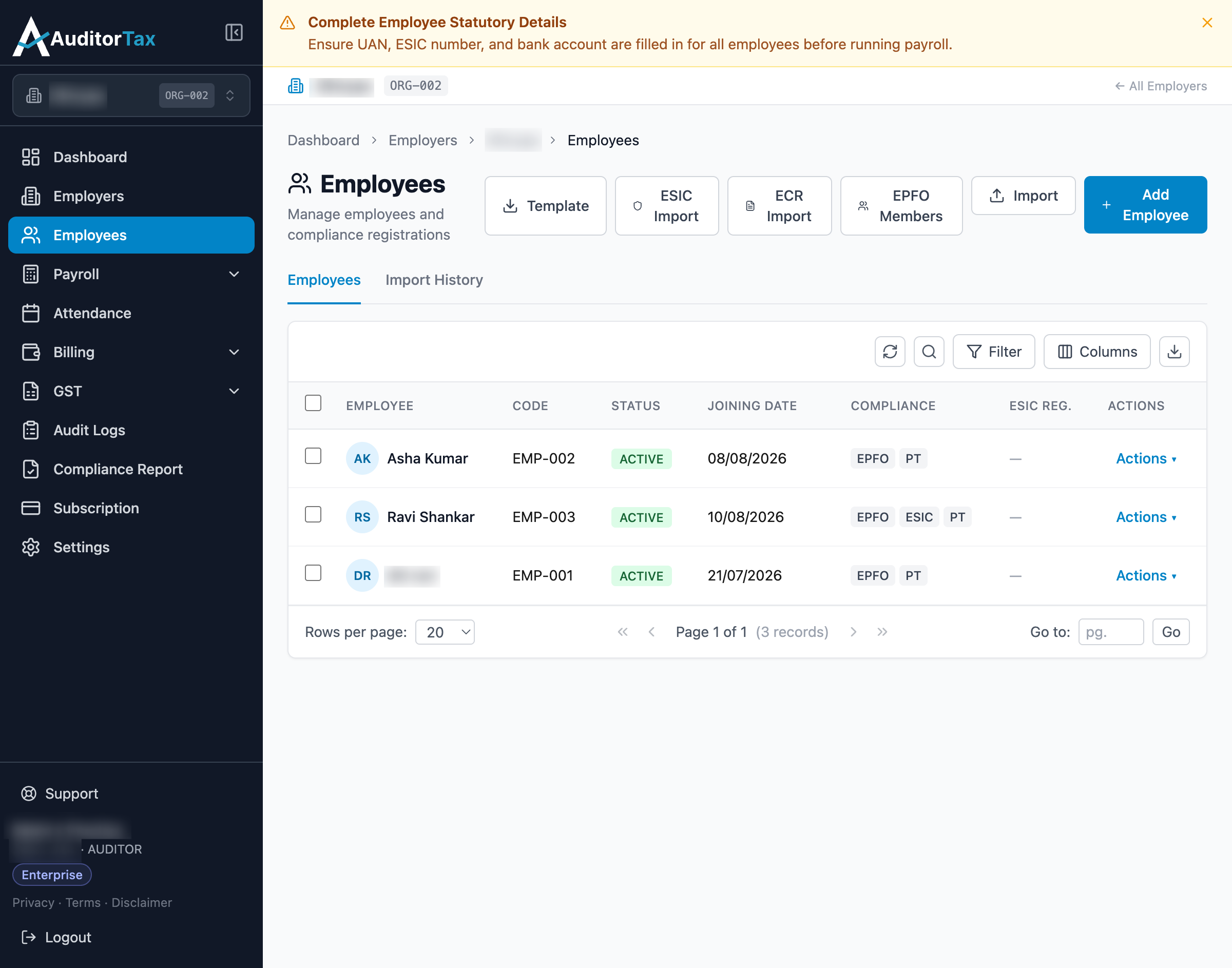
Section titled “Bulk-Importing Employees”Instead of using Add Employee for each person, the Employees list has a file-based bulk-create option, reached from buttons across the top of the list.
1. Click “Template” to get a starting file
Section titled “1. Click “Template” to get a starting file”Downloads a spreadsheet template shaped for the general bulk-import format below — the same template is also linked from the Import page itself.
2. Click “Import” for a general CSV/Excel bulk upload
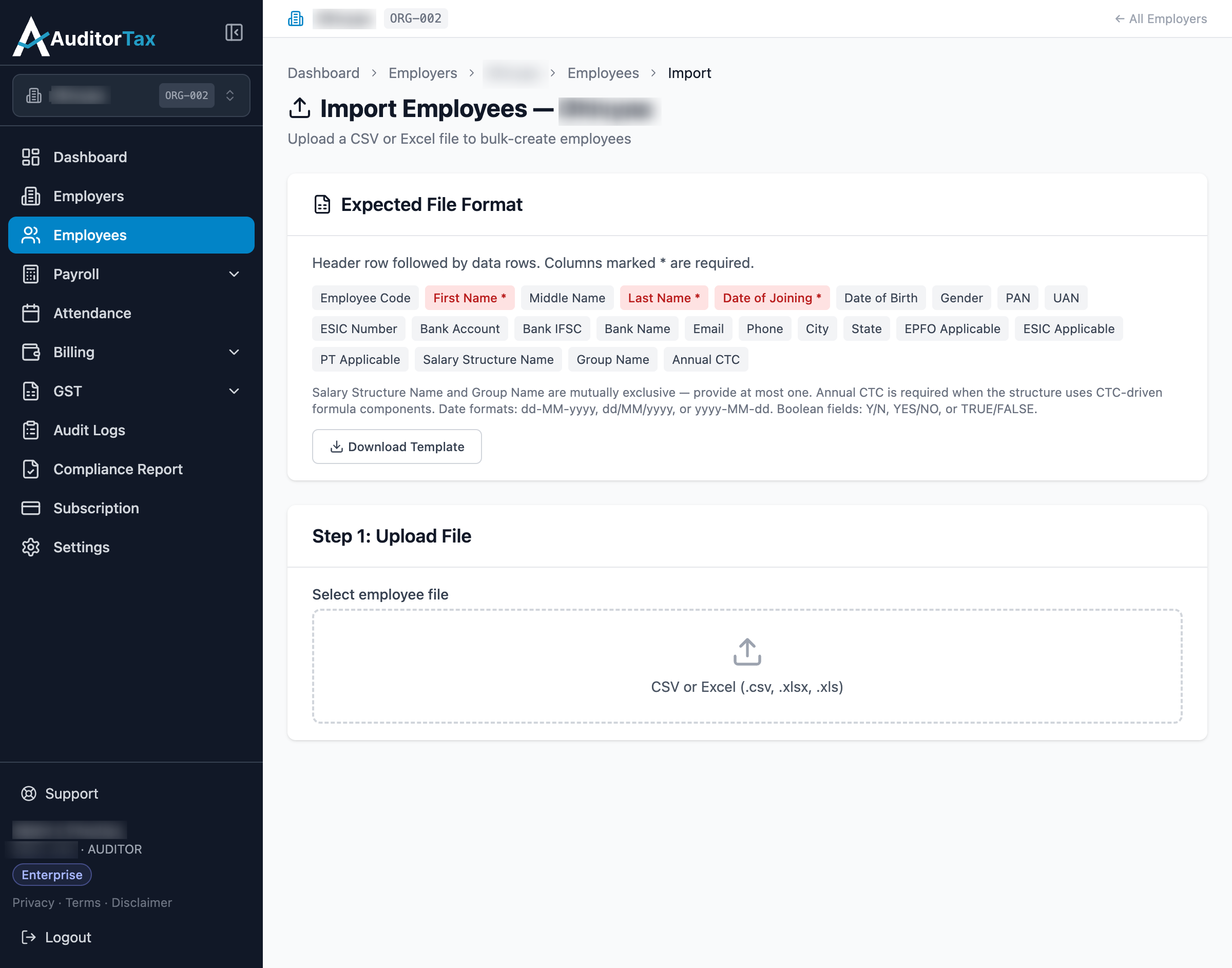
Section titled “2. Click “Import” for a general CSV/Excel bulk upload”The Import page lists every expected column (Employee Code, First
Name*, Last Name*, Date of Joining*, PAN, UAN, bank details, Salary
Structure Name or Group Name, Annual CTC, and more — columns marked *
are required) and accepts a .csv, .xlsx, or .xls file.
3. Select your file
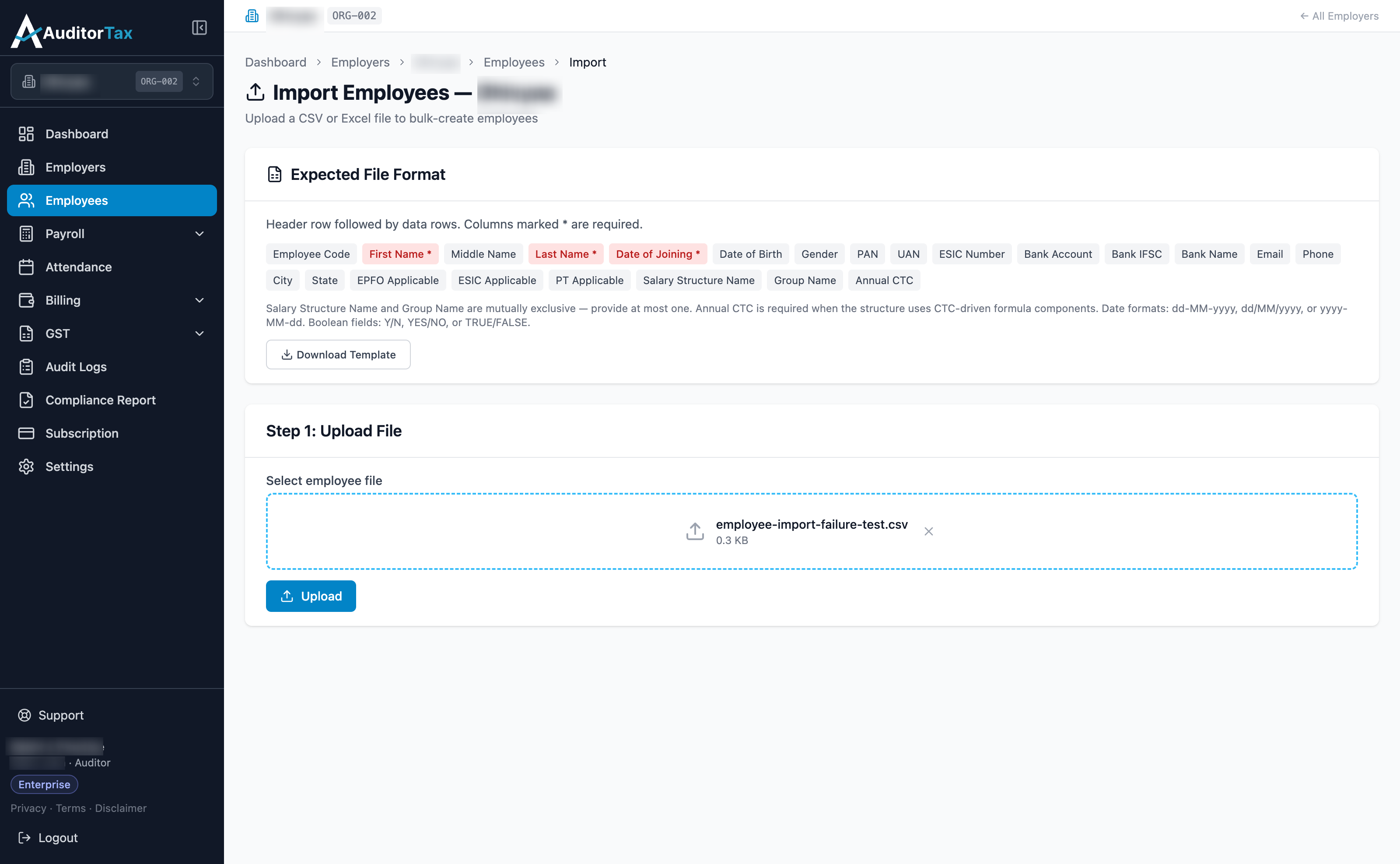
Section titled “3. Select your file”Clicking the upload area opens your computer’s file picker. Once selected, the file name and size appear with an “Upload” button.
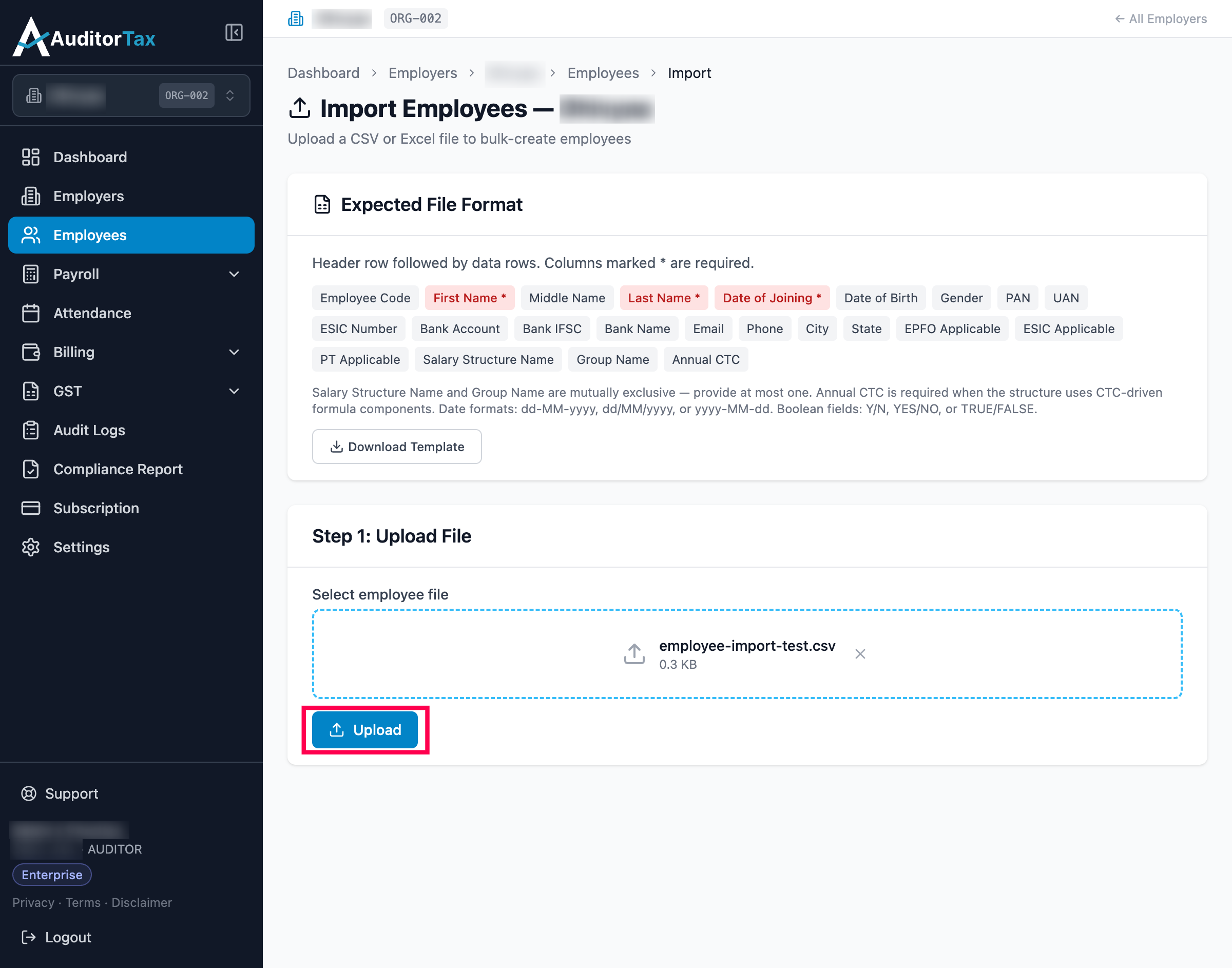
4. Click “Upload”
Section titled “4. Click “Upload””Once the file is accepted, a “Step 2: Import Employees” section appears with its own “Import Employees” button — the upload and the actual import are two separate steps.
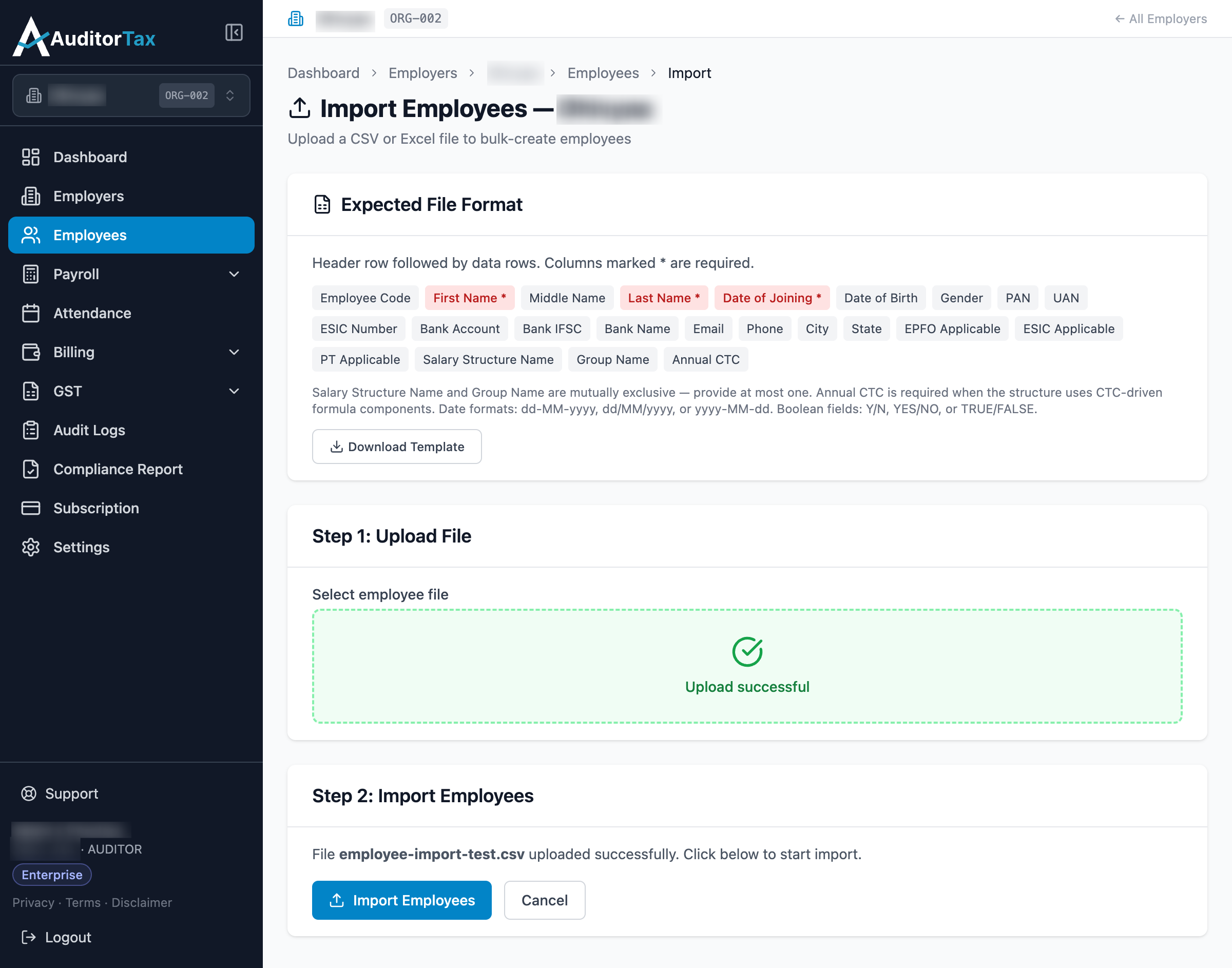
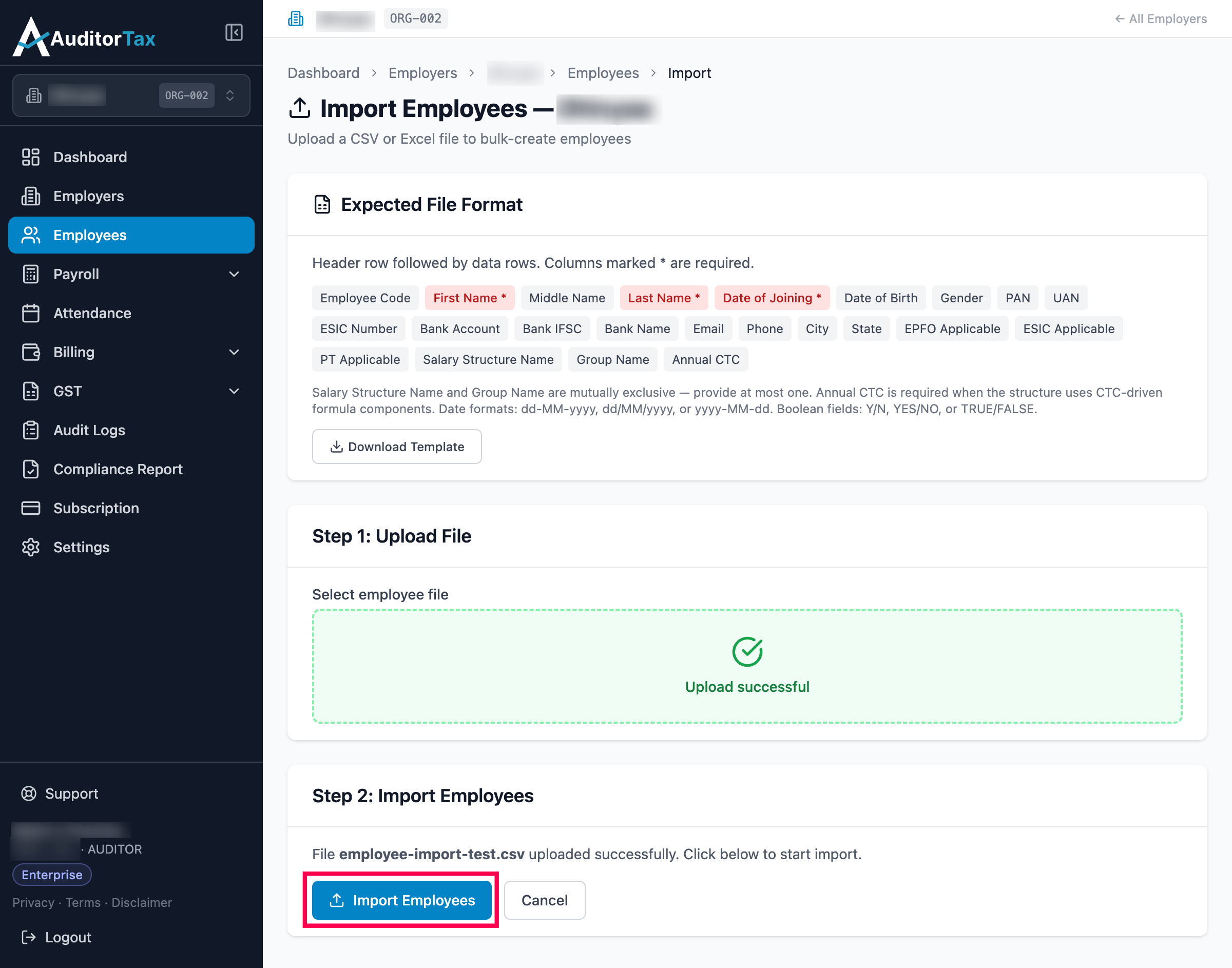
5. Click “Import Employees”
Section titled “5. Click “Import Employees””This is what actually creates the employee records from the file.
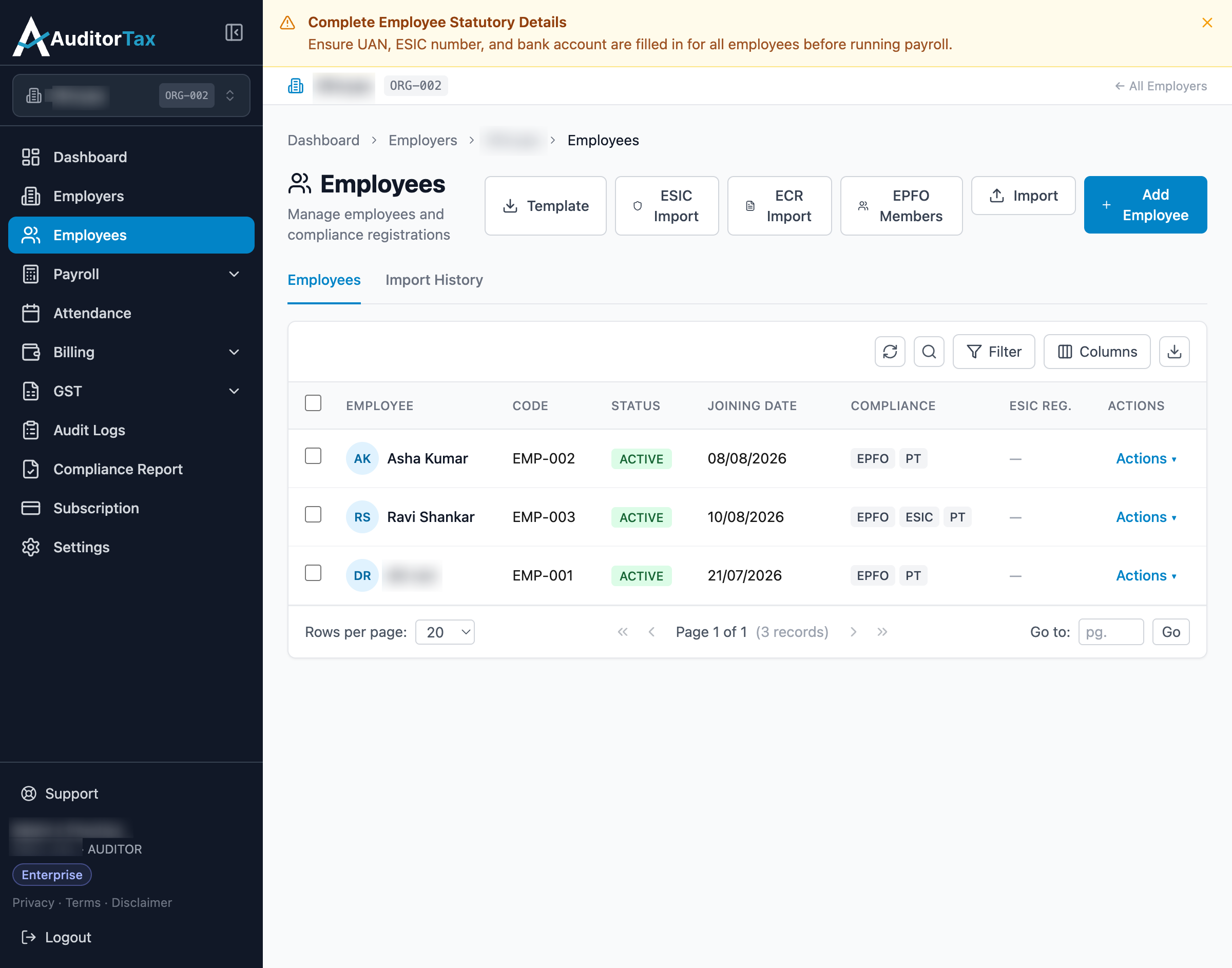
Outcome: with a file where every row is valid, AuditorTax shows “Import Complete” with a count of employees imported, then redirects to the Employees list a moment later. The new employee appears with an auto-generated code and status ACTIVE — the same as one added through Add Employee.
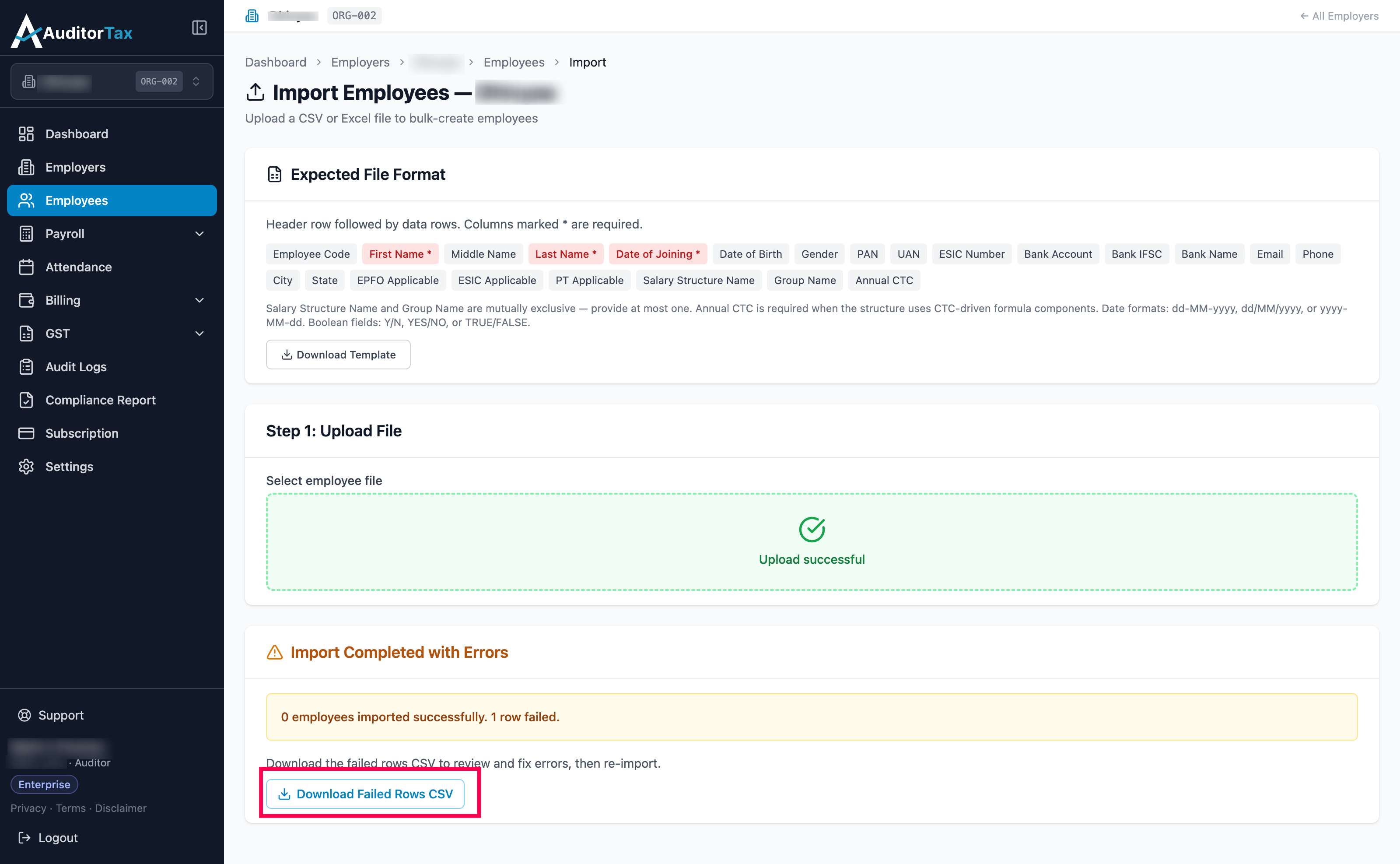
Blocked: In the uploaded file a row should have every field this page marks required — First Name, Last Name, Date of Joining. The import failed since Date of Birth is left blank.
When that happens, AuditorTax shows “Import Completed with Errors”: 0 of 1 rows imported, 1 row failed, and no employee is created.
To find out what failed, click “Download Failed Rows CSV” — it
re-downloads your file with an extra error_reason column added, which
reads “Row 2: date_of_birth is required”. Fix the issue and
re-upload the file.