Employee Income Tax (TDS) Details
Employee Income Tax (TDS) Details
Section titled “Employee Income Tax (TDS) Details”Every employee has a TDS (Tax Deducted at Source, under Section 192) page showing how much income tax AuditorTax is projecting and deducting from their salary for the financial year, comparing the Old and New tax regimes. From the same page you can override which regime applies to this one employee and declare the deductions (80C, HRA, home-loan interest, and so on) that actually change what gets deducted from their payslips.
1. Open the employee’s TDS page, either of two ways
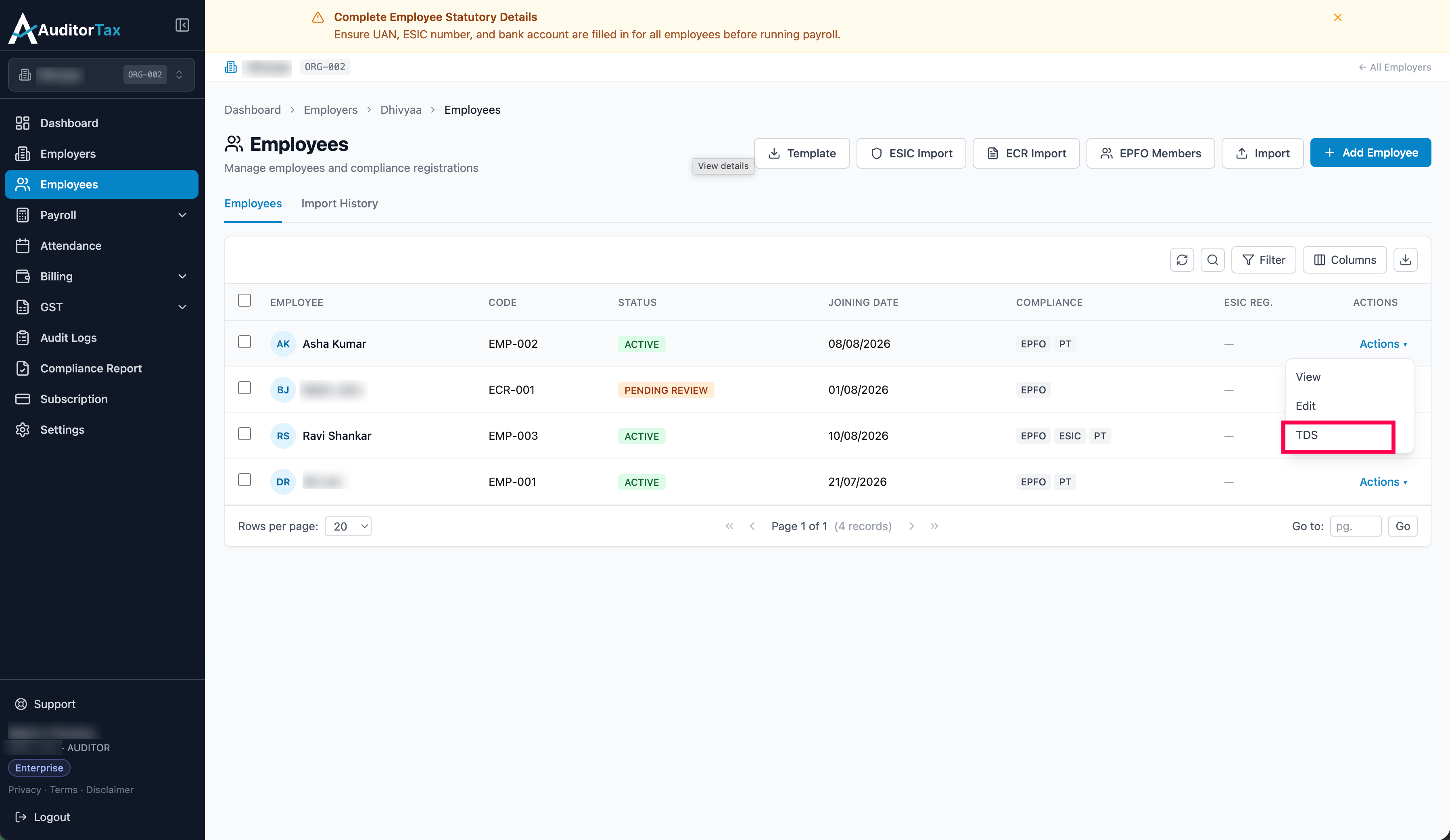
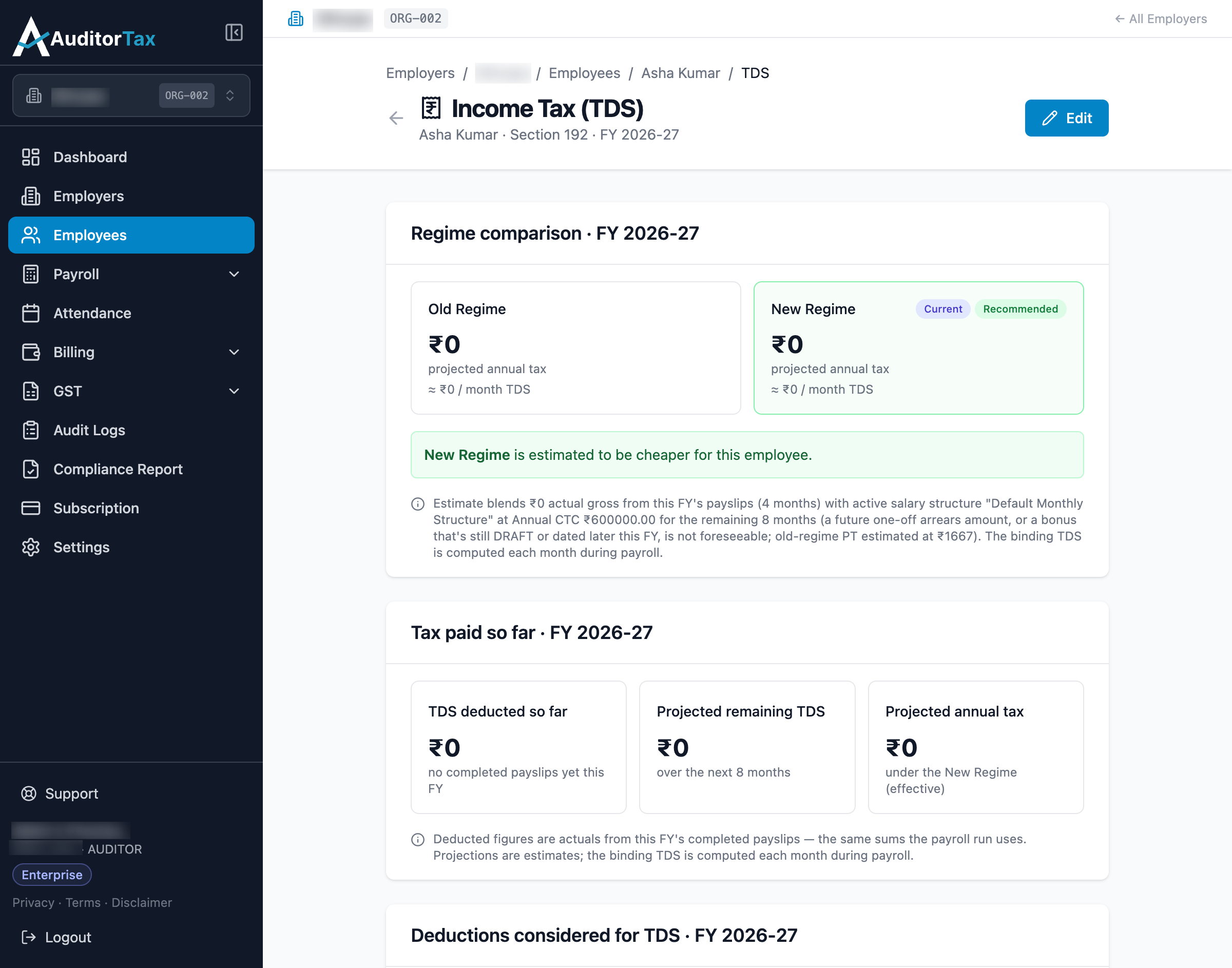
Section titled “1. Open the employee’s TDS page, either of two ways”Option A: Click “Actions ▾” on the employee’s row, then “TDS”
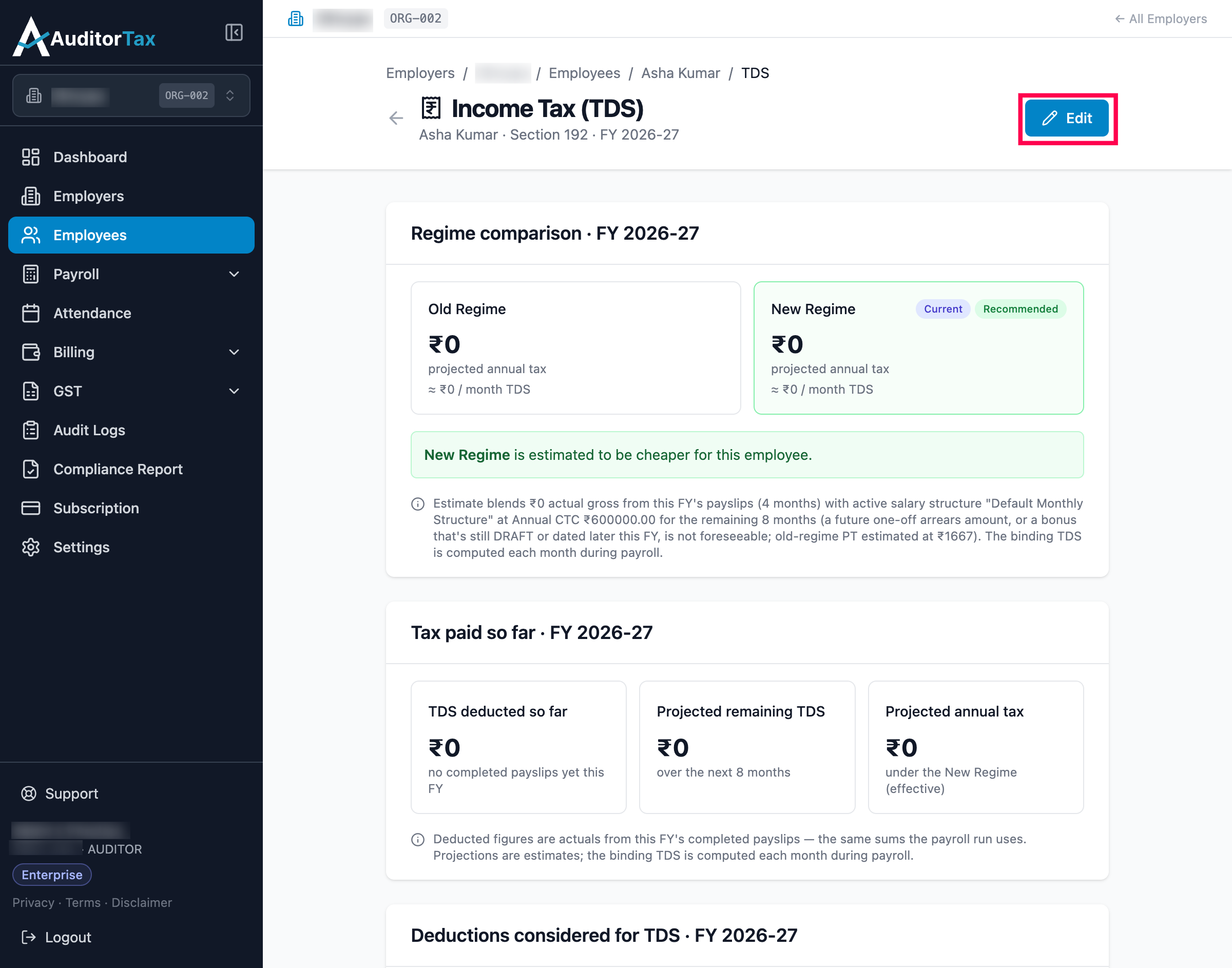
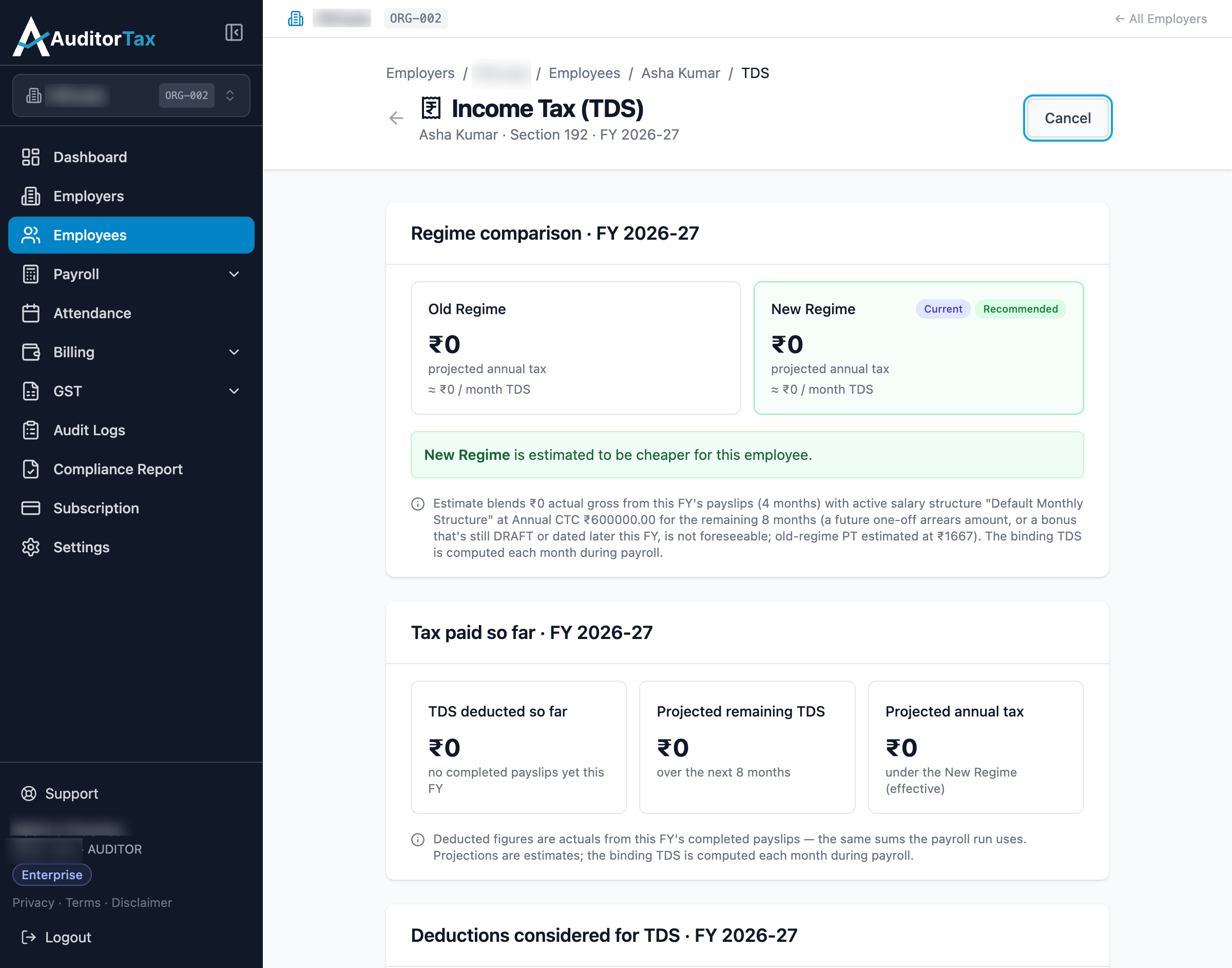
This opens the employee’s Income Tax (TDS) page for the current financial year: a regime comparison (Old vs. New), tax paid so far from completed payslips, projected remaining tax, and any deductions considered (e.g. Employer NPS under 80CCD(2)). The same page is also reachable from the “TDS” tab on the employee’s detail page.
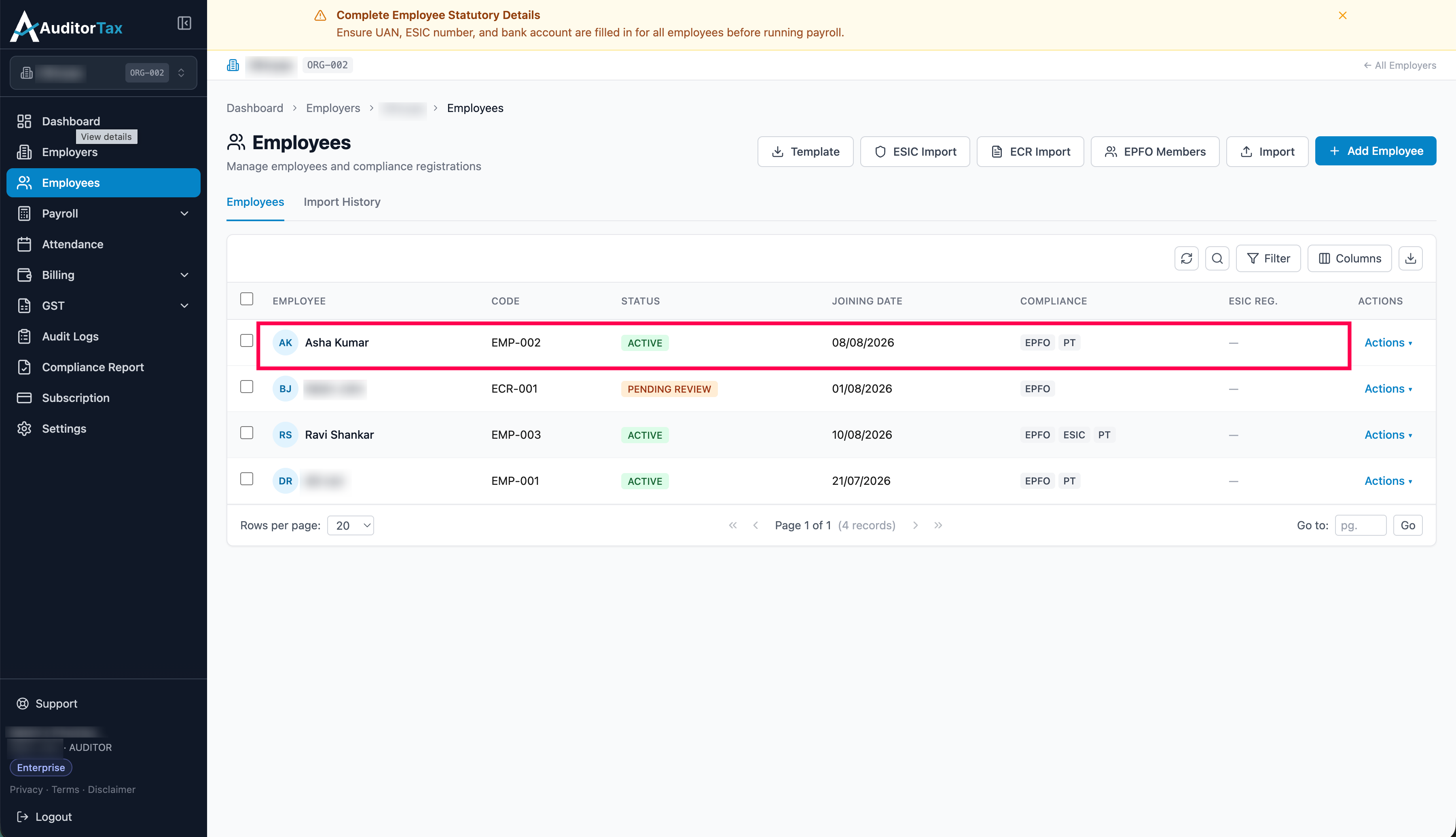
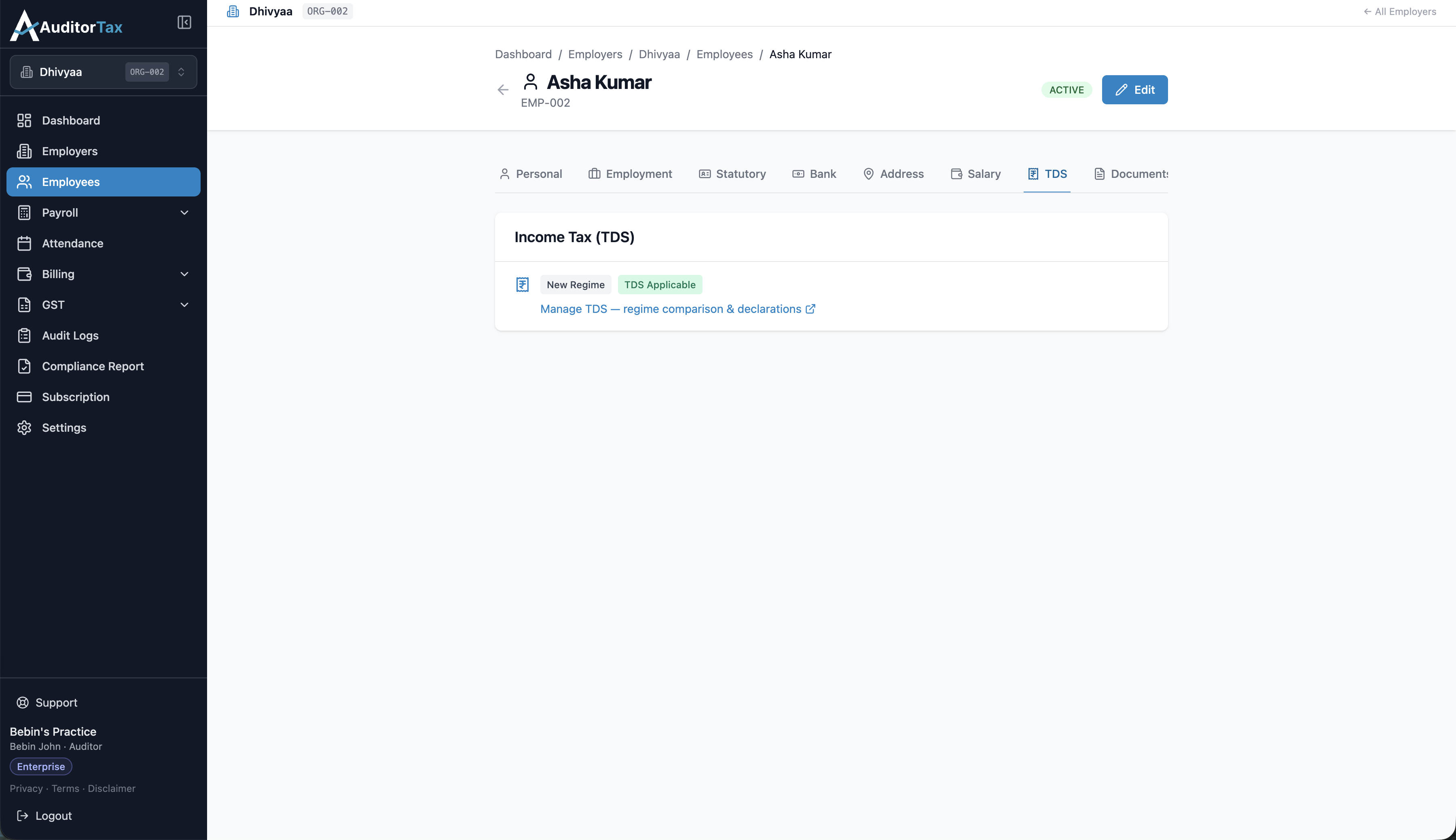
Option B: Click the employee’s name row to open their employee view page, then click the TDS option in the employee’s detail page.
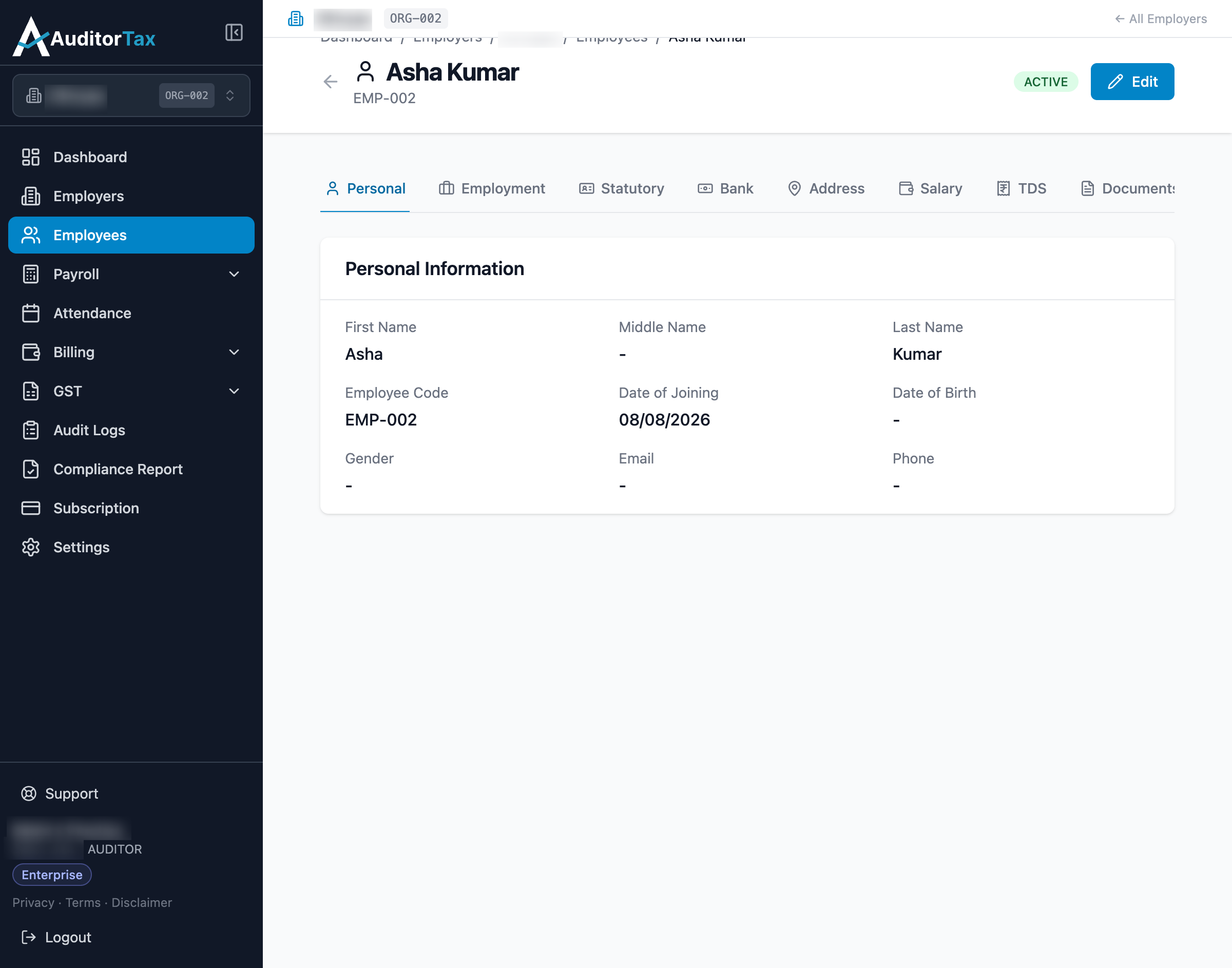
After clicking the TDS option in the employee’s detail page, the TDS section is displayed. Click the TDS — regime comparison & declarations button
2. Click “Edit” in the top right
Section titled “2. Click “Edit” in the top right”This turns the read-only page into a form: whether TDS applies to this employee at all, a Tax Regime override, an Employer NPS (80CCD(2)) contribution field, and — for someone who joined partway through the tax year — their previous employer’s taxable salary and TDS already deducted, from Form 12B.
3. Choose a Tax Regime
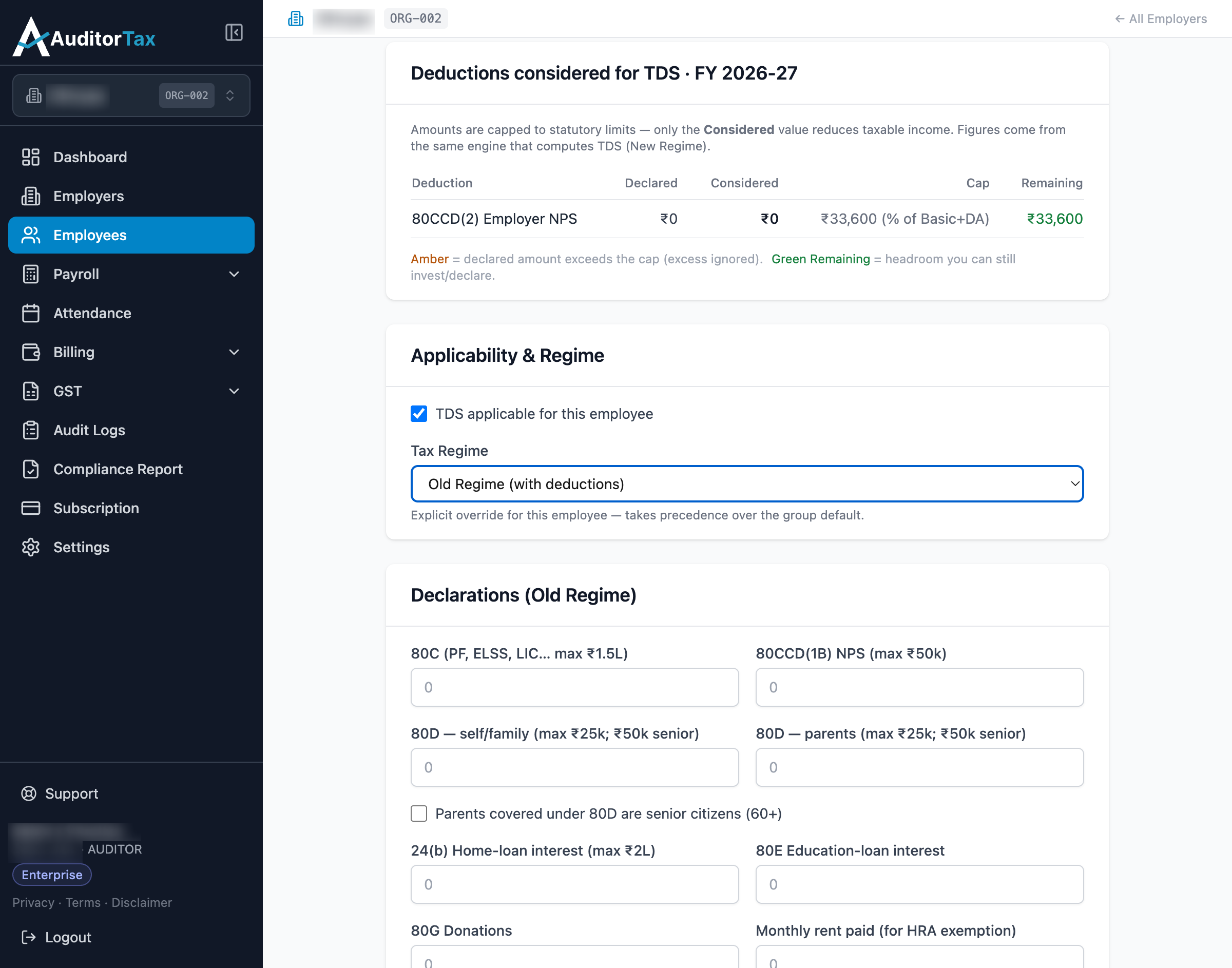
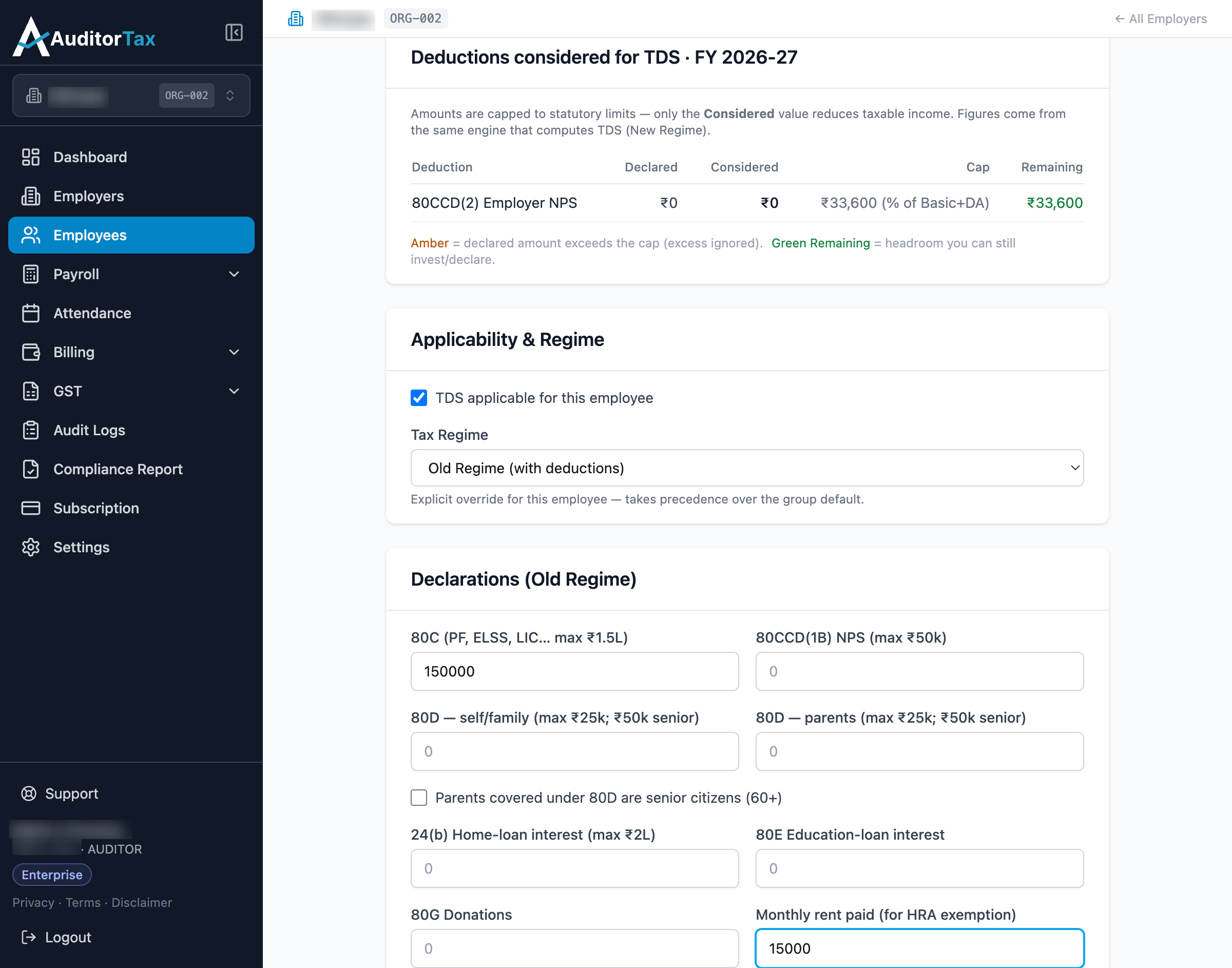
Section titled “3. Choose a Tax Regime”The default is “Inherit from group” — whatever the employee’s group is set to. Choosing “Old Regime (with deductions)” here overrides that for this employee specifically, and reveals a full set of Old Regime declaration fields that aren’t shown for the New Regime: 80C, 80CCD(1B) NPS, 80D (self/family and parents, with a senior-citizen checkbox), 24(b) home-loan interest, 80E education-loan interest, 80G donations, and monthly rent paid with a metro/non-metro toggle (for HRA exemption).
4. Fill in the declarations that apply to this employee
Section titled “4. Fill in the declarations that apply to this employee”Each field is capped to its statutory limit — the read-only page will later show what you declared next to what was actually “Considered” after the cap. Here, 80C is set to ₹1,50,000 and monthly rent to ₹15,000.
5. Click “Save TDS Configuration”
Section titled “5. Click “Save TDS Configuration””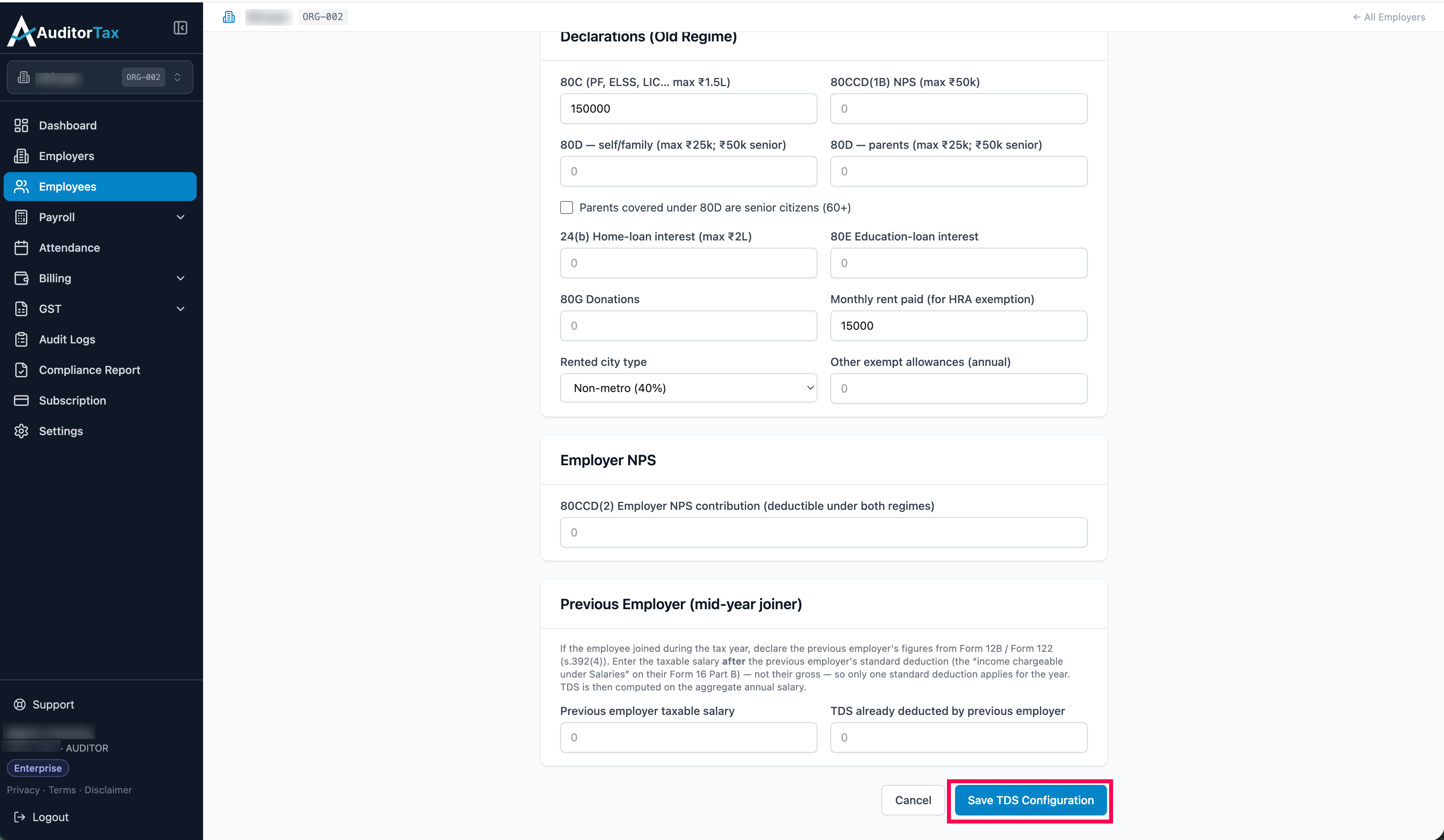
Outcome: a “TDS configuration saved. It applies to upcoming payroll
runs.” confirmation appears, and the read-only page updates throughout —
Old Regime is now labeled “Current” in the regime comparison, “Tax
Regime (effective)” reads “Old Regime · employee override” under
Configuration, and the Declarations table lists what you entered (80C
₹1,50,000, Monthly rent (HRA) ₹15,000) next to every other Old Regime
field, shown as — where nothing was declared.
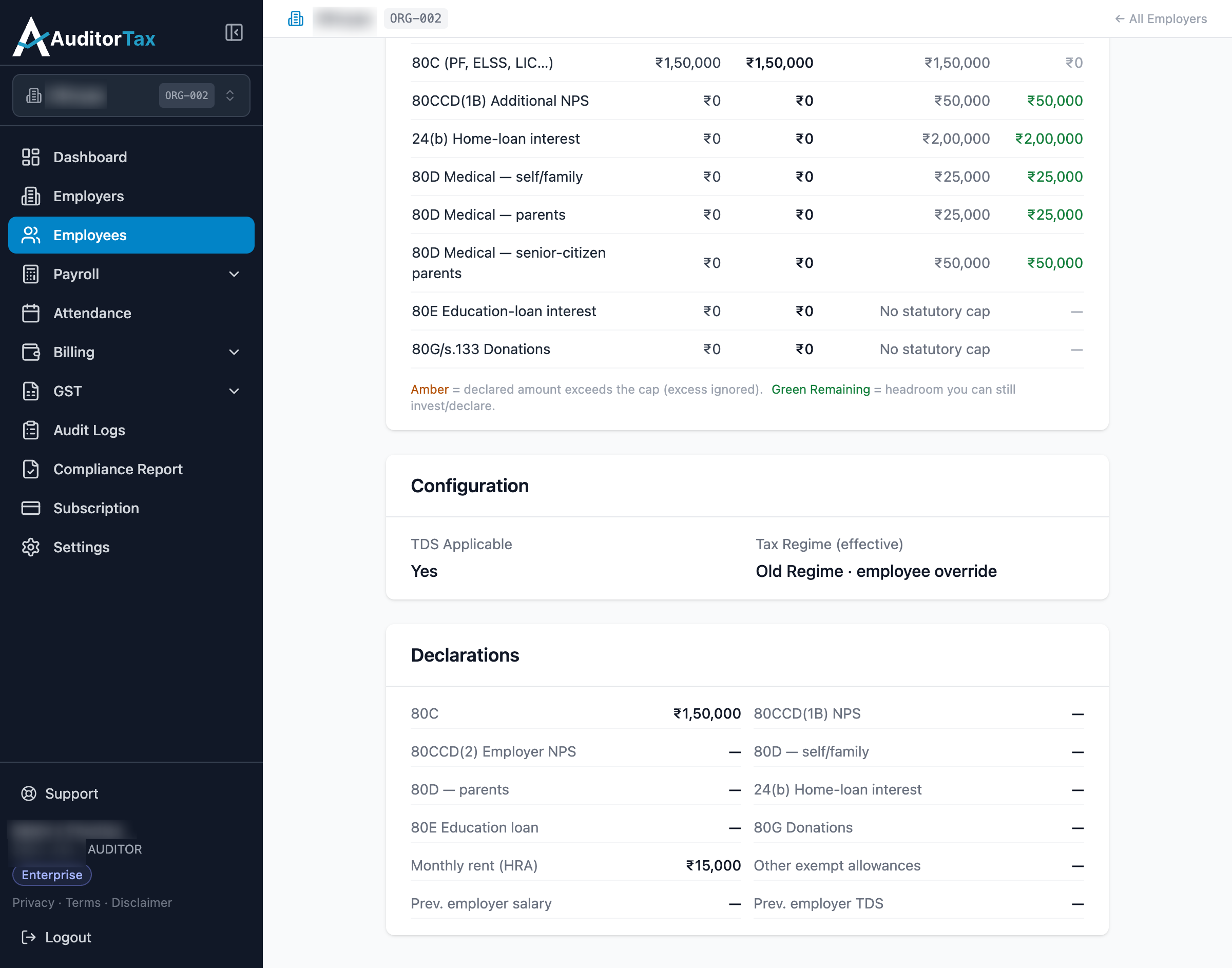
One detail worth flagging: the Employer NPS (80CCD(2)) cap shown on the page changed from ₹33,600 under the New Regime to ₹24,000 under the Old Regime, even though both are labeled ”% of Basic+DA” — this walkthrough didn’t dig into why the percentage itself differs by regime.