Switching Between Employers
Switching Between Employers
Section titled “Switching Between Employers”Almost every screen in AuditorTax — Employees, Payroll Runs, Salary Structures, Attendance, Challans — shows data for exactly one employer at a time, not a blended view across all of them. That’s deliberate: an employer’s PAN, GSTIN, EPFO/ESIC codes, and payroll records are legally that establishment’s own records, and keeping them siloed per employer is what makes the audit trail and statutory filings trustworthy for each one individually. A Chartered Accountant with ten clients doesn’t get ten separate logins, though — instead, one account holds all ten employers, and the switcher is how you tell AuditorTax which one you’re currently working in. Switching doesn’t log you out or lose your place elsewhere; it just changes which employer every employer-scoped screen in the sidebar now points to.
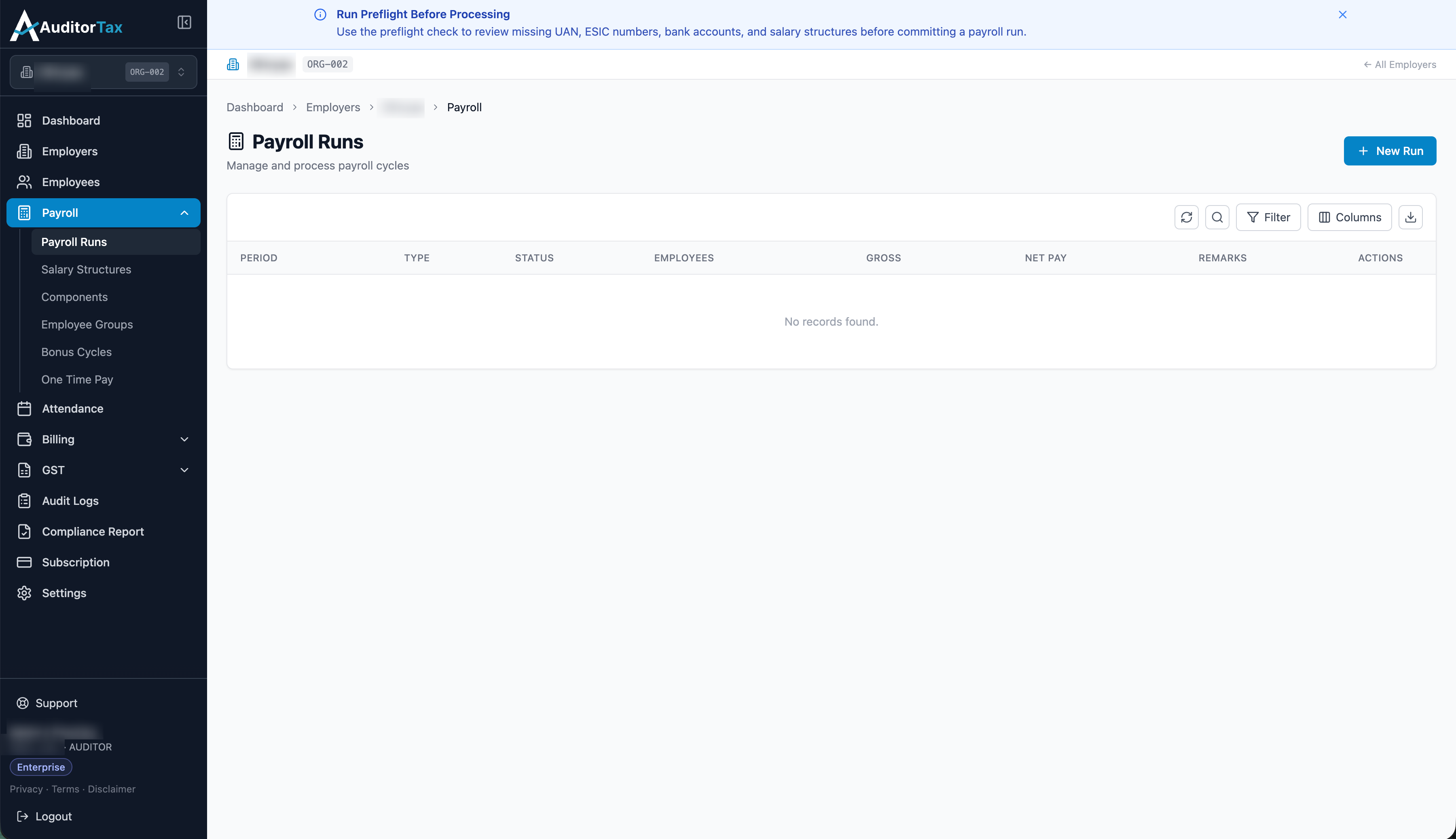
1. Click the employer name at the top of the sidebar
Section titled “1. Click the employer name at the top of the sidebar”It always shows your currently-selected employer’s name and code.
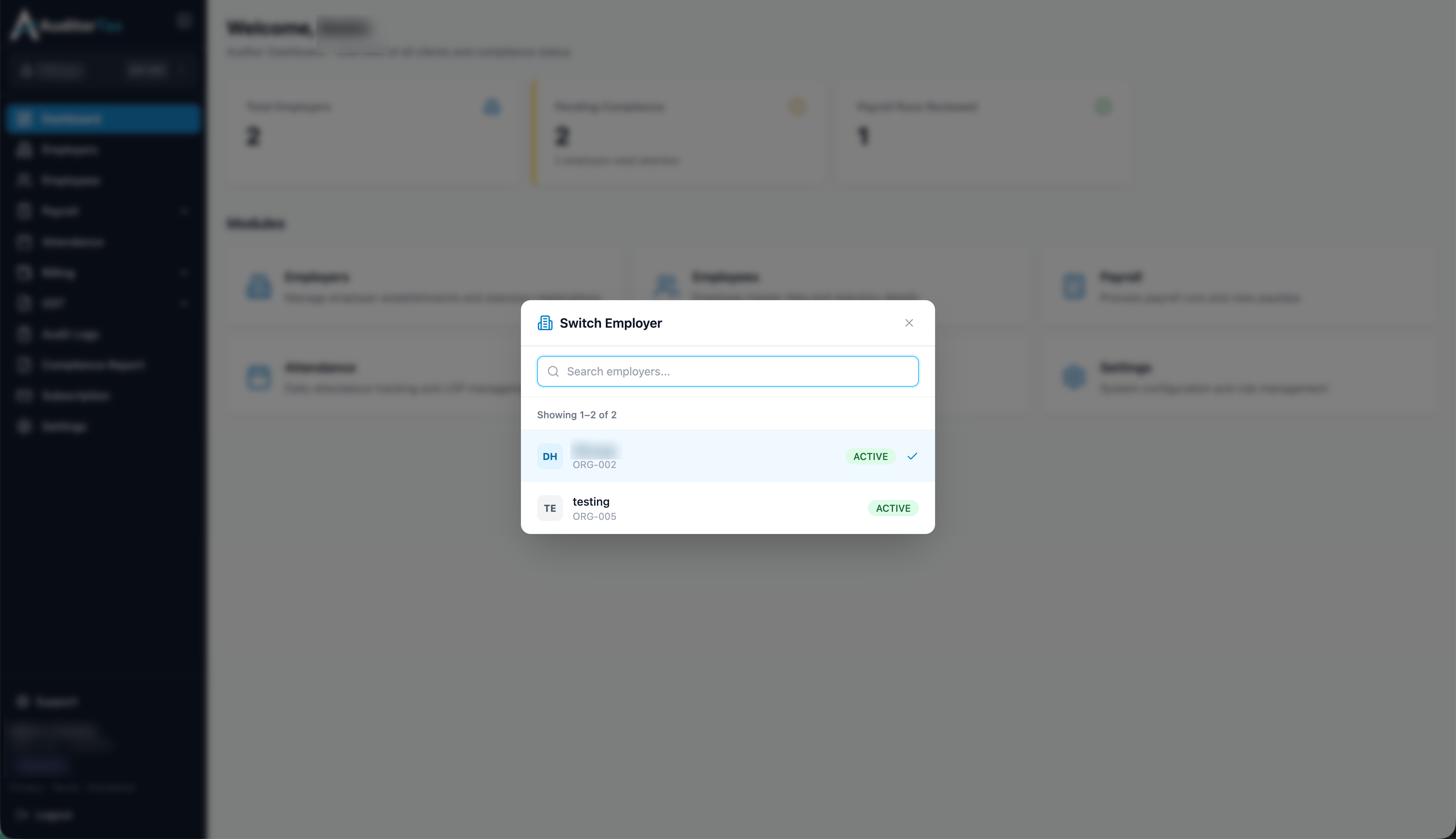
Outcome: a “Switch Employer” dialog opens with a search box and a list of every employer on your account, each showing its name, code, and status (ACTIVE or INACTIVE).
2. Click the employer you want to switch to
Section titled “2. Click the employer you want to switch to”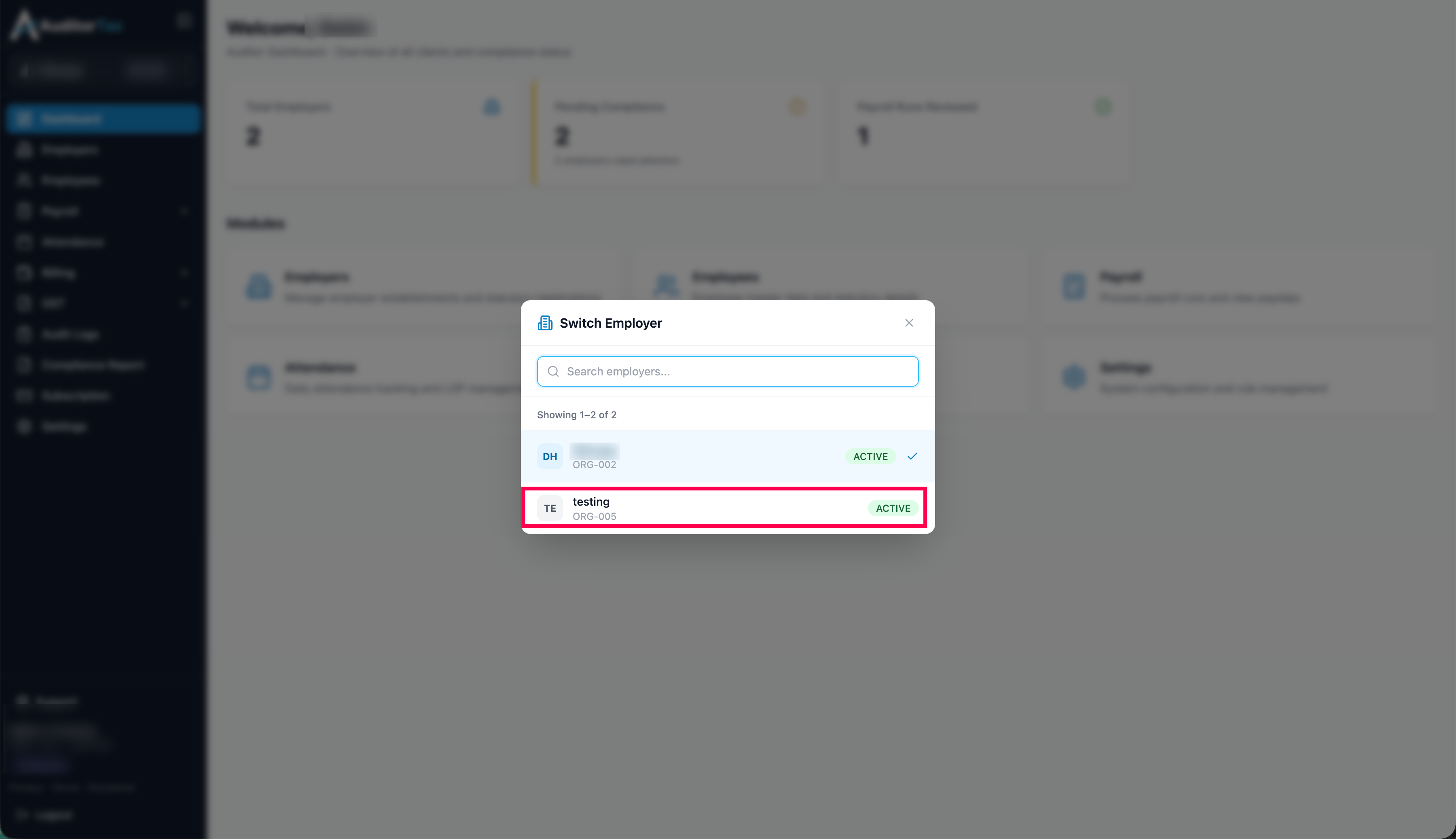
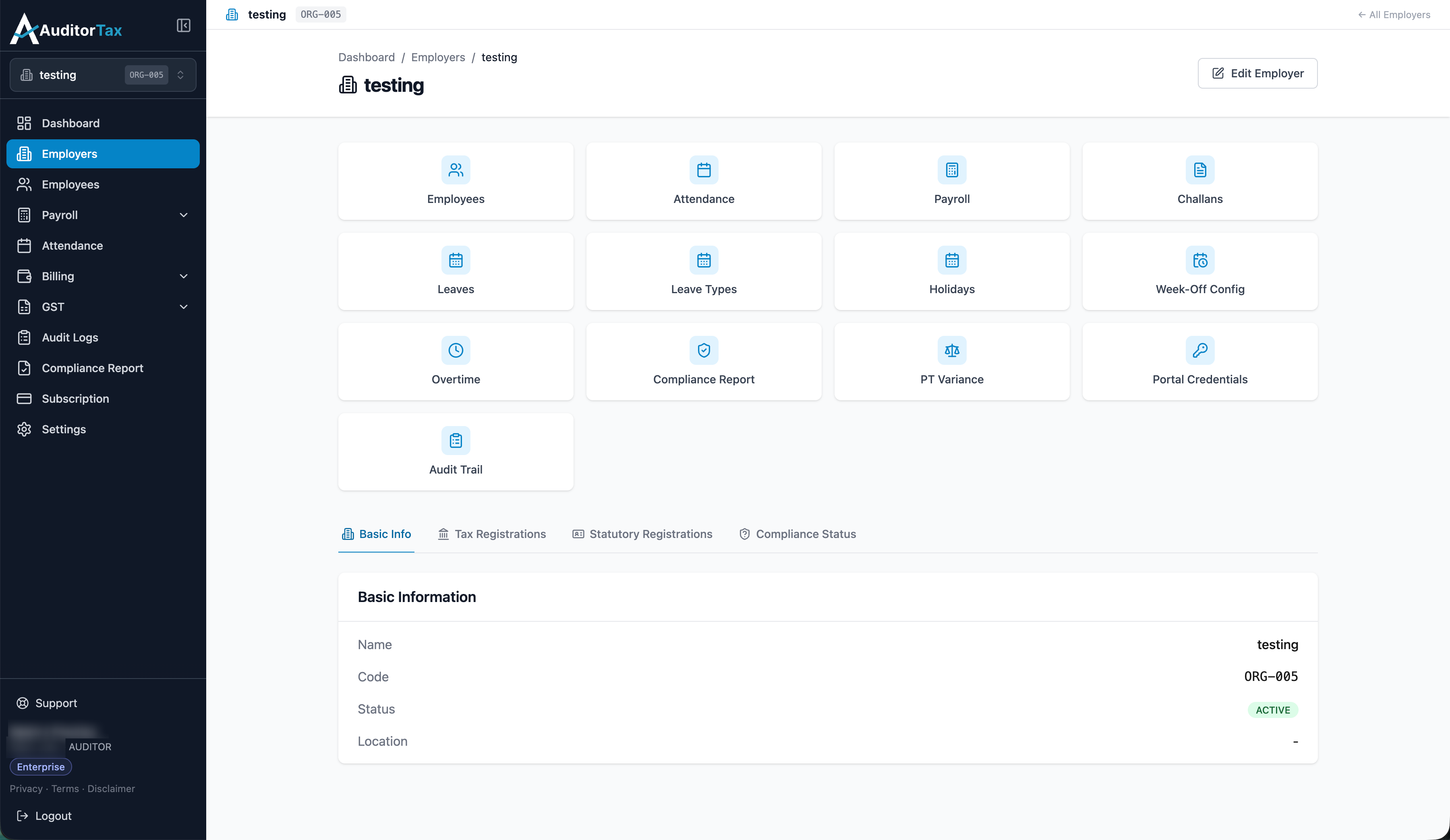
Outcome: you’re taken to that employer’s page, the sidebar switcher now shows its name and code, and every employer-scoped link in the sidebar (Employees, Payroll, Attendance, Challans, and so on) updates to point at the newly-selected employer.