Editing an Employee
Editing an Employee
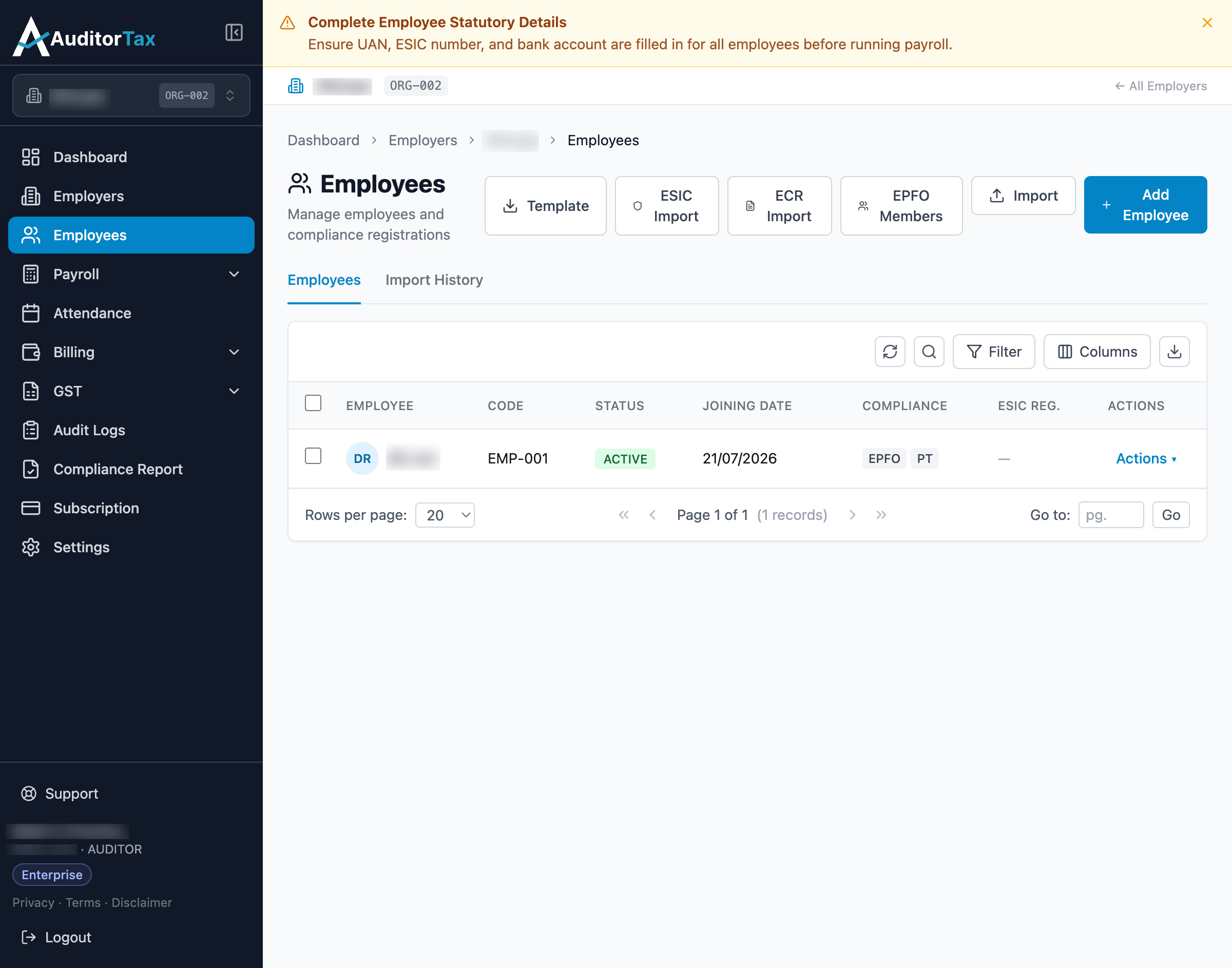
Section titled “Editing an Employee”1. Click “Employees” in the left sidebar
Section titled “1. Click “Employees” in the left sidebar”This opens the Employees list.
2. Open the employee’s Edit form, either of two ways
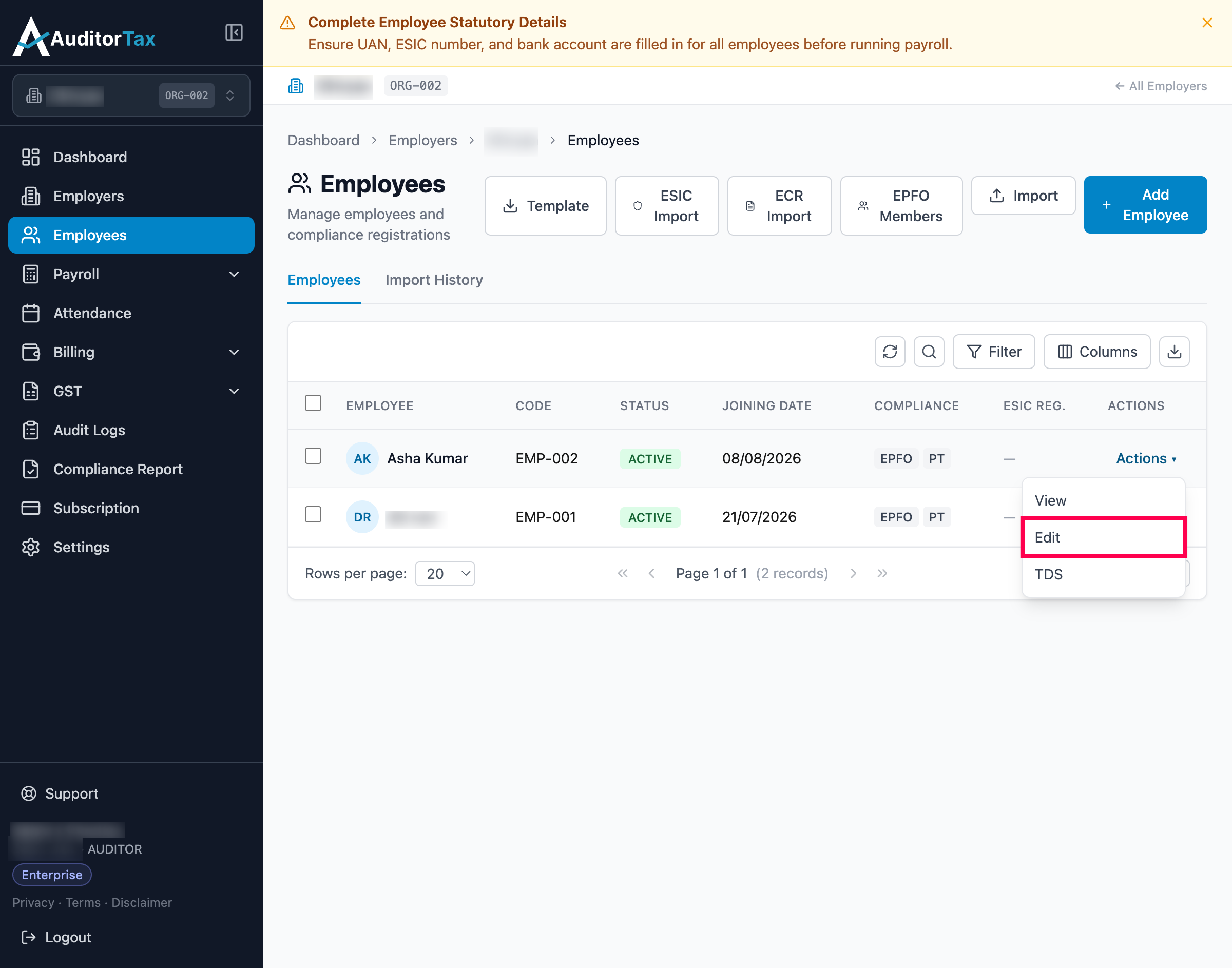
Section titled “2. Open the employee’s Edit form, either of two ways”Option A: click “Actions ▾” on the employee’s row, then click “Edit” in the dropdown which moves to the employee edit page
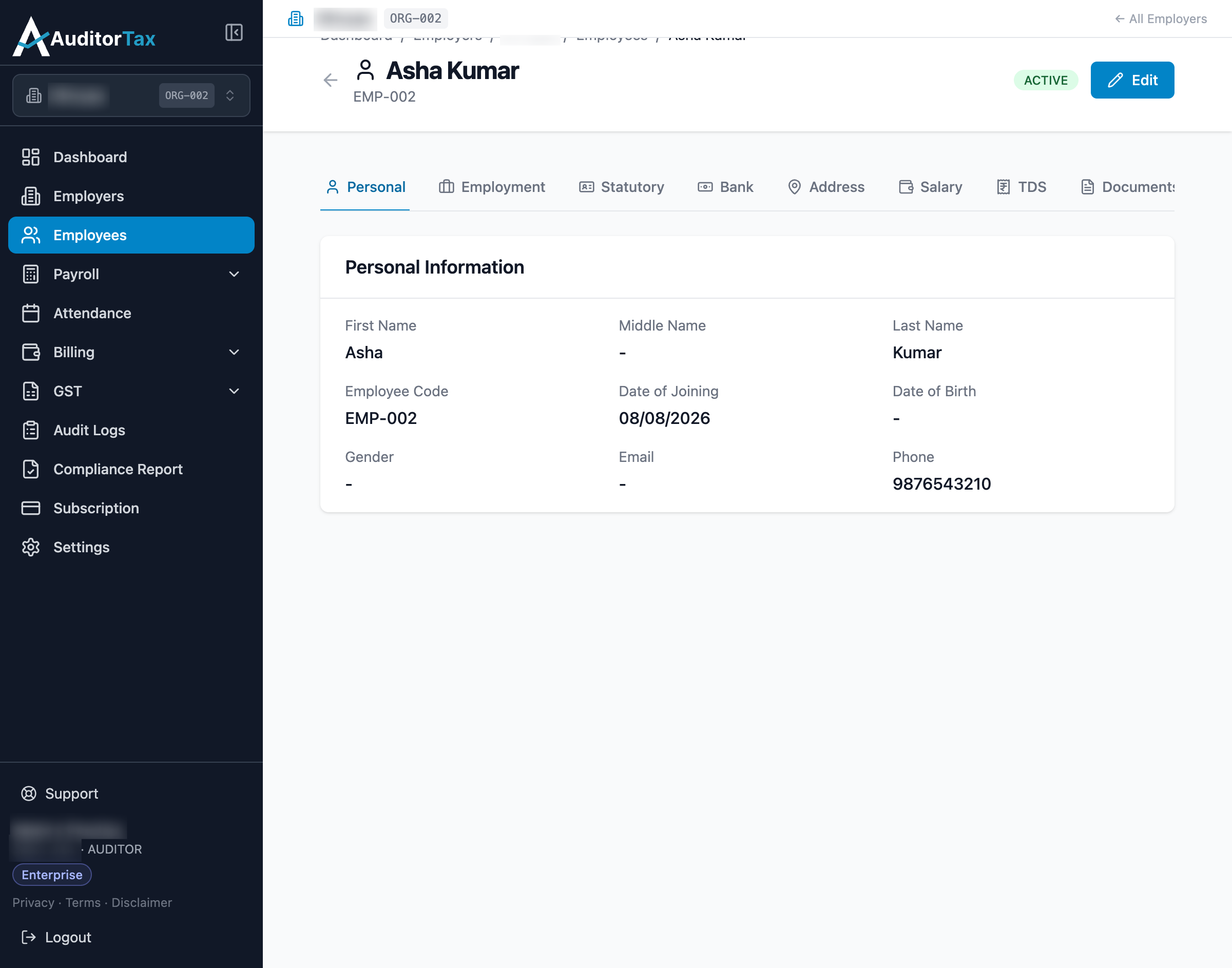
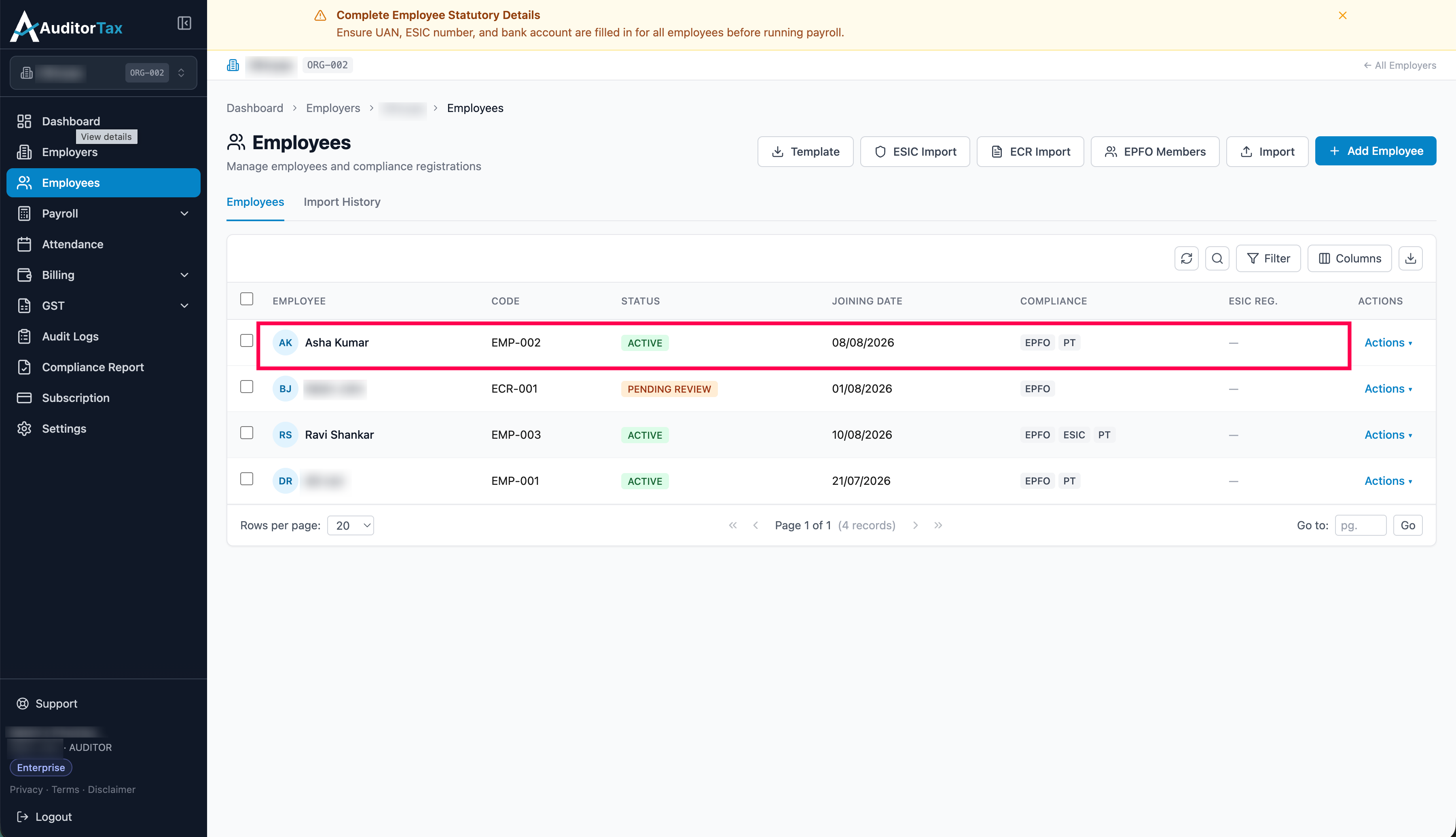
Option B: click the employee’s name to open their detail page, then click “Edit” in the top right. This is the same detail page “View” opens.
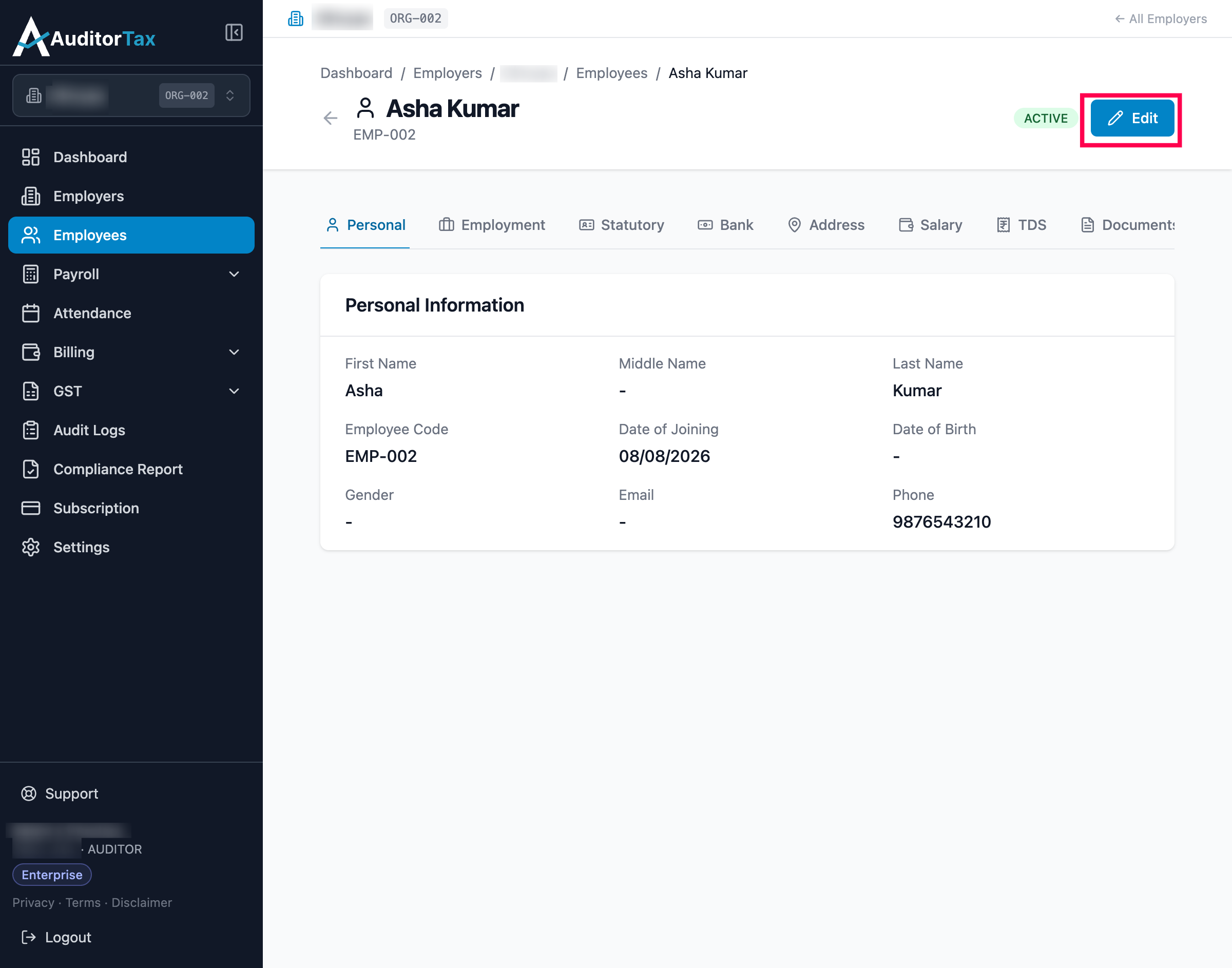
3. See the Edit form open
Section titled “3. See the Edit form open”Either option lands on the same 6-step wizard used to create the employee, pre-filled with their current values, plus an added Employment Status field (Active, Inactive, On Leave, Resigned, Terminated, Retired, Deceased) and a Date of Leaving field on the first step.
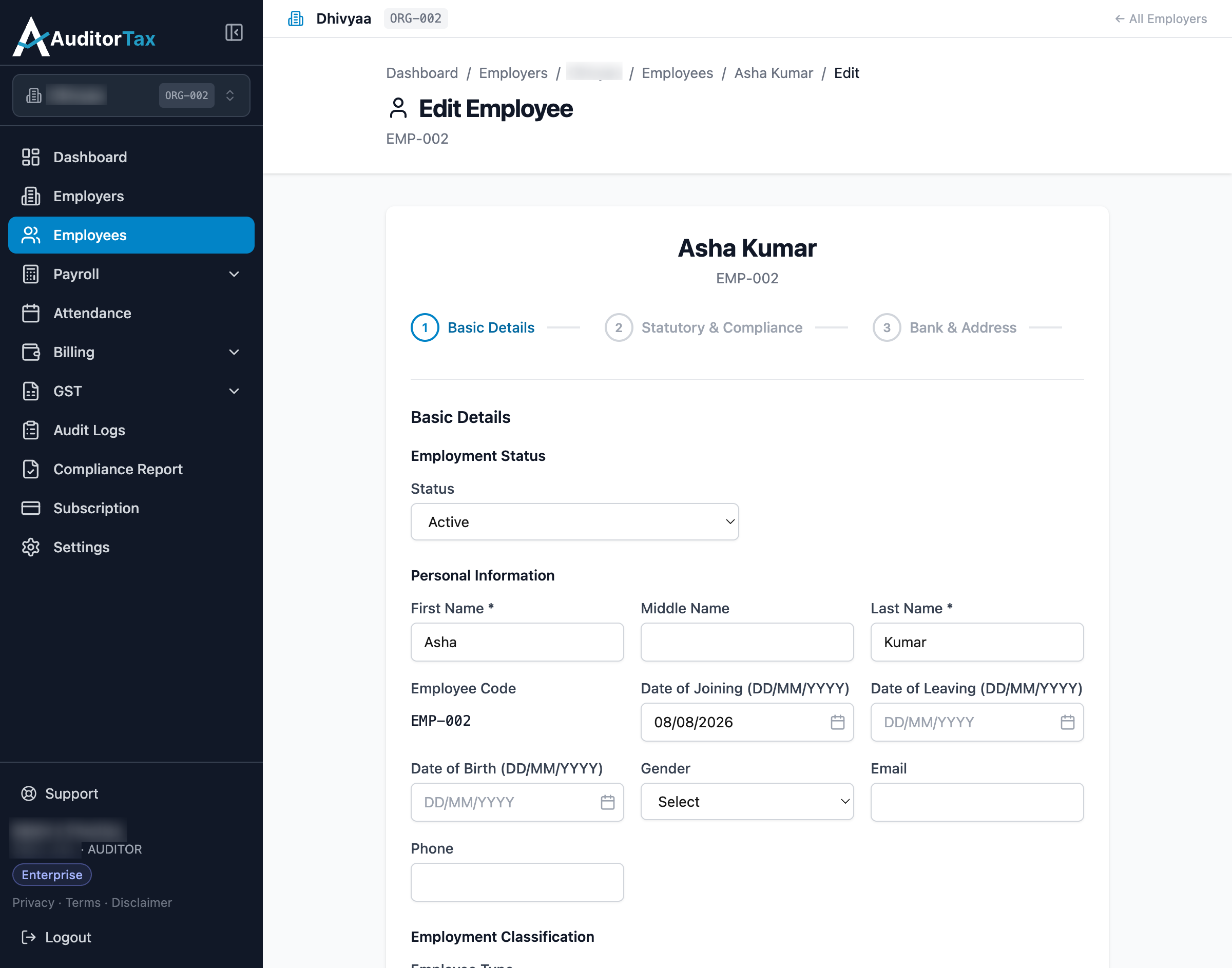
4. Change the field you need to update
Section titled “4. Change the field you need to update”Here, a phone number is added.
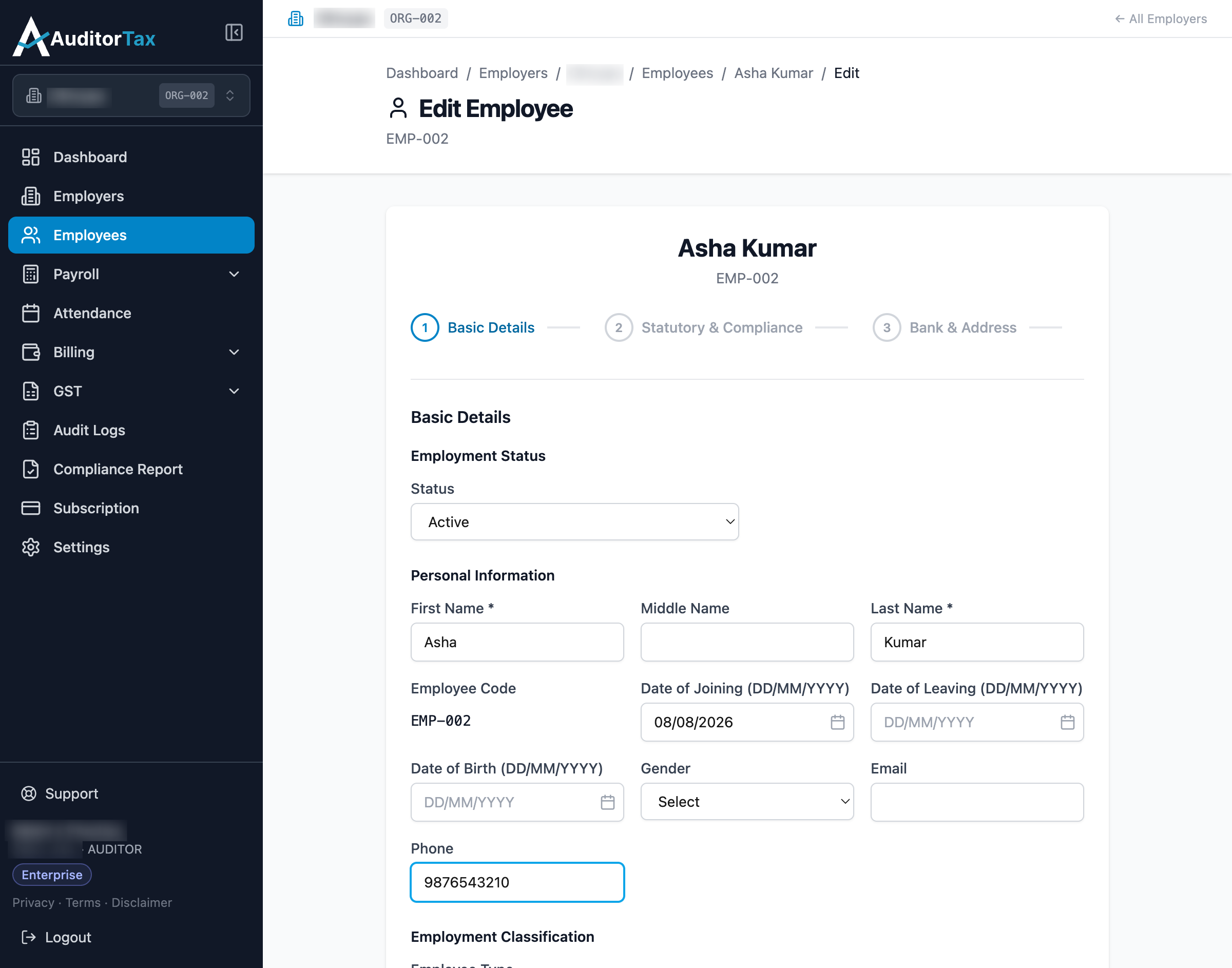
5. Click “Save and Exit”
Section titled “5. Click “Save and Exit””Unlike creating, editing offers a “Save and Exit” button on every step, which saves immediately without stepping through the remaining wizard steps. “Save and Continue” is still there if you want to review or change later steps too.
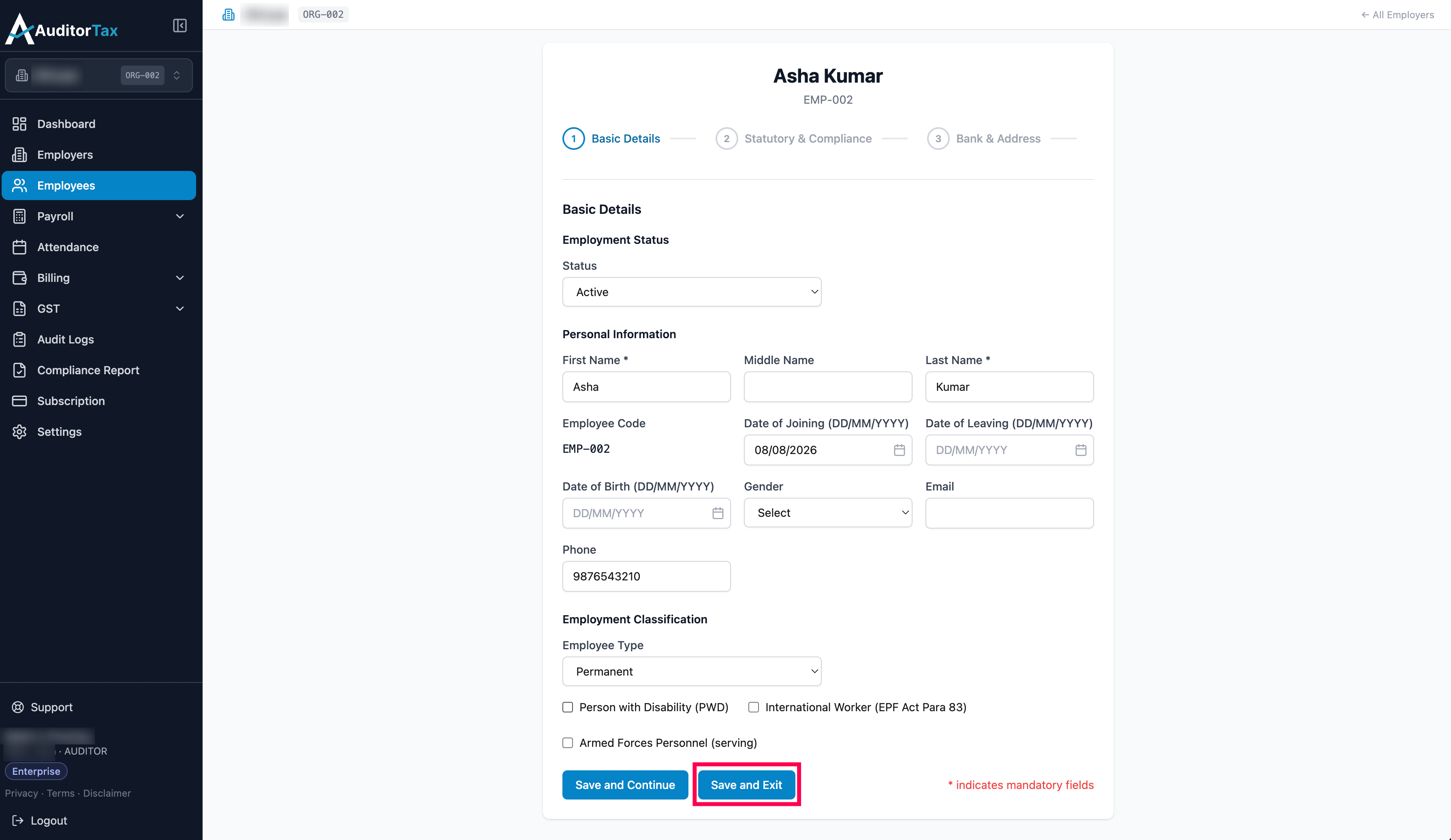
Outcome: you’re returned to the employee’s detail page, now showing the updated value.