Importing Employees from an ECR File
Importing Employees from an ECR File
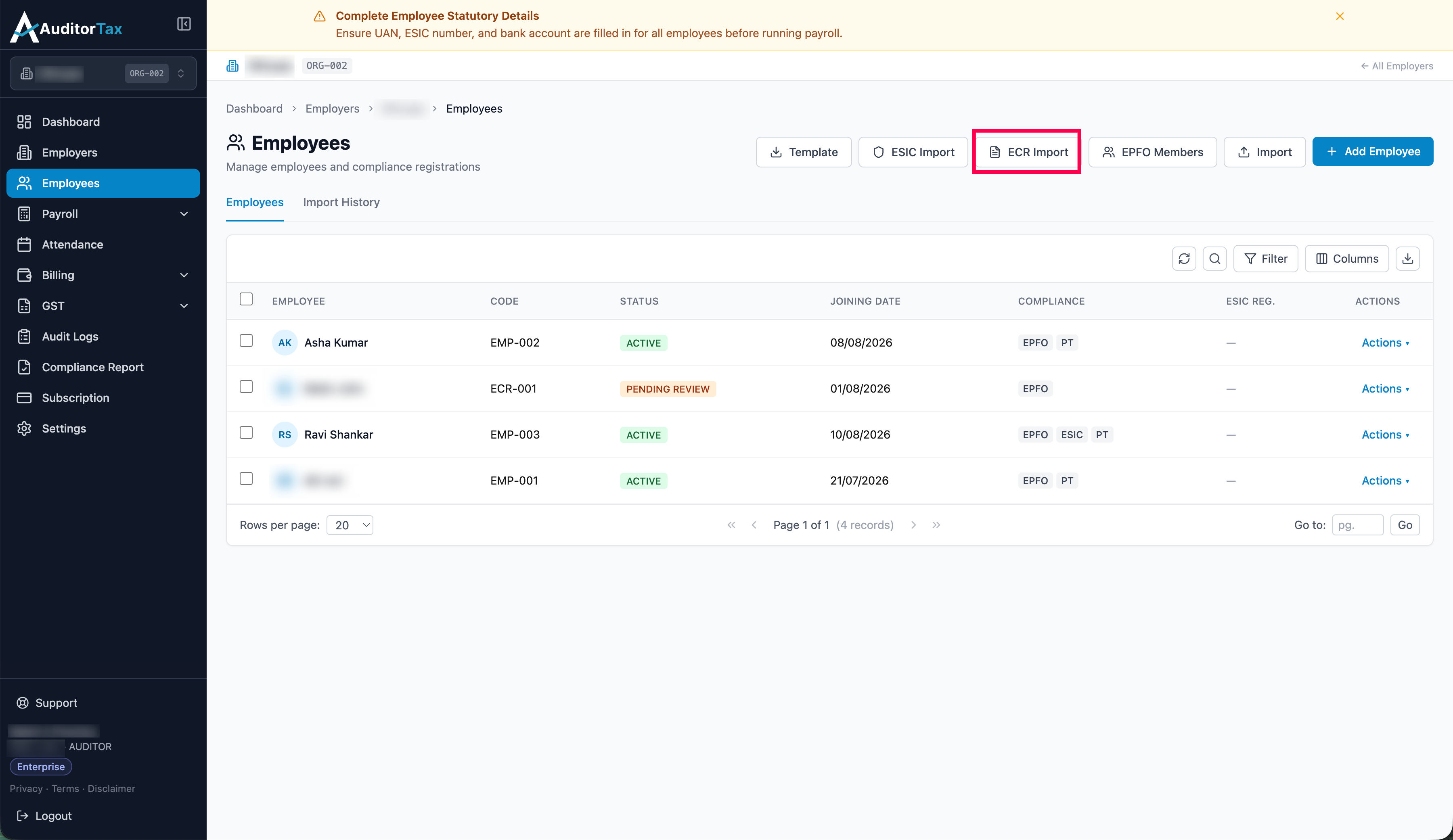
Section titled “Importing Employees from an ECR File”1. Click “ECR Import”
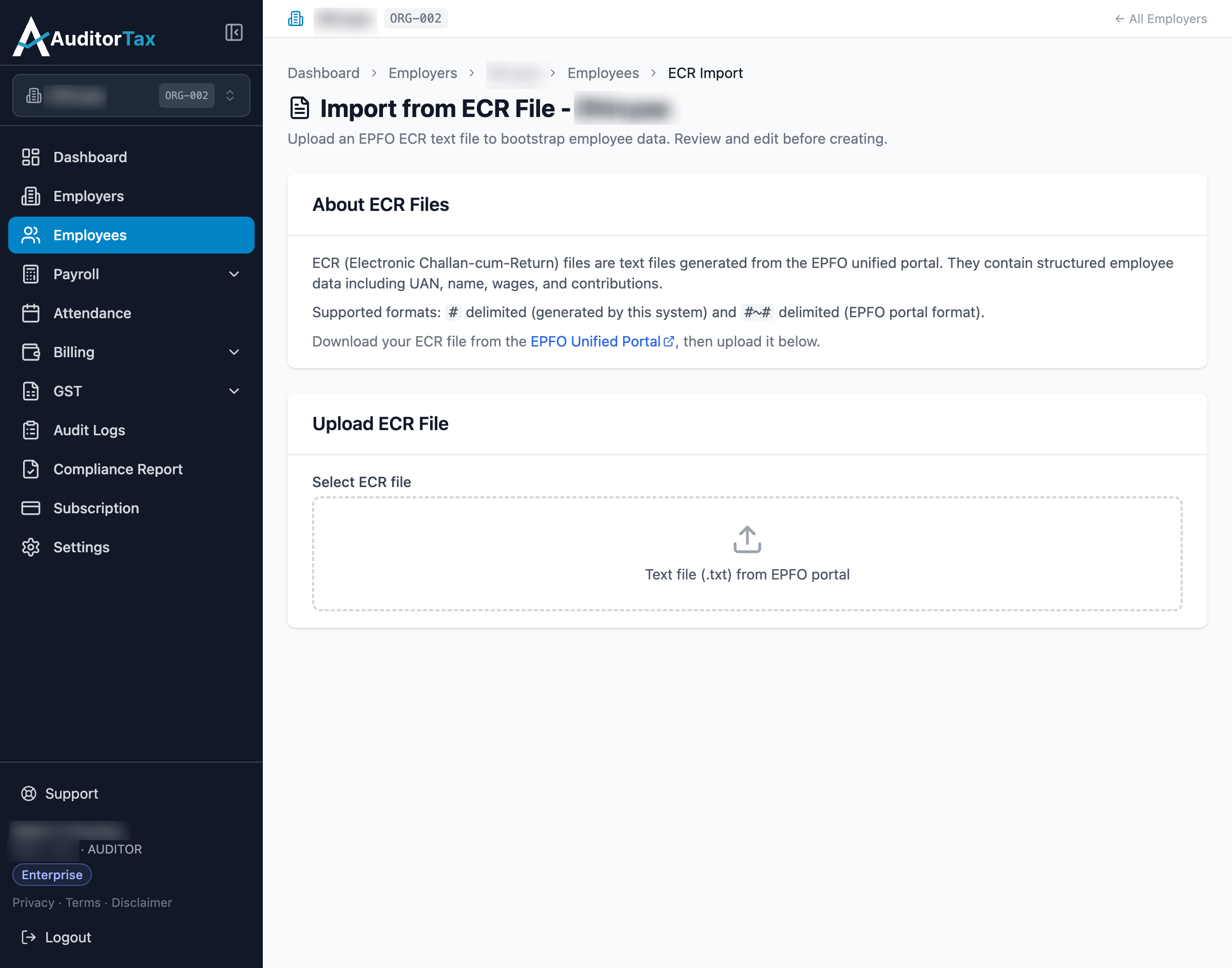
Section titled “1. Click “ECR Import””Reads an ECR (Electronic Challan-cum-Return) text file — the same kind
of file used for PF challan filing — either # delimited (generated by
AuditorTax itself) or #~# delimited (the raw EPFO portal format), and
extracts UAN, name, wages, and contributions. The ECR file can be
downloaded from EPFO Unified Portal
2. Select your file and click “Upload”
Section titled “2. Select your file and click “Upload””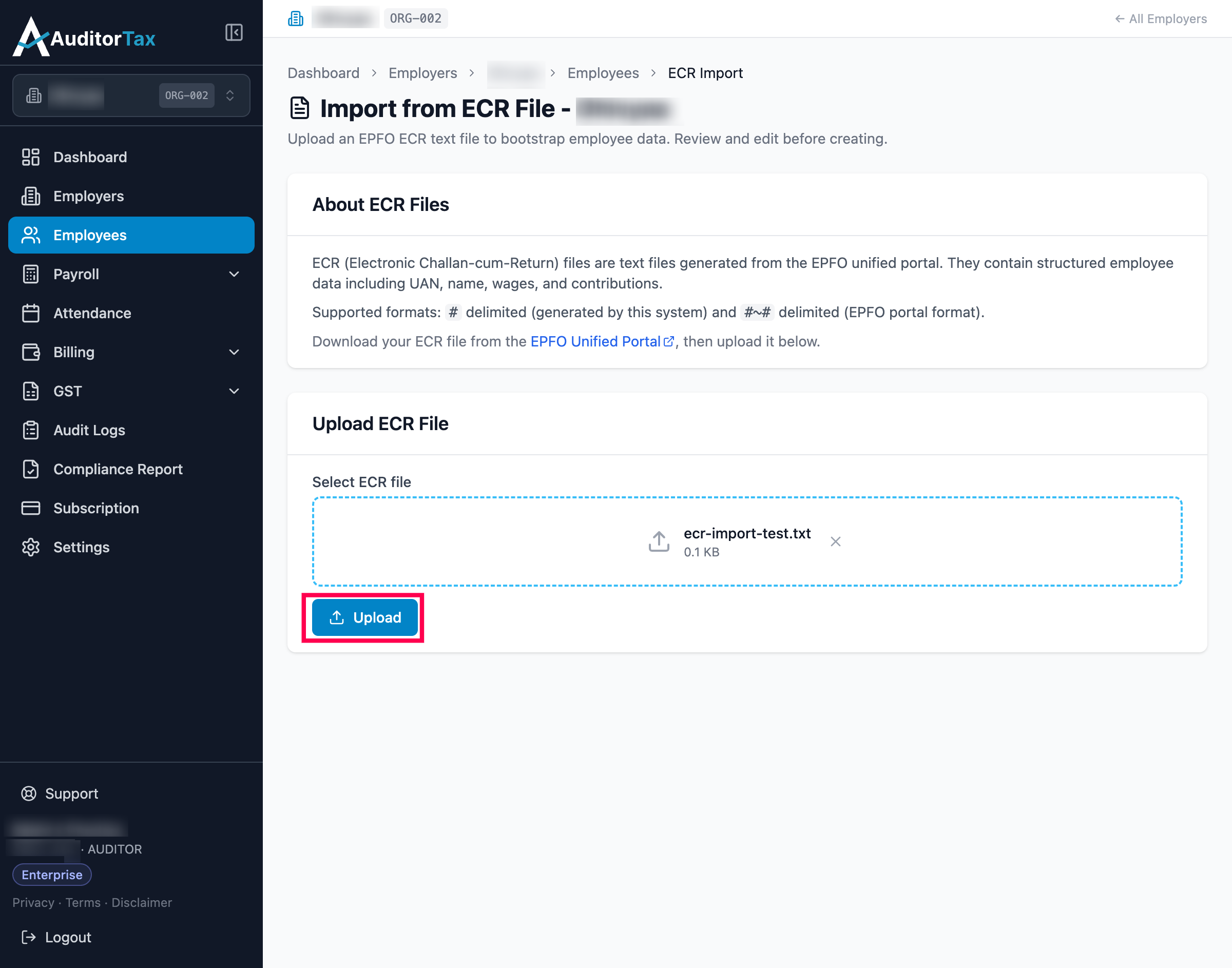
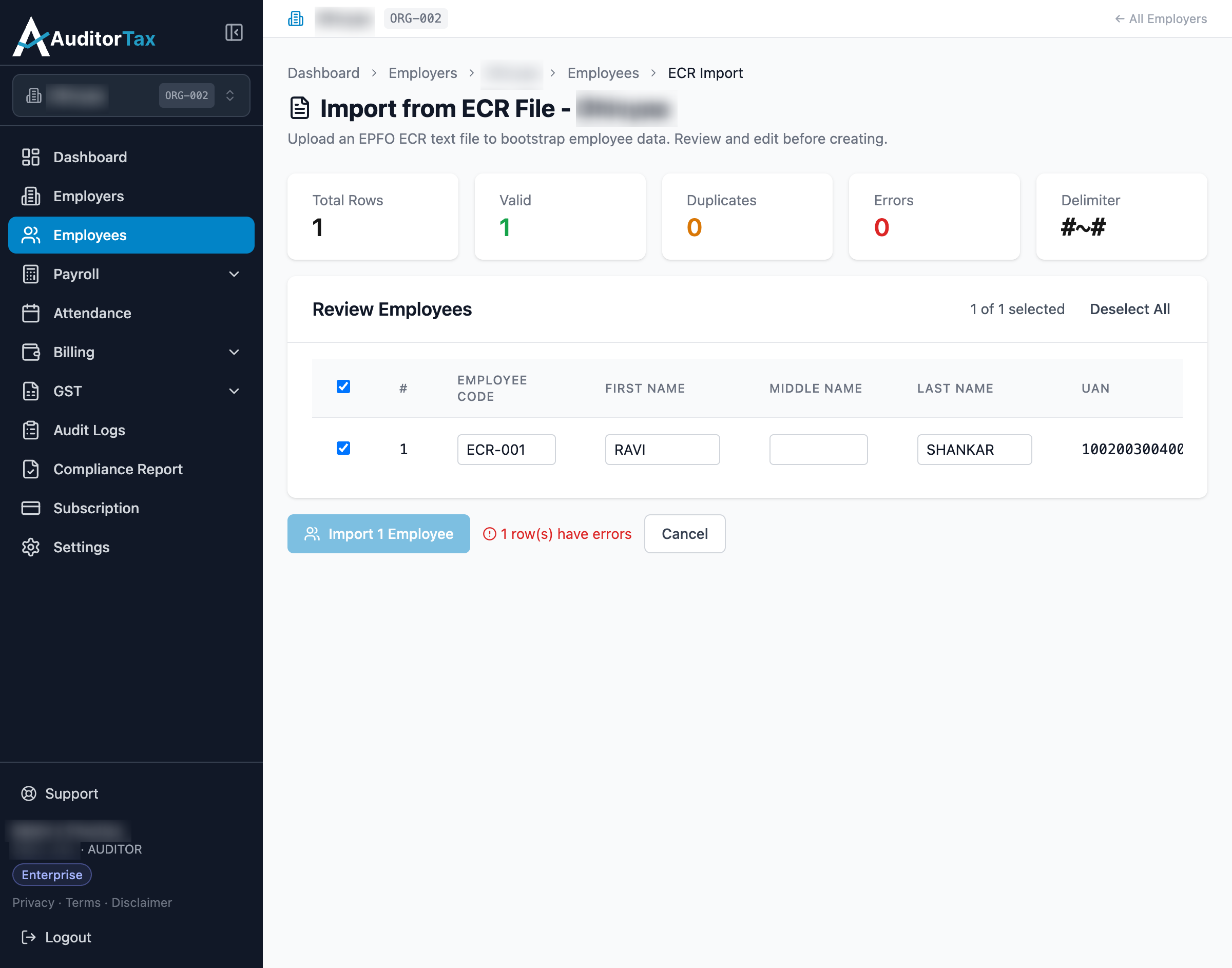
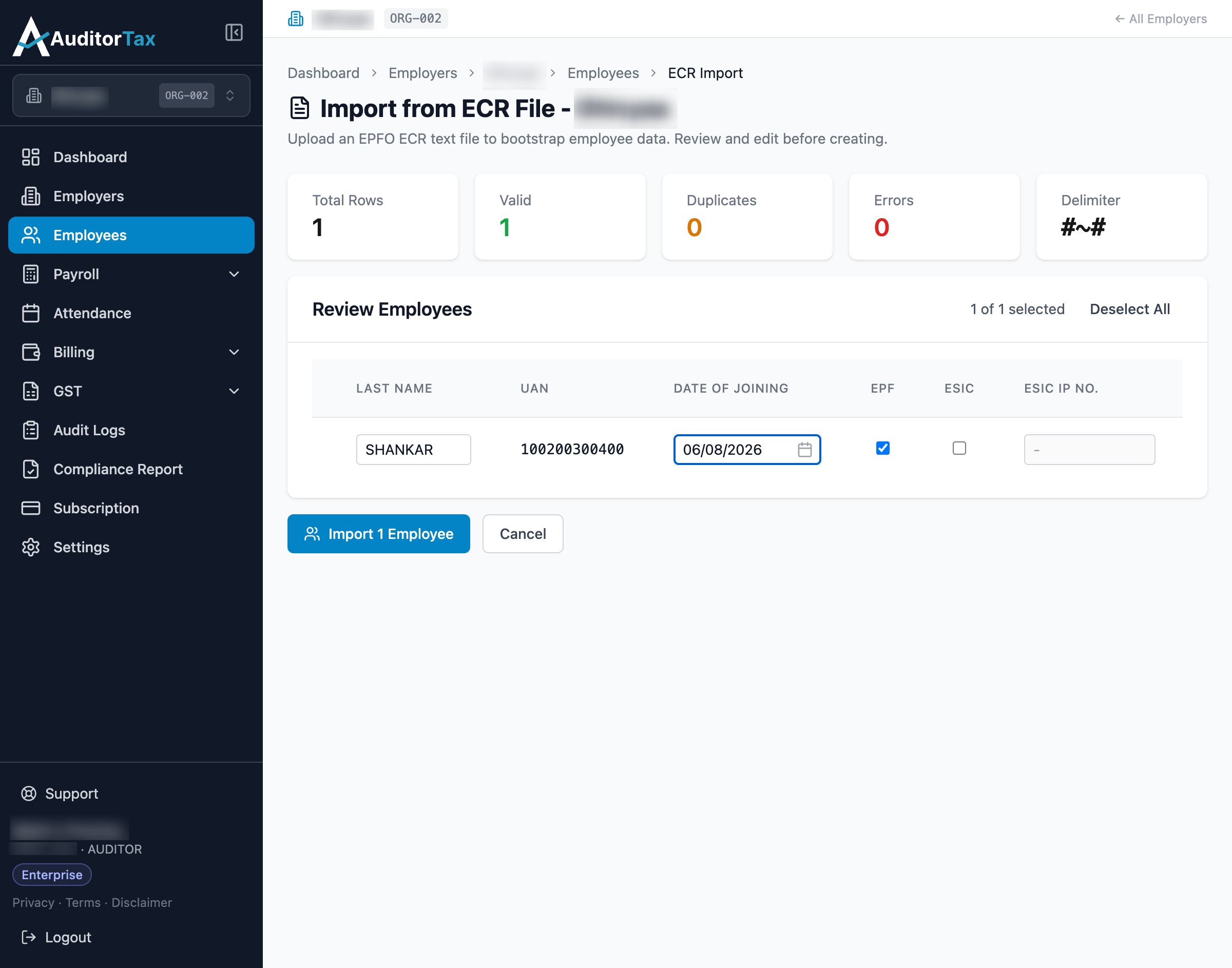
Outcome: with a valid #~#-delimited file, AuditorTax auto-detects
the delimiter and parses straight into a Review Employees screen —
First/Middle/Last Name, UAN, and the EPF flag are all filled in from the
file. Date of Joining is not part of an ECR file’s data, so it’s
left blank and flagged as a required field until you fill it in
yourself.
3. Fill in Date of Joining for each row
Section titled “3. Fill in Date of Joining for each row”This clears the row’s warning and enables the Import button.
4. Click “Import 1 Employee”
Section titled “4. Click “Import 1 Employee””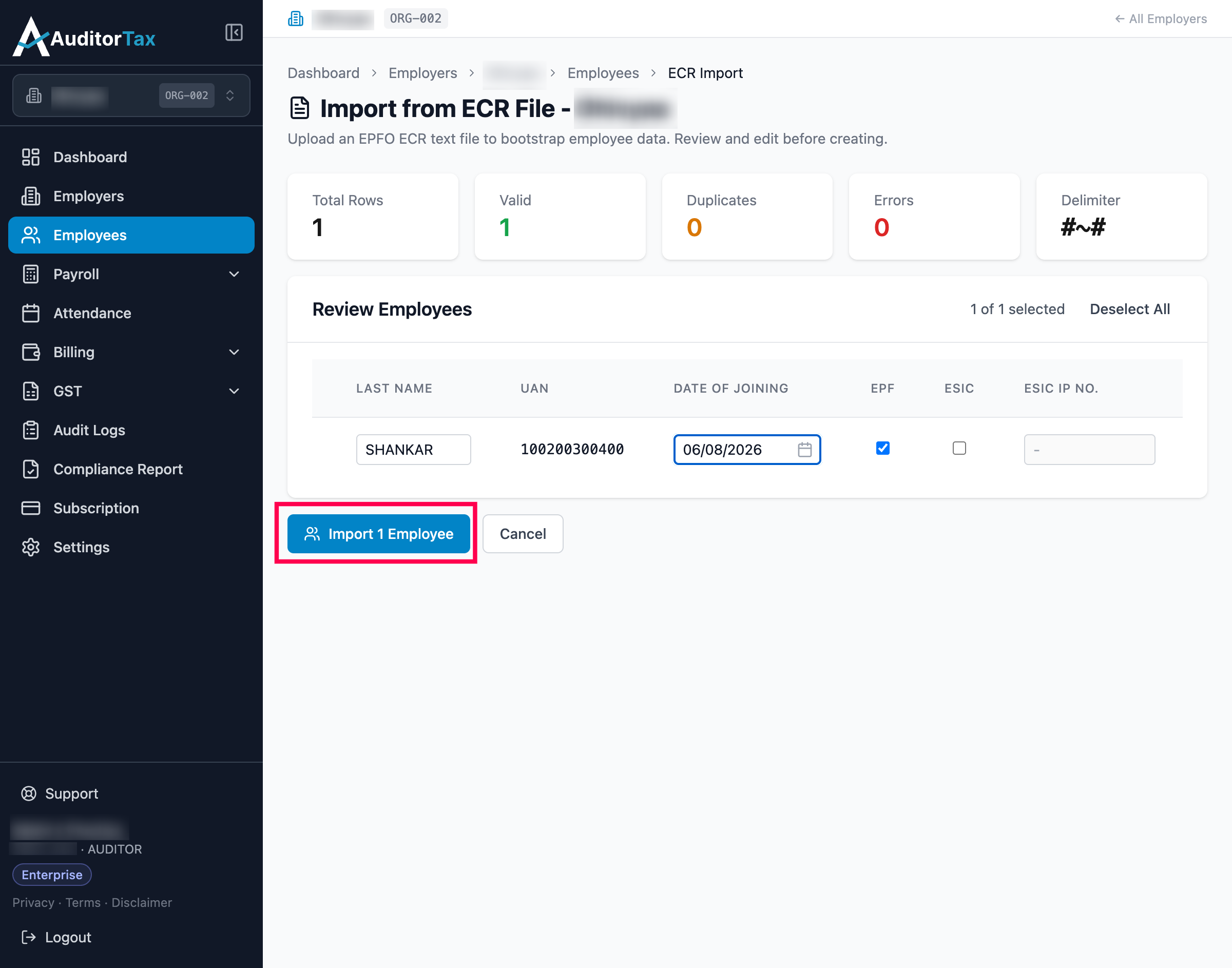
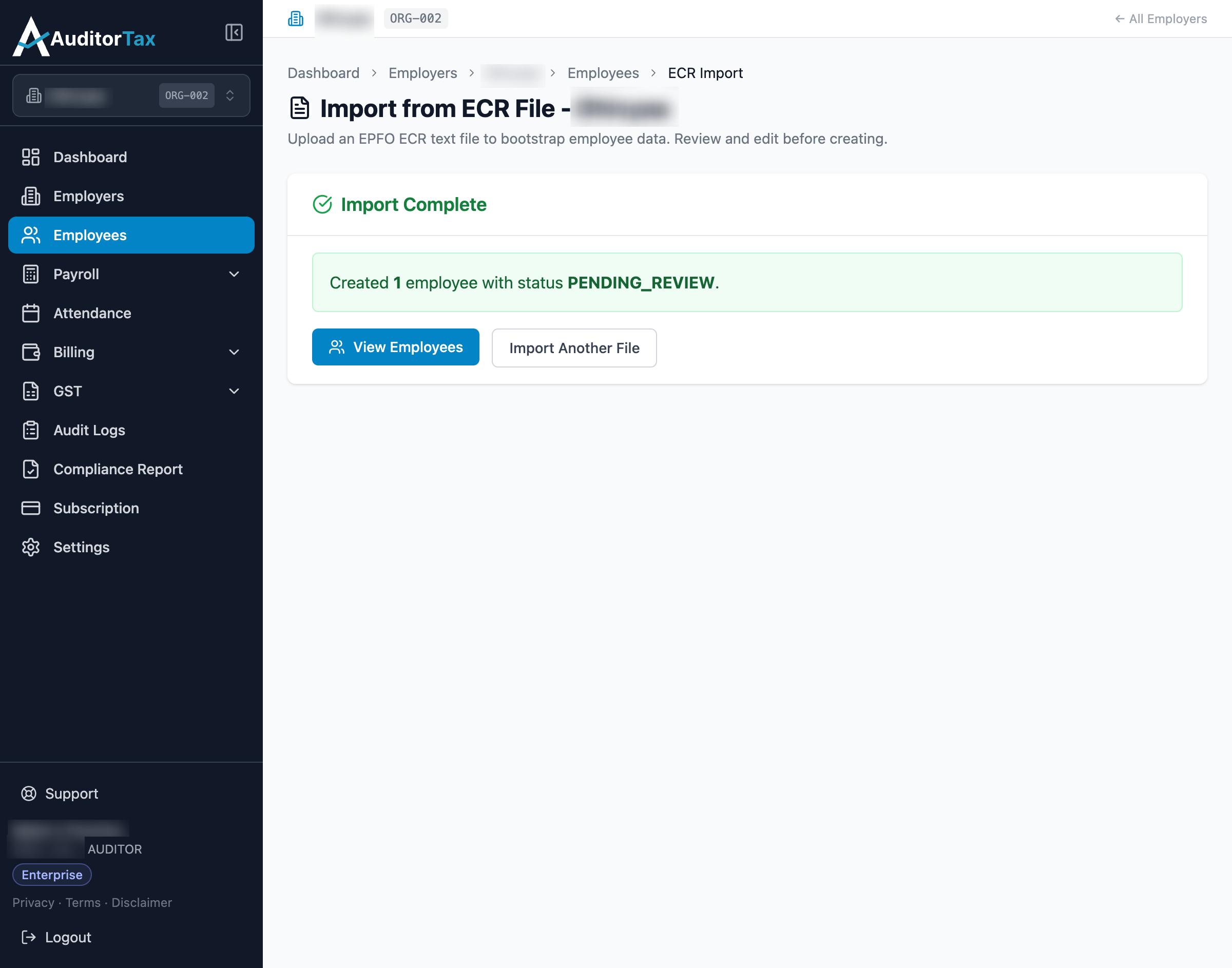
Outcome: “Import Complete: Created 1 employee with status PENDING_REVIEW.” Unlike Add Employee and the general Import — which both create employees as ACTIVE immediately — ECR Import lands new employees in Pending Review. This is also the answer to the open question from the Delete section earlier: on this Pending Review employee, the same checkbox → “Delete Selected” flow that was blocked for an ACTIVE employee worked — the record disappeared from the Employees list after confirming.
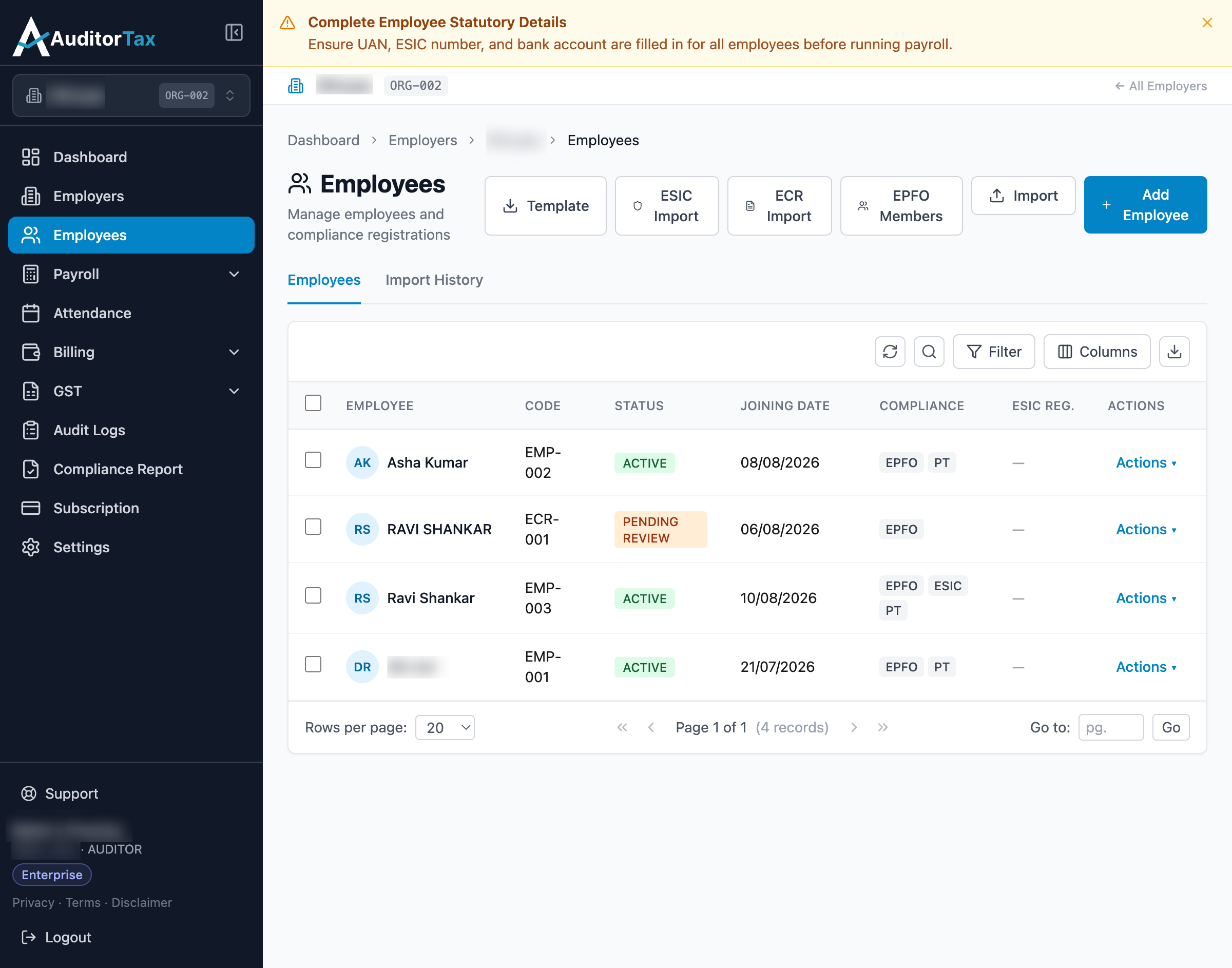
Once imported, a Pending Review employee still needs to be approved and activated before they behave like any other employee.