Creating an Employer
Creating an Employer
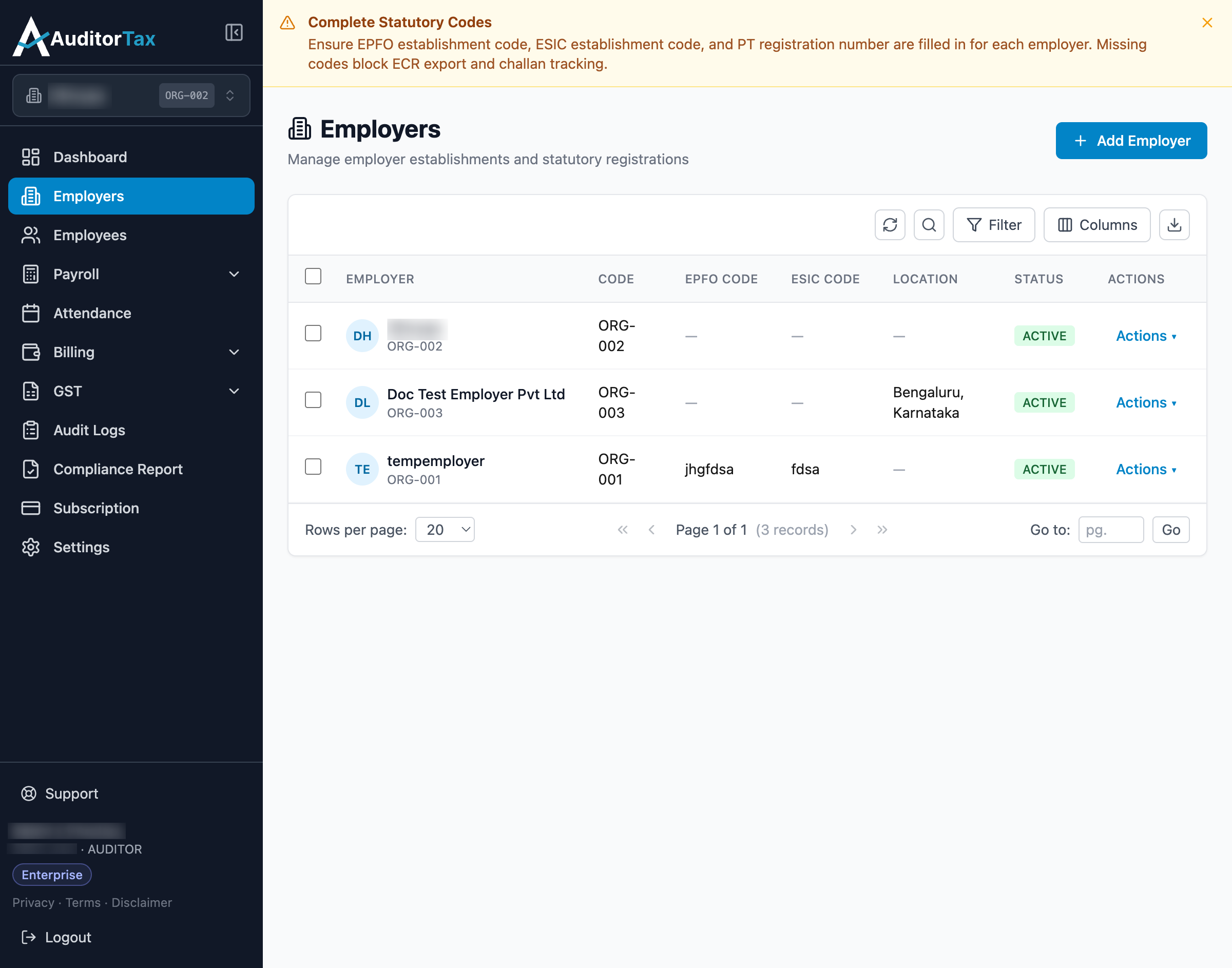
Section titled “Creating an Employer”1. Click “Employers” in the left sidebar
Section titled “1. Click “Employers” in the left sidebar”This opens the Employers list, showing every employer establishment already set up in your account.
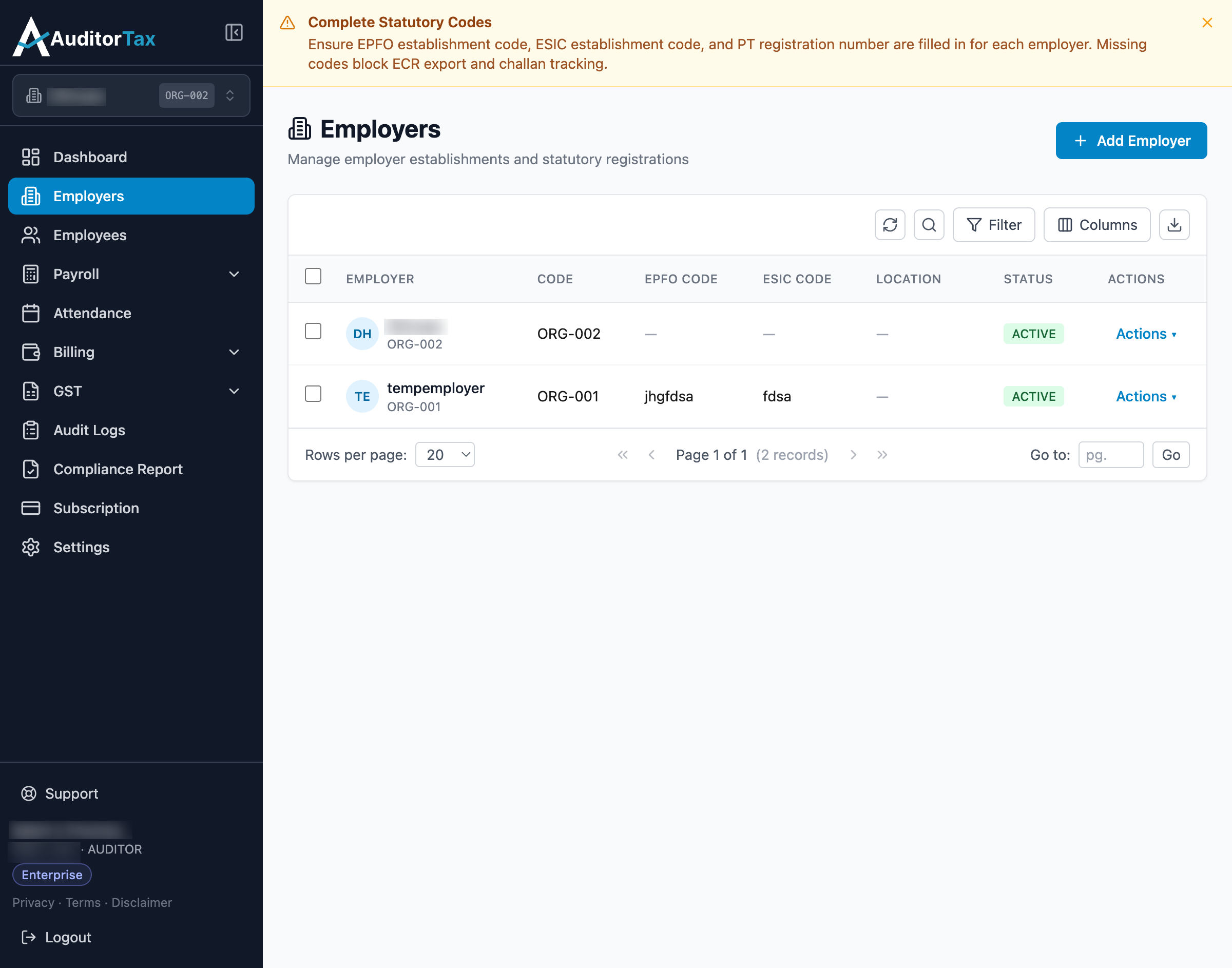
2. Click the “Add Employer” button
Section titled “2. Click the “Add Employer” button”It’s in the top right of the Employers list. This opens a 4-step form for registering a new employer establishment.
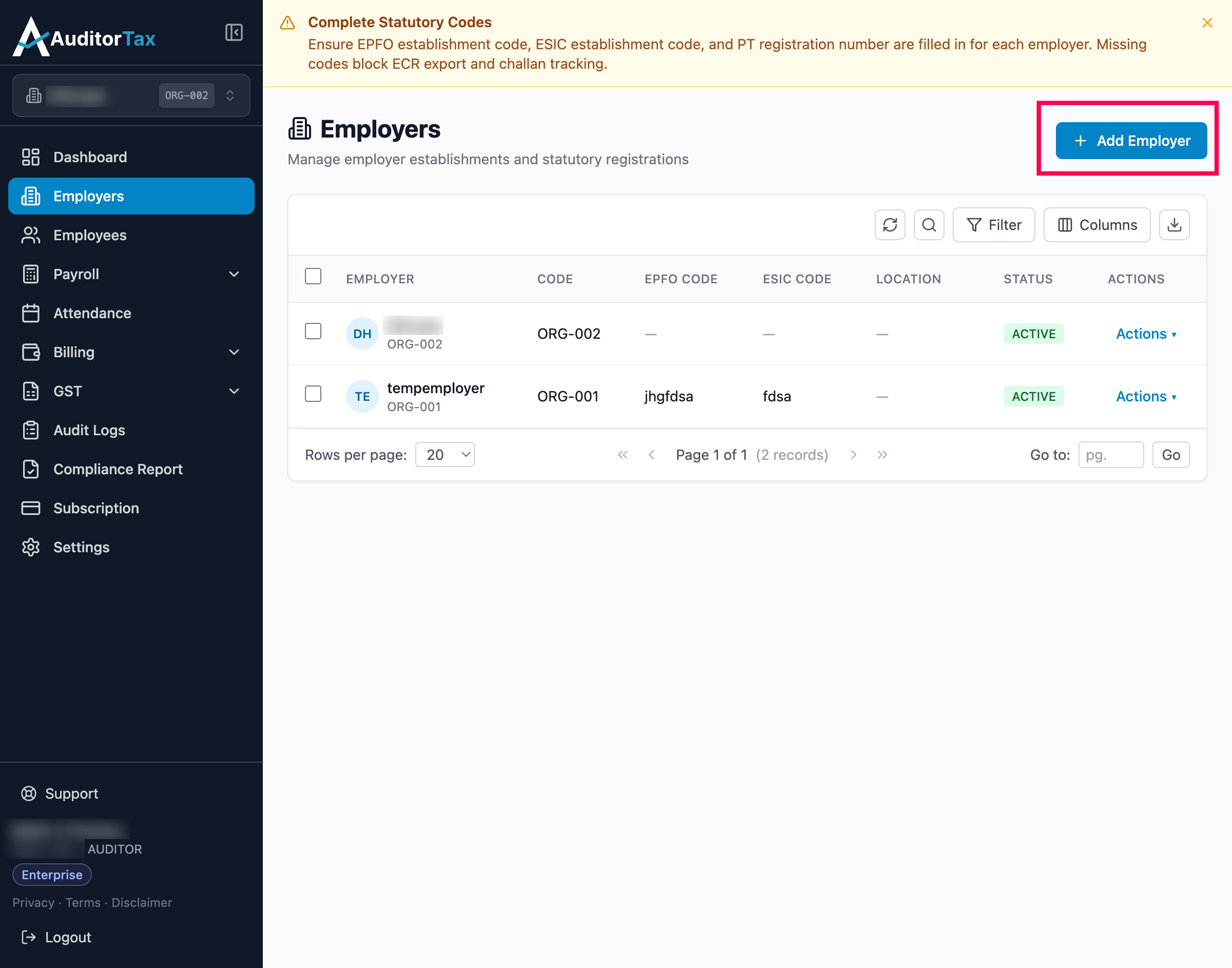
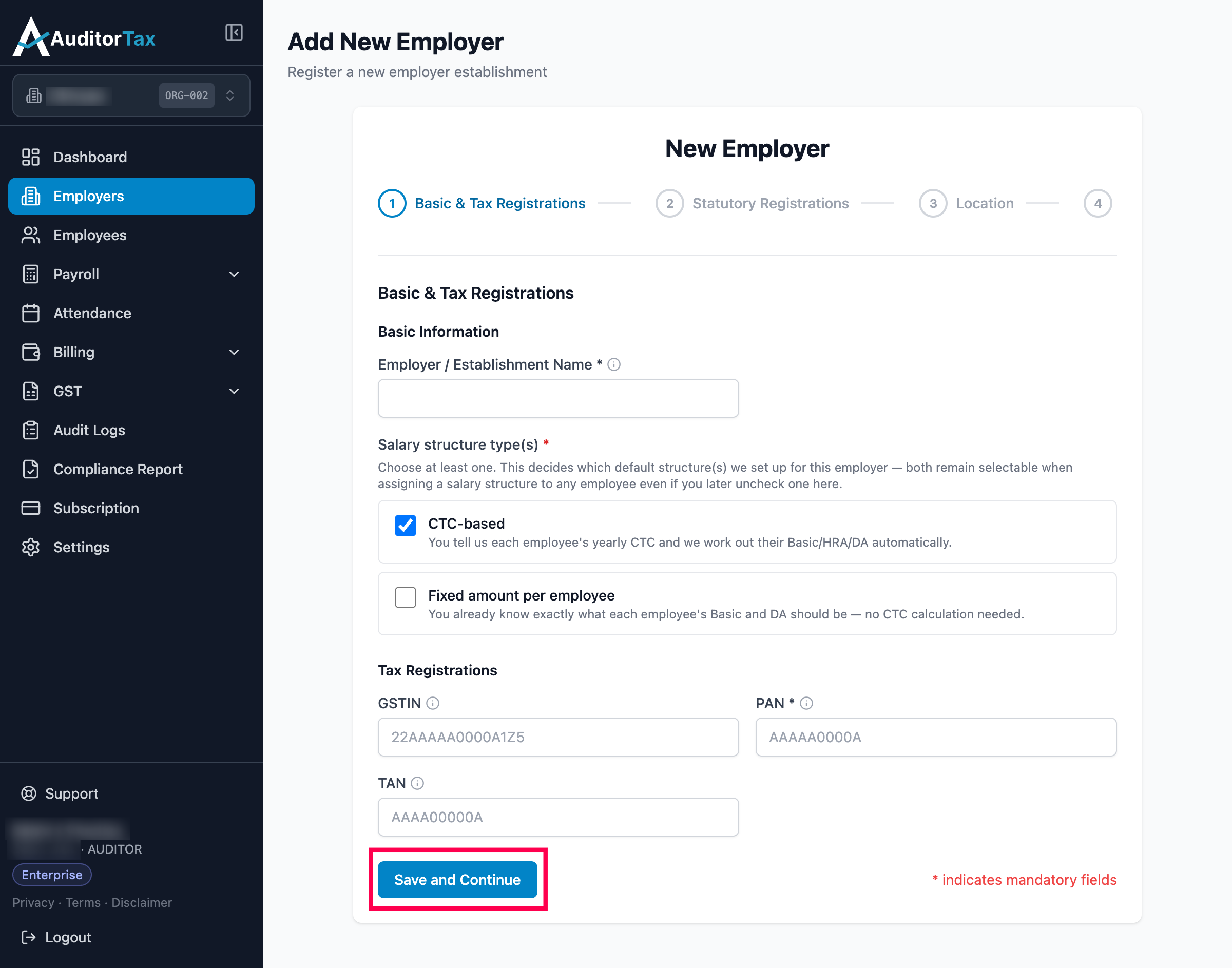
3. Enter the establishment name and PAN
Section titled “3. Enter the establishment name and PAN”Both are required. Also choose at least one salary structure type — CTC-based is selected by default, meaning you’ll enter each employee’s yearly CTC and AuditorTax works out their Basic/HRA/DA automatically or Fixed amount per employee that you already know exactly what each employee’s Basic and DA should be — no CTC calculation needed. GSTIN and TAN are optional on this step.
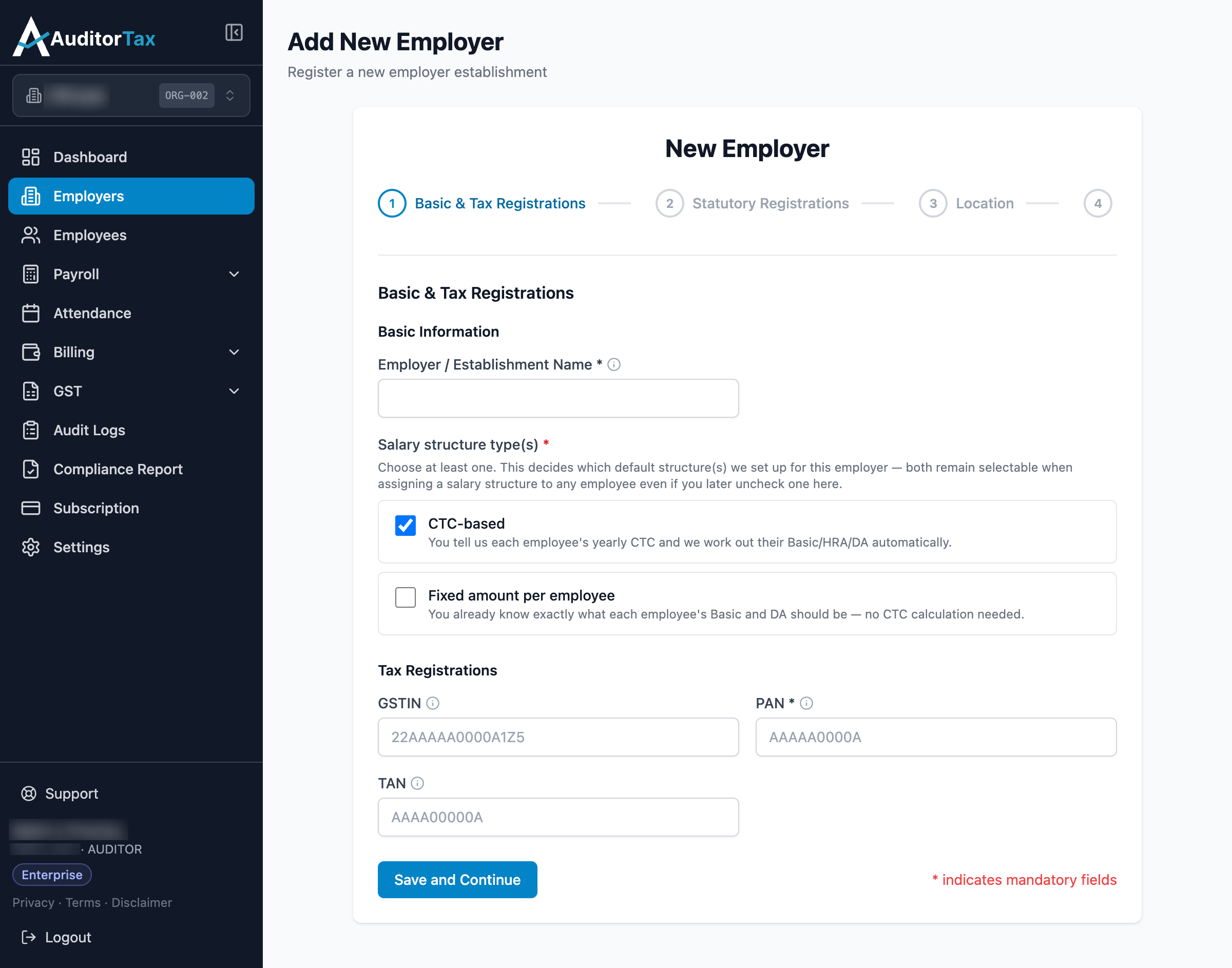
4. Click “Save and Continue”
Section titled “4. Click “Save and Continue””This moves you to the Statutory Registrations step.
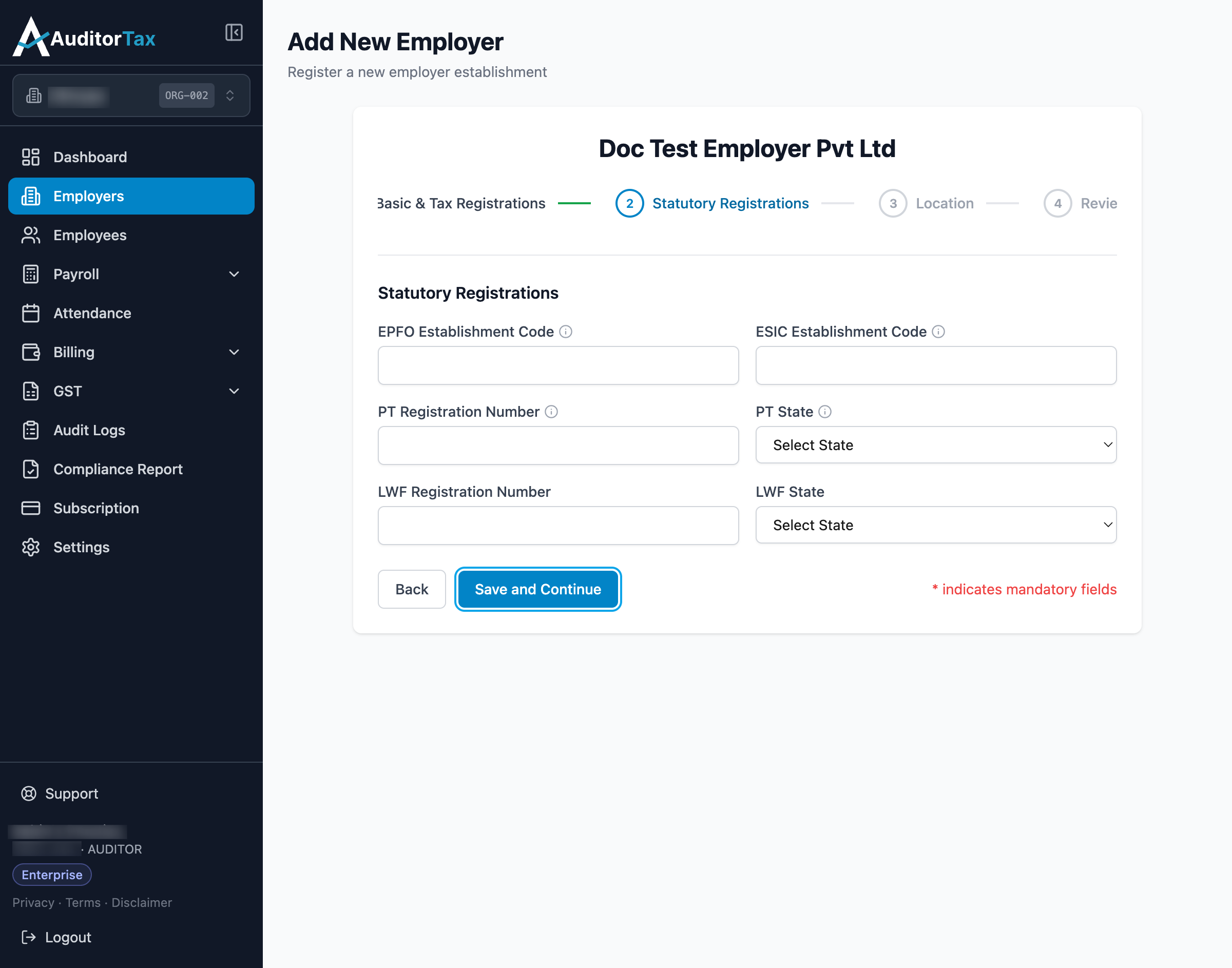
5. Leave the statutory codes blank, or fill them in
Section titled “5. Leave the statutory codes blank, or fill them in”If you are providing EPFO code, ESIC code, PT registration, and LWF registration, fill it in the form as its optional — they can be added later. AuditorTax will remind you afterward if any are missing, since they’re needed for ECR export and challan tracking.
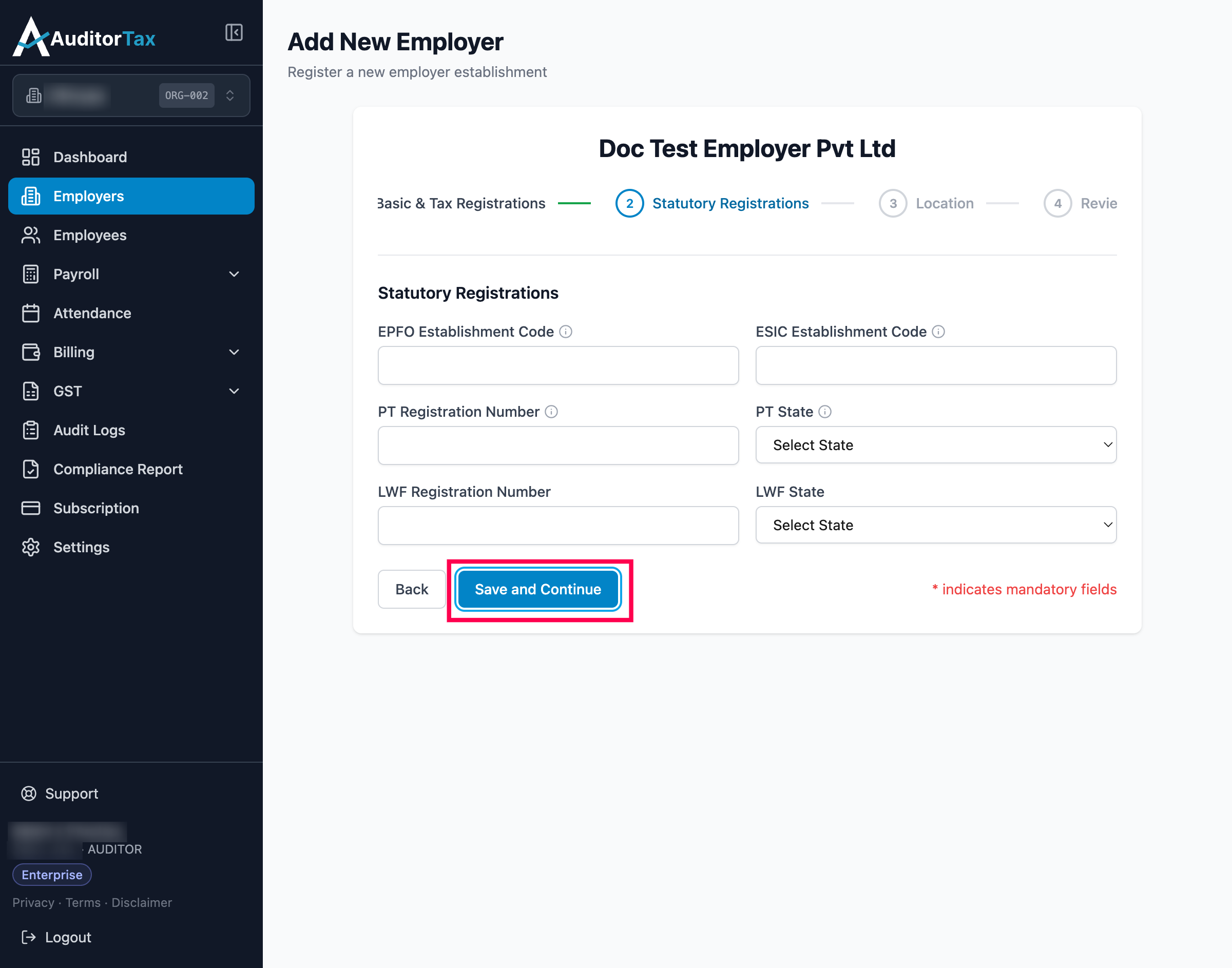
6. Click “Save and Continue”
Section titled “6. Click “Save and Continue””This moves you to the Location step.
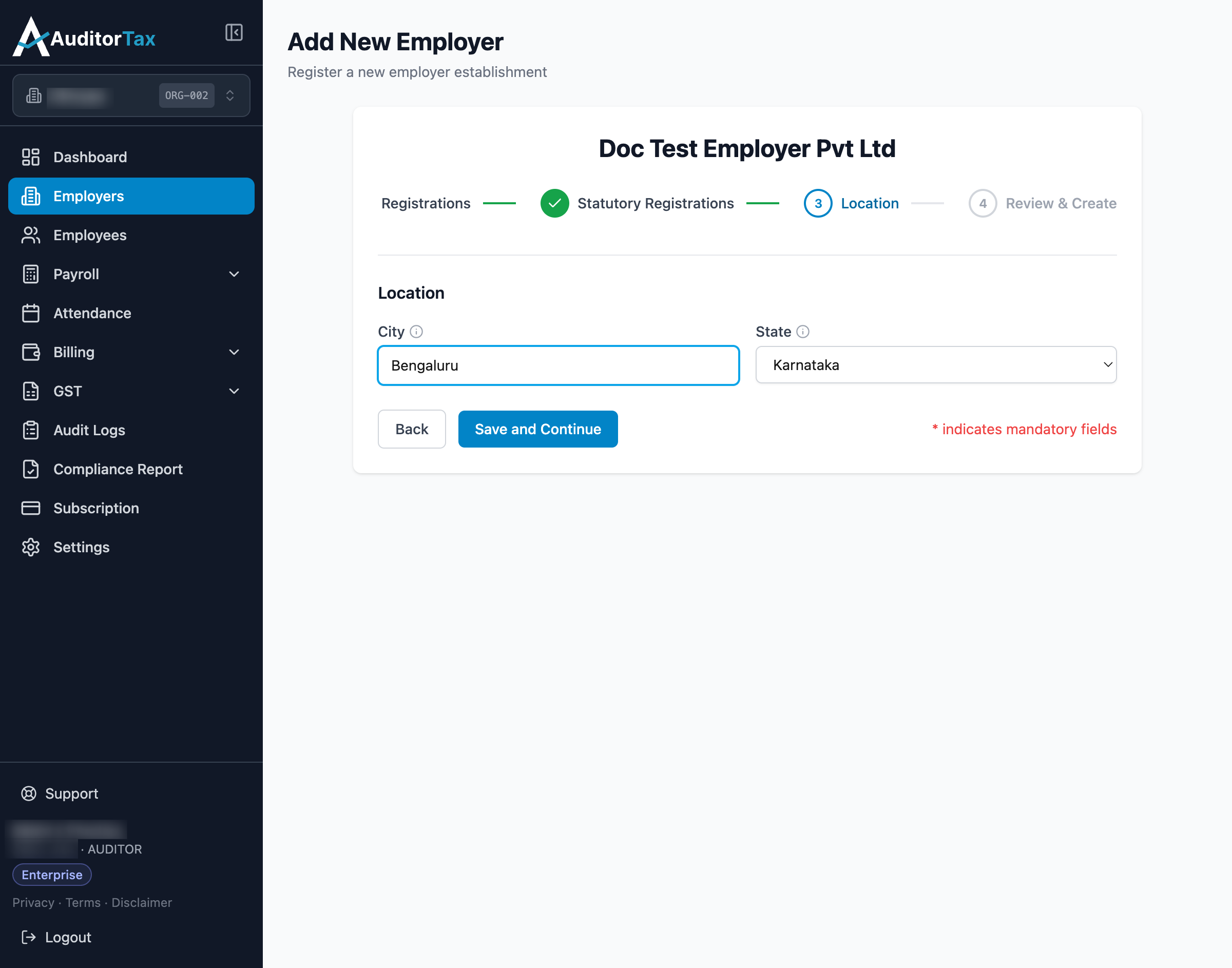
7. Enter the establishment’s city and state
Section titled “7. Enter the establishment’s city and state”These are used for address records. Note this state field is separate from “PT State” on the previous step — PT State controls which state’s Professional Tax slabs apply, and can differ from the physical location.
8. Click “Save and Continue”
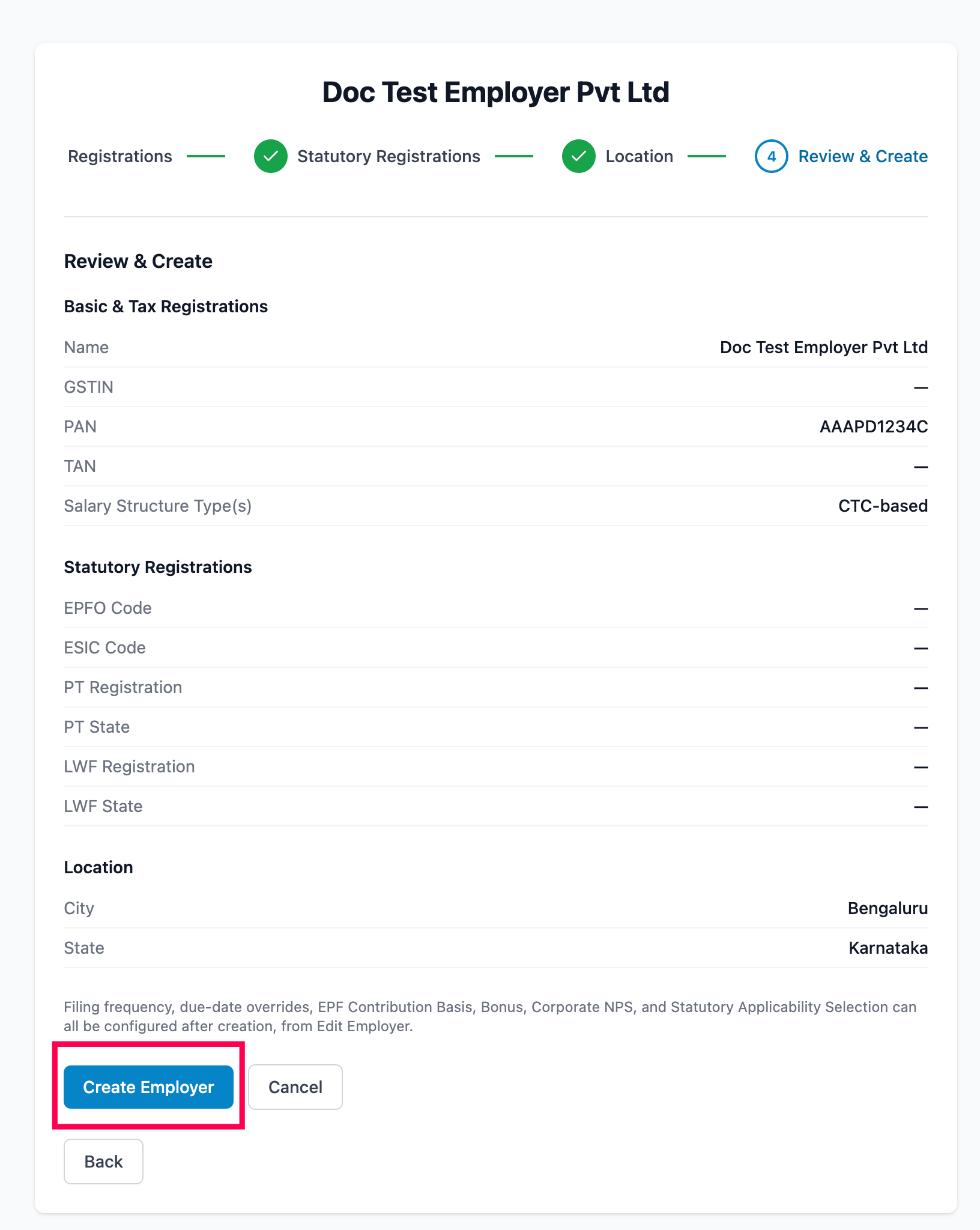
Section titled “8. Click “Save and Continue””This moves you to the Review & Create step, which summarizes everything entered across the previous steps. It also notes that filing frequency, due-date overrides, EPF contribution basis, bonus, Corporate NPS, and statutory applicability can all be configured afterward from Edit Employer.
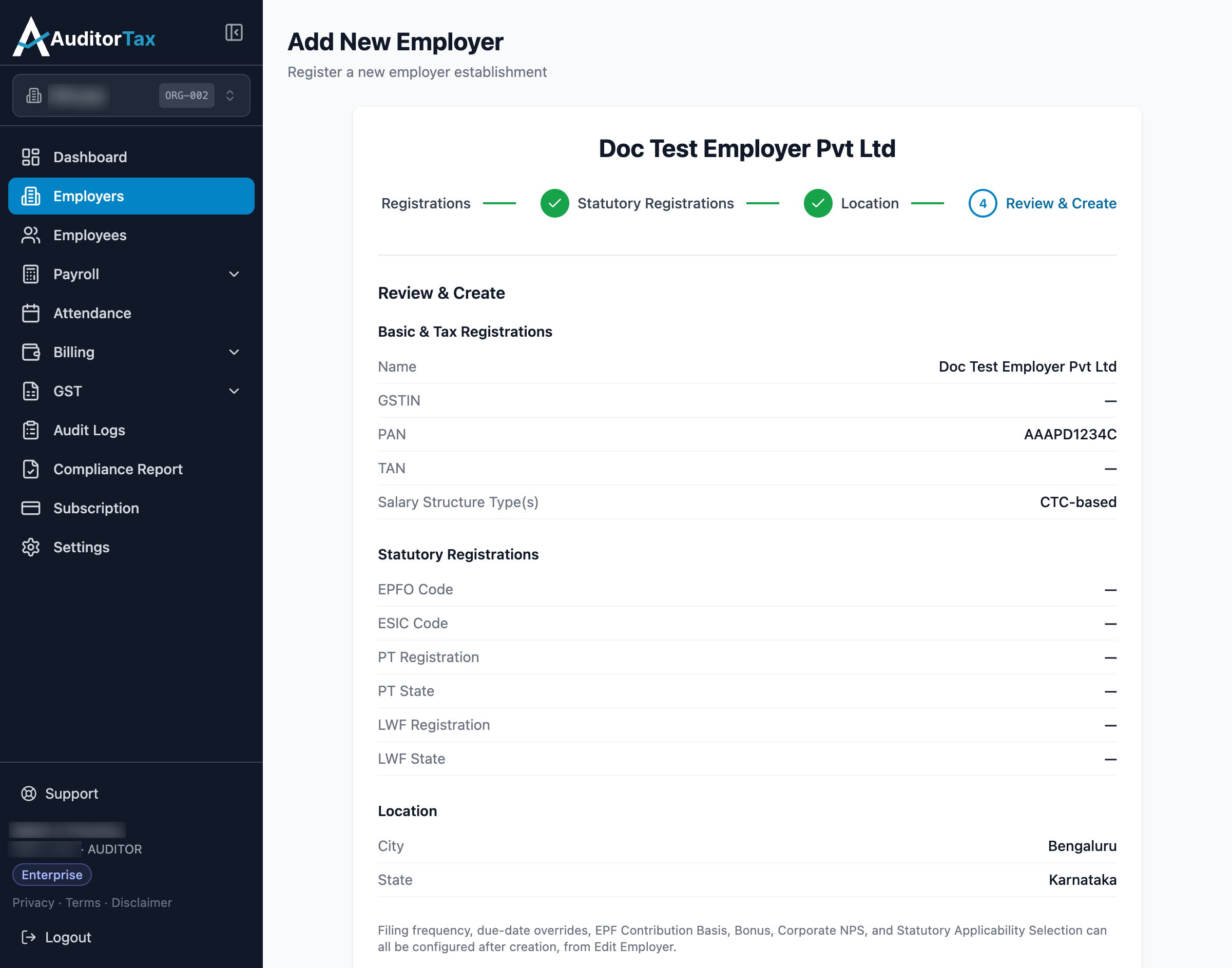
9. Click “Create Employer”
Section titled “9. Click “Create Employer””This saves the new employer.
Outcome: you’re returned to the Employers list, and the new employer
appears immediately with an auto-generated code (e.g. ORG-003) and
status ACTIVE.