Editing an Employer
Editing an Employer
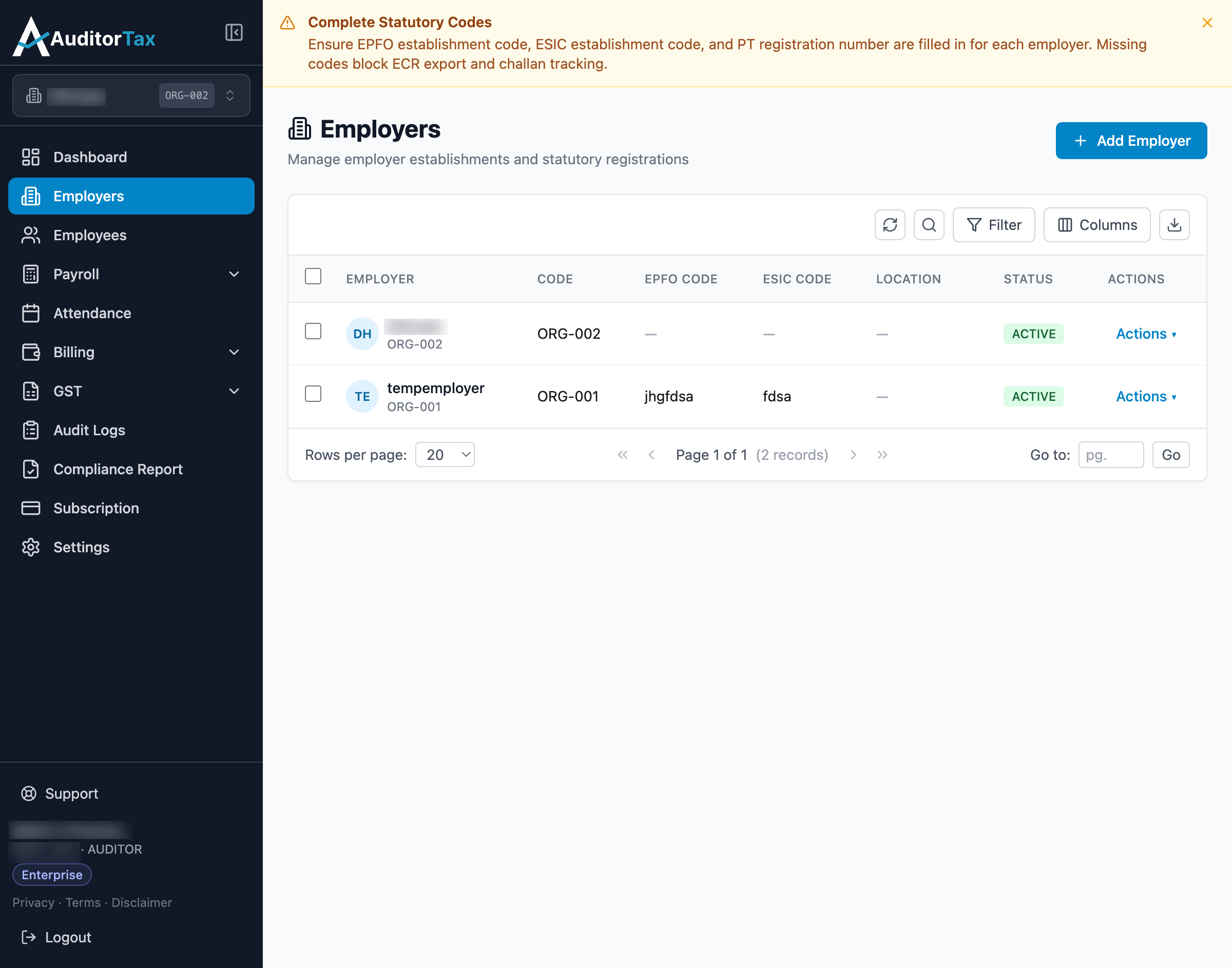
Section titled “Editing an Employer”1. Click “Employers” in the left sidebar
Section titled “1. Click “Employers” in the left sidebar”This opens the Employers list.
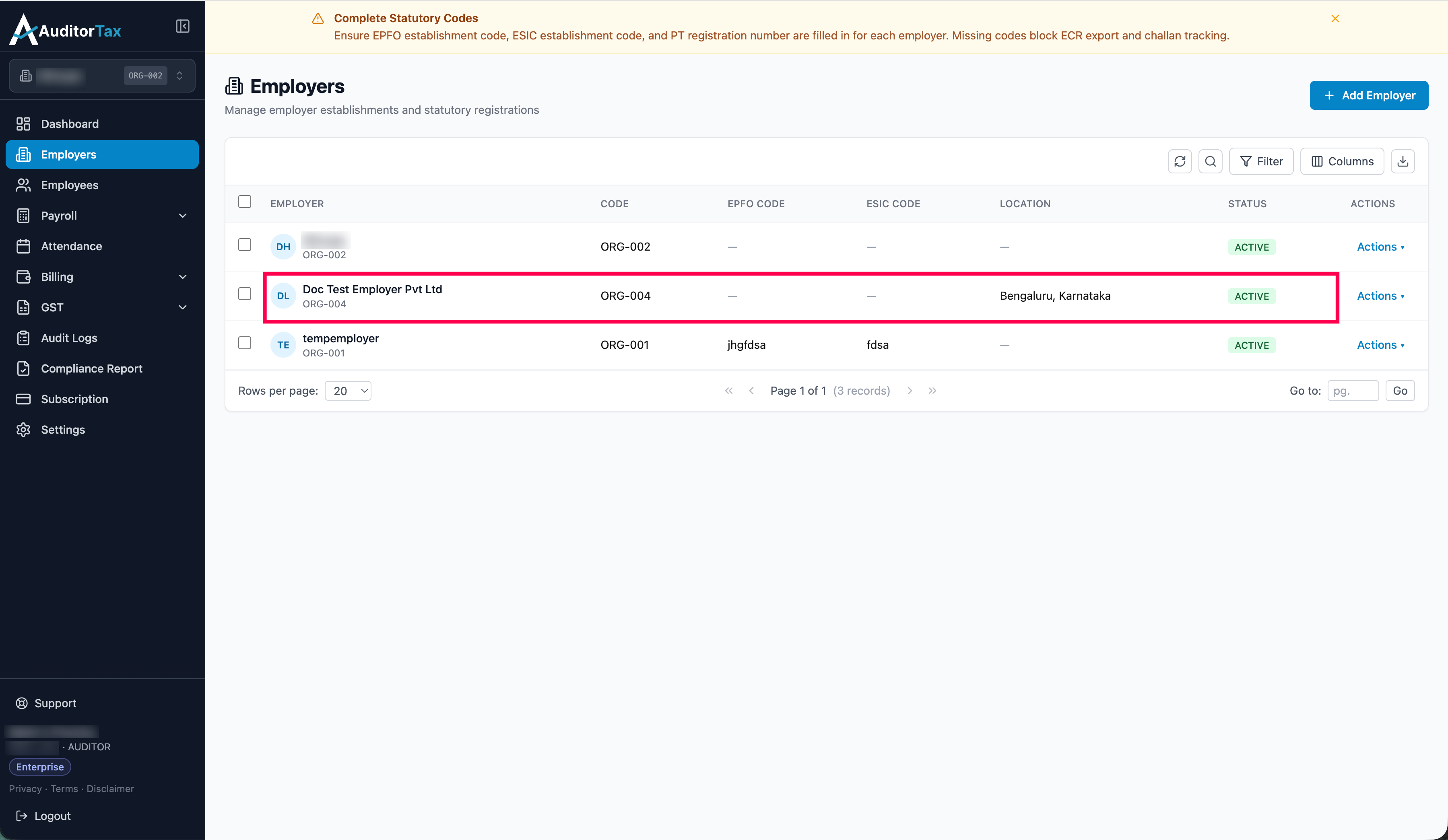
2. Click the employer’s name instead
Section titled “2. Click the employer’s name instead”Clicking anywhere else on the row (not the Actions dropdown) opens the employer’s detail page.
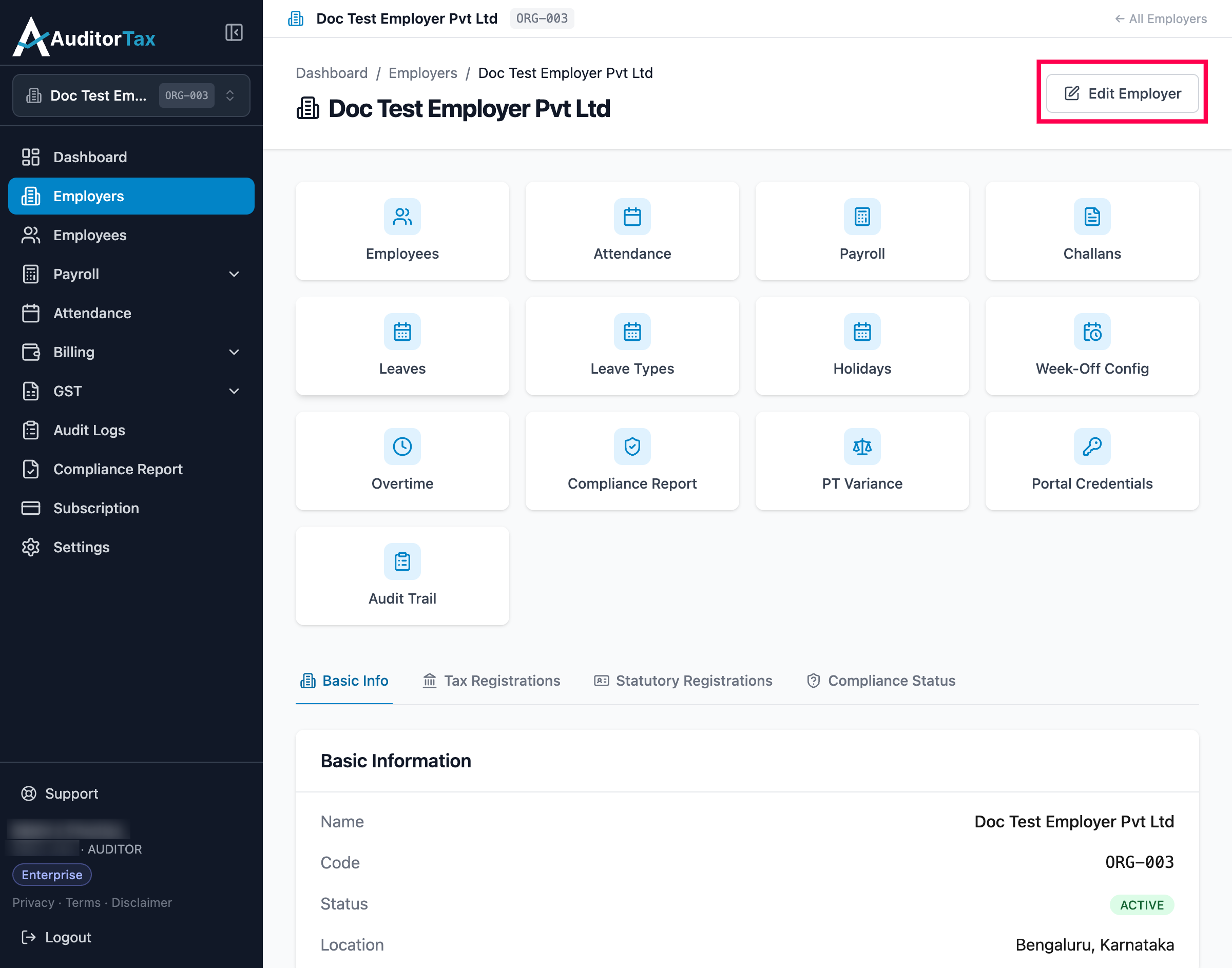
3. Click “Edit Employer”
Section titled “3. Click “Edit Employer””It’s in the top right of the employer’s detail page.
4. Change the field you need to update
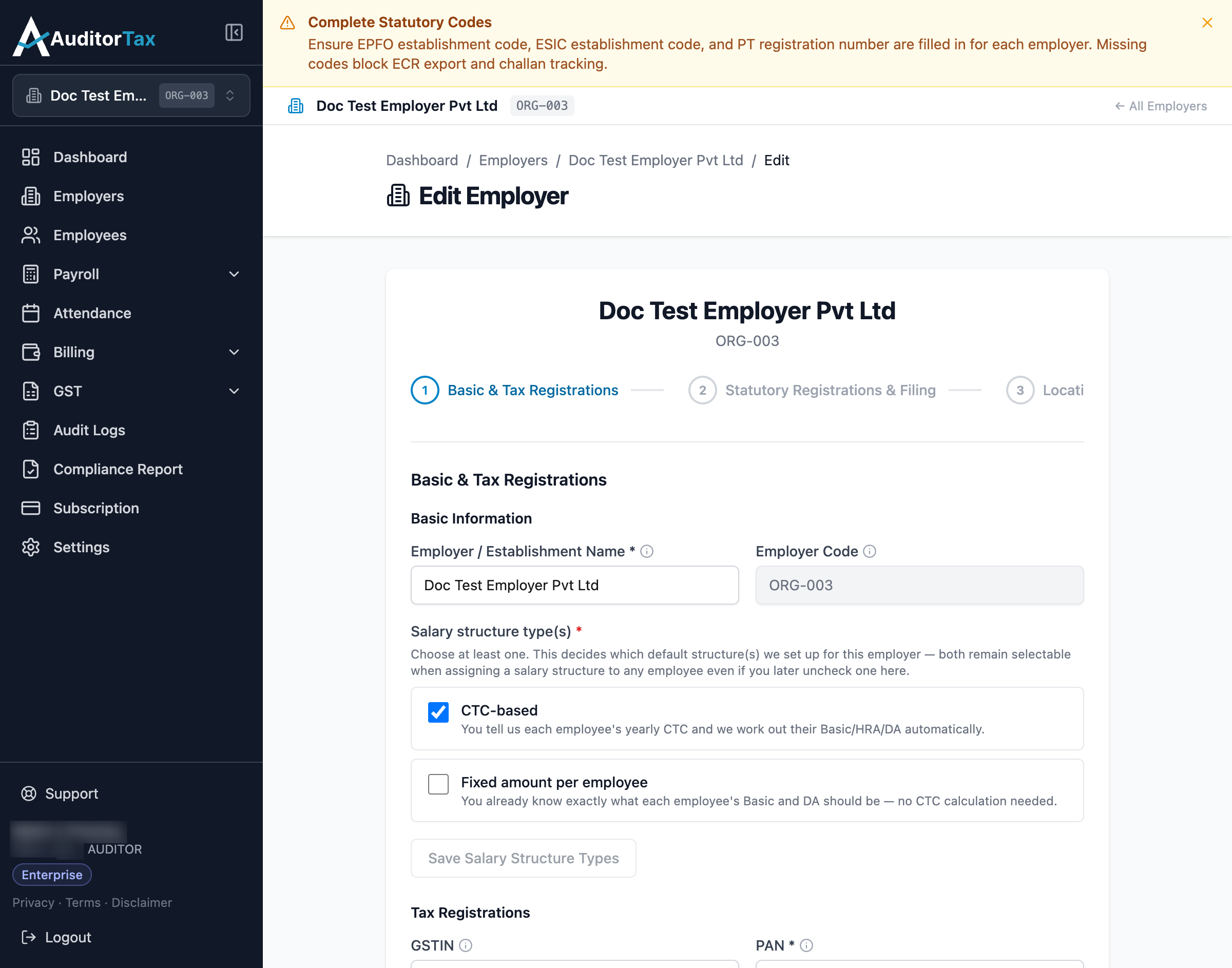
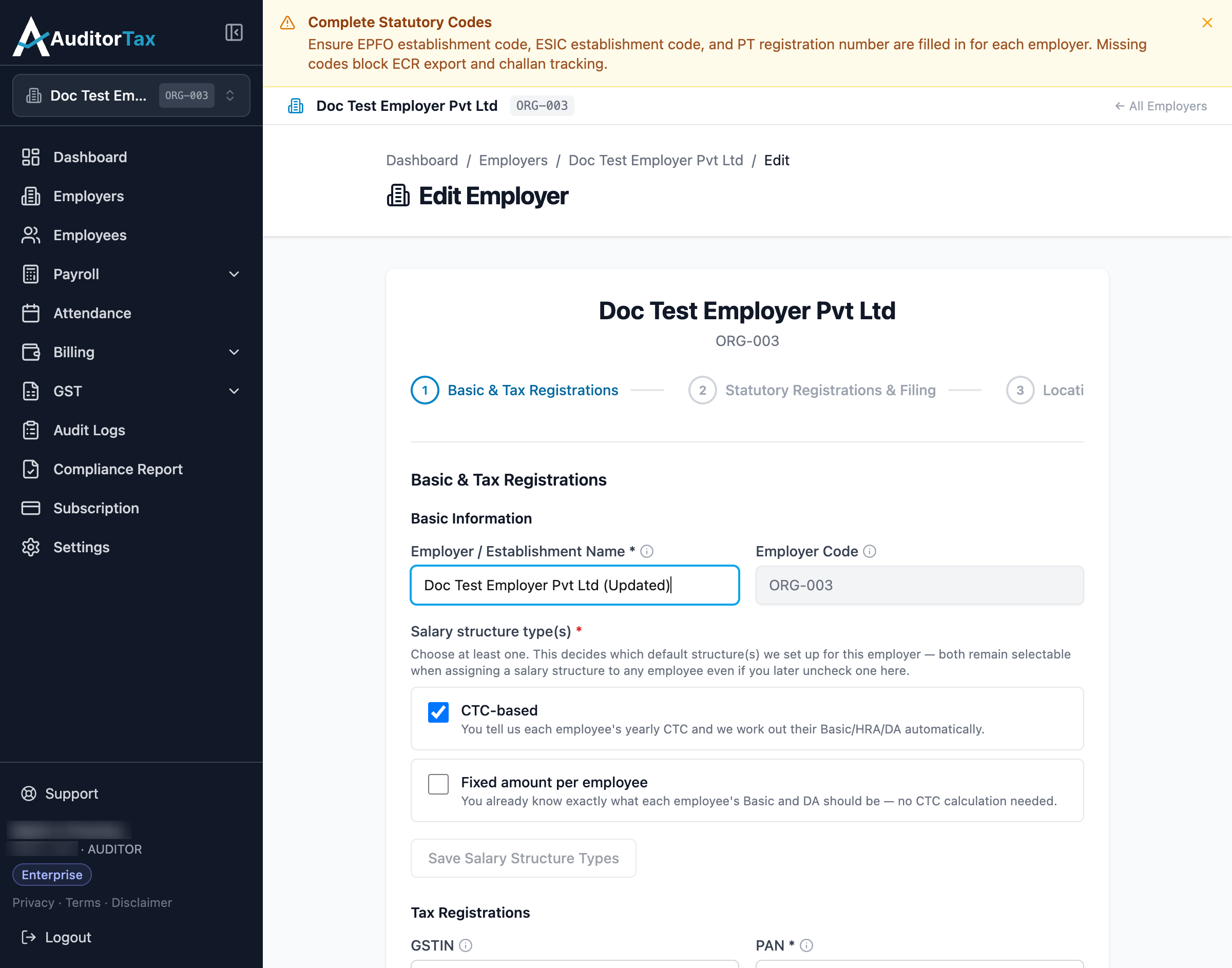
Section titled “4. Change the field you need to update”Editing reuses the same wizard as creating an employer, pre-filled with the current values, plus one extra step (Compliance Features) not present when creating. The employer’s auto-generated code is shown but locked — it can’t be changed. Here, the establishment name is updated.
5. Click “Save and Continue” through each remaining step
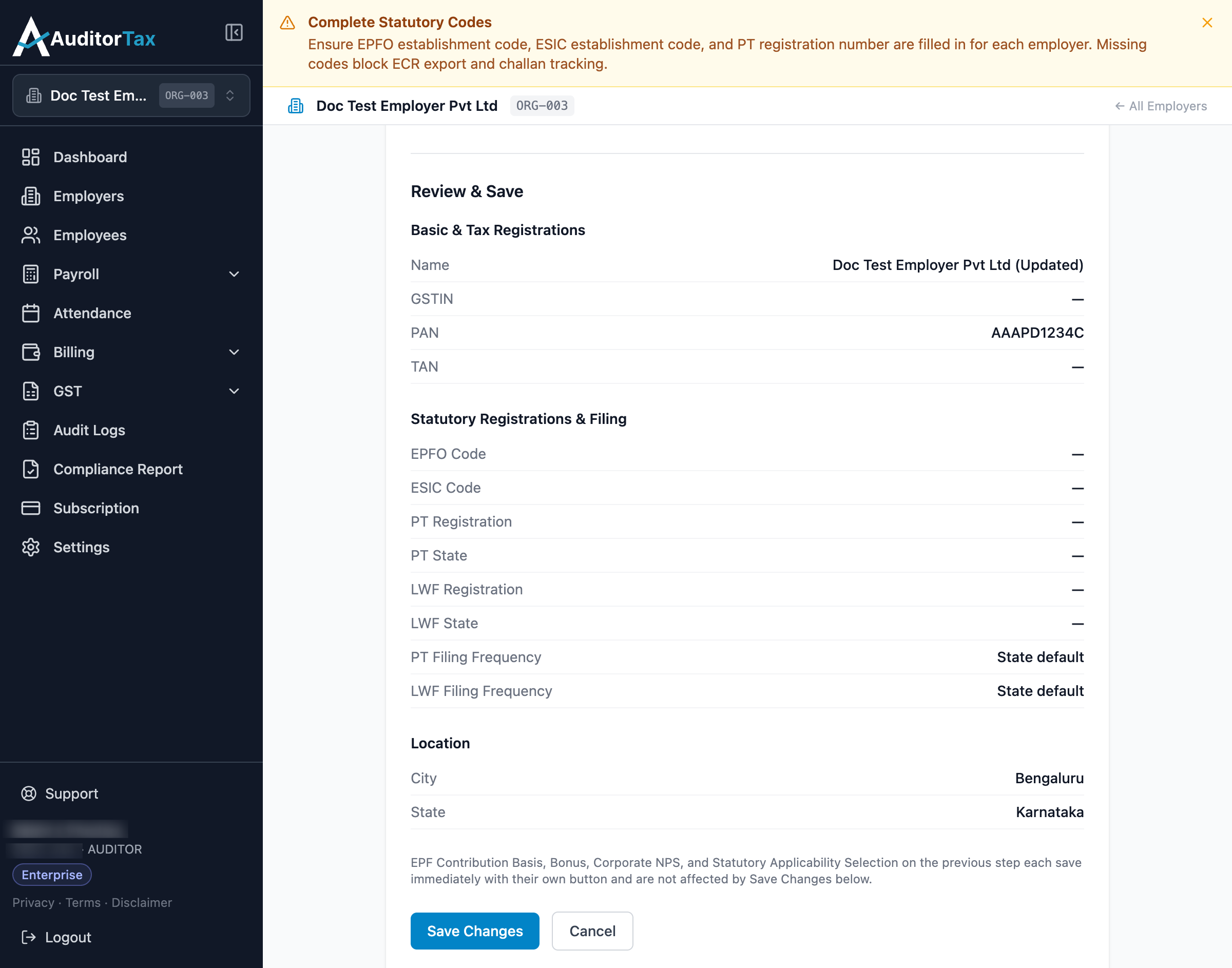
Section titled “5. Click “Save and Continue” through each remaining step”Statutory Registrations, Location, and Compliance Features follow, pre-filled with the employer’s existing values. Click through each (changing anything else you need to) until you reach Review & Save, which shows the change you made.
6. Click “Save Changes”
Section titled “6. Click “Save Changes””This commits every field from the wizard’s steps at once.
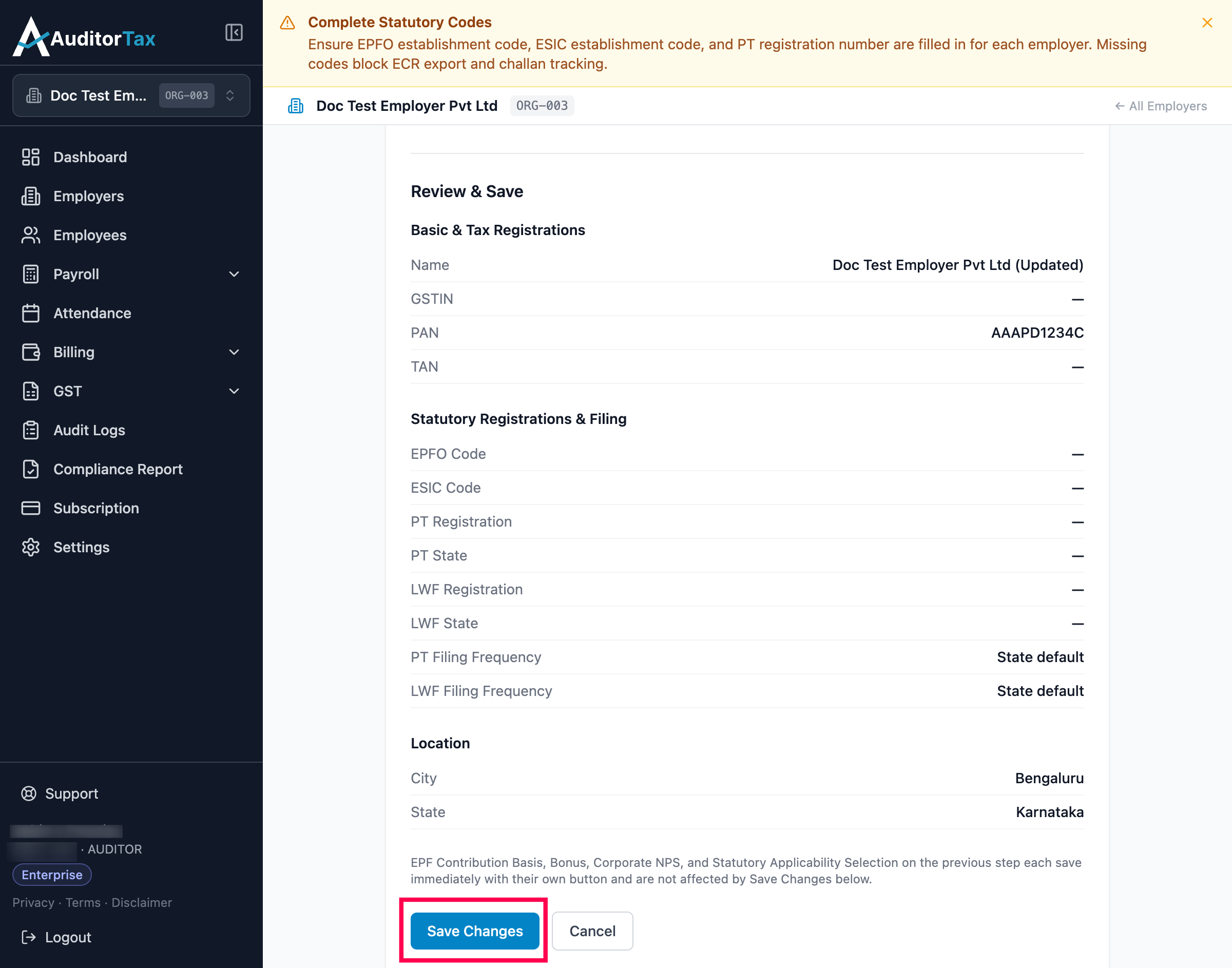
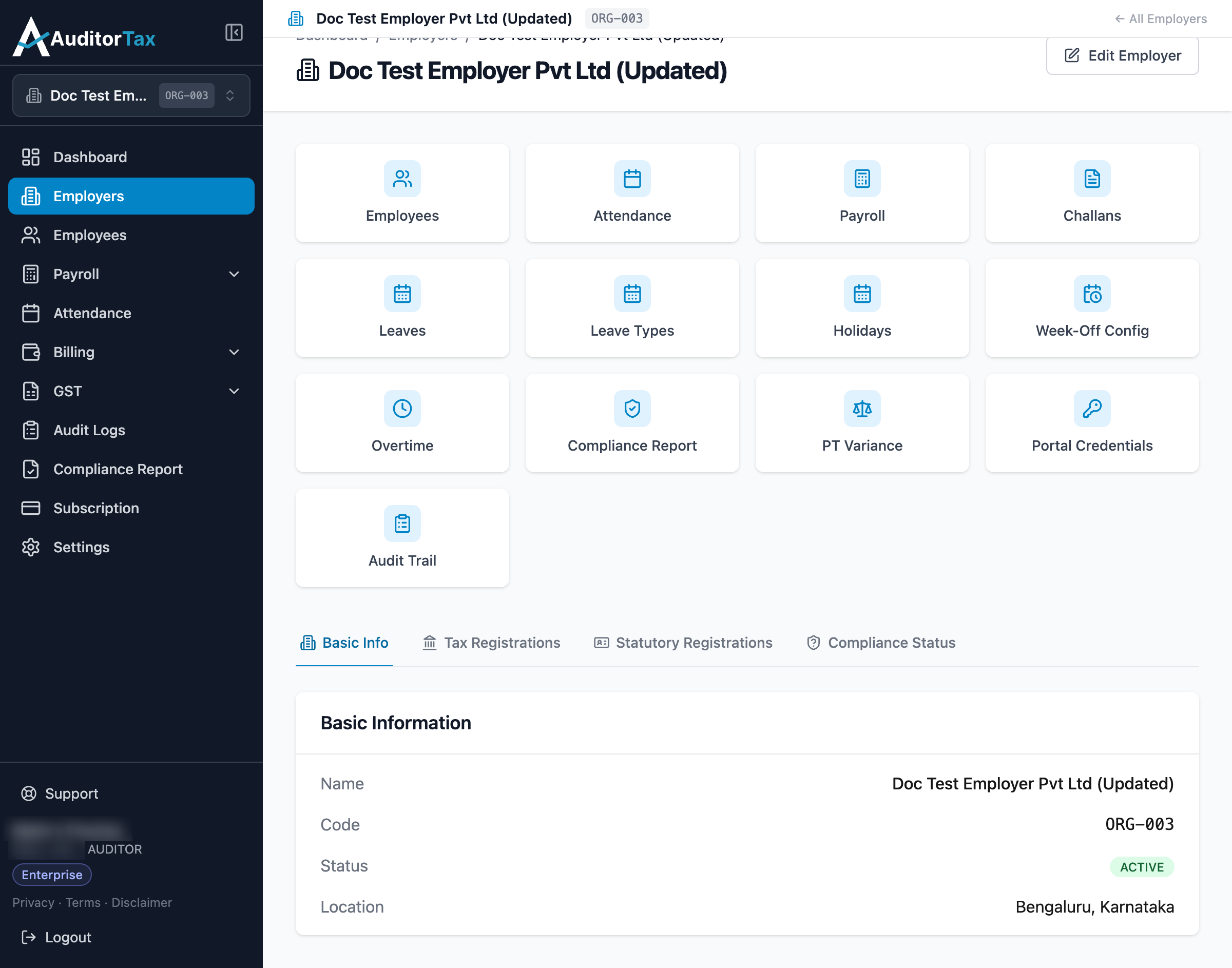
Outcome: you’re returned to the employer’s detail page, now showing the updated name.